Facebook’s Quiet Mode lets you temporarily pause most Facebook notifications, set a daily schedule, and see a reminder when you open the app during a quiet period. You can turn it on manually from the Facebook mobile app or schedule it for specific days and times; menu names may vary slightly by device, app version, and account.
Key Takeaways
- Open Facebook’s Settings & privacy, then find Your time on Facebook and Quiet mode.
- Use Turn on for an immediate break, or create a scheduled quiet period.
- Quiet Mode mainly pauses notifications; it doesn’t automatically log you out or block Facebook access.
- Some urgent, security, account, or system notifications may still appear.
- Quiet Mode is generally a mobile-app feature, so desktop Facebook may show different controls.
- If you can’t find it, update Facebook and search Settings for quiet, notifications, or time.
What Quiet Mode Does
Quiet Mode is Facebook’s built-in notification break. When it’s active, Facebook suppresses many push notifications so your phone is less likely to interrupt work, sleep, school, travel, meals, or personal time. Facebook may also display a reminder showing that Quiet Mode is running.
The feature is designed to reduce interruptions, not to remove your account or hide Facebook completely. You can usually still open the app, read posts, watch videos, send messages, comment, and use other features while the quiet period is active. In other words, Quiet Mode changes how Facebook alerts you rather than placing your profile in an invisible or offline state.
The exact behavior can depend on the current app release:
- Push alerts may be paused.
- Notification badges may be delayed or reduced.
- In-app notifications may still be visible when you open Facebook.
- Messenger alerts may have separate controls.
- Security notices may continue to appear.
- Scheduled reminders may be shown when the period ends.
Don’t confuse Quiet Mode with these other settings:
| Facebook feature | Main purpose | Does it pause Facebook notifications? |
|---|---|---|
| Quiet Mode | Temporarily reduce interruptions | Usually, for covered notifications |
| Notification settings | Choose which alerts Facebook sends | Yes, selectively |
| Do Not Disturb | Silence the whole phone or selected apps | Yes, according to phone rules |
| Active Status | Control whether others see you online | No |
| Snooze | Temporarily hide posts from a person, Page, or group | No |
| Deactivate account | Temporarily remove your Facebook presence | Not merely; it affects account access |
Important distinction: Quiet Mode isn’t a privacy shield. Friends may still see your comments, messages, activity, or online status according to your normal privacy and Active Status settings.
How to Use Quiet Mode
The following steps describe the usual Facebook app path on iPhone and Android. Facebook frequently changes its interface, so a label may appear under a slightly different name.
Turn Quiet Mode on now
- Open the Facebook app.
- Tap your profile picture or the menu button. On many Android phones, this is near the upper-right corner; on iPhone, it may appear in the lower-right corner.
- Tap Settings & privacy.
- Select Your time on Facebook.
- Look for Quiet mode.
- Tap Turn on or the switch beside Quiet Mode.
- Choose how long you want the break to last, if Facebook presents duration choices.
- Confirm the setting.
Some versions put Quiet Mode inside a broader screen called Manage your time or Time spent on Facebook. If you see a dashboard with daily usage information, scroll through that screen for Quiet Mode.
Stop it manually
To end an active period:
- Open Facebook and go to Settings & privacy.
- Return to Your time on Facebook.
- Open Quiet mode.
- Tap Turn off, End quiet mode, or the equivalent control.
- Confirm if Facebook asks.
If a countdown is displayed, you may be able to tap it directly and select End now. Ending Quiet Mode doesn’t delete any notifications that Facebook already withheld; some may appear afterward, depending on your notification settings.
Use the Settings search
When the normal path is difficult to find, use Facebook’s internal search:
- Open the menu.
- Tap the settings search field, if available.
- Enter Quiet Mode.
- Try quiet mode, time on Facebook, or notifications if the first search produces no result.
- Open the matching setting rather than a general help article.
Pro Tip: Take a screenshot of the menu path after finding Quiet Mode. Facebook can move the control after an app redesign, and the screenshot can help you locate the same area later without changing any settings accidentally.
How to Schedule Quiet Mode
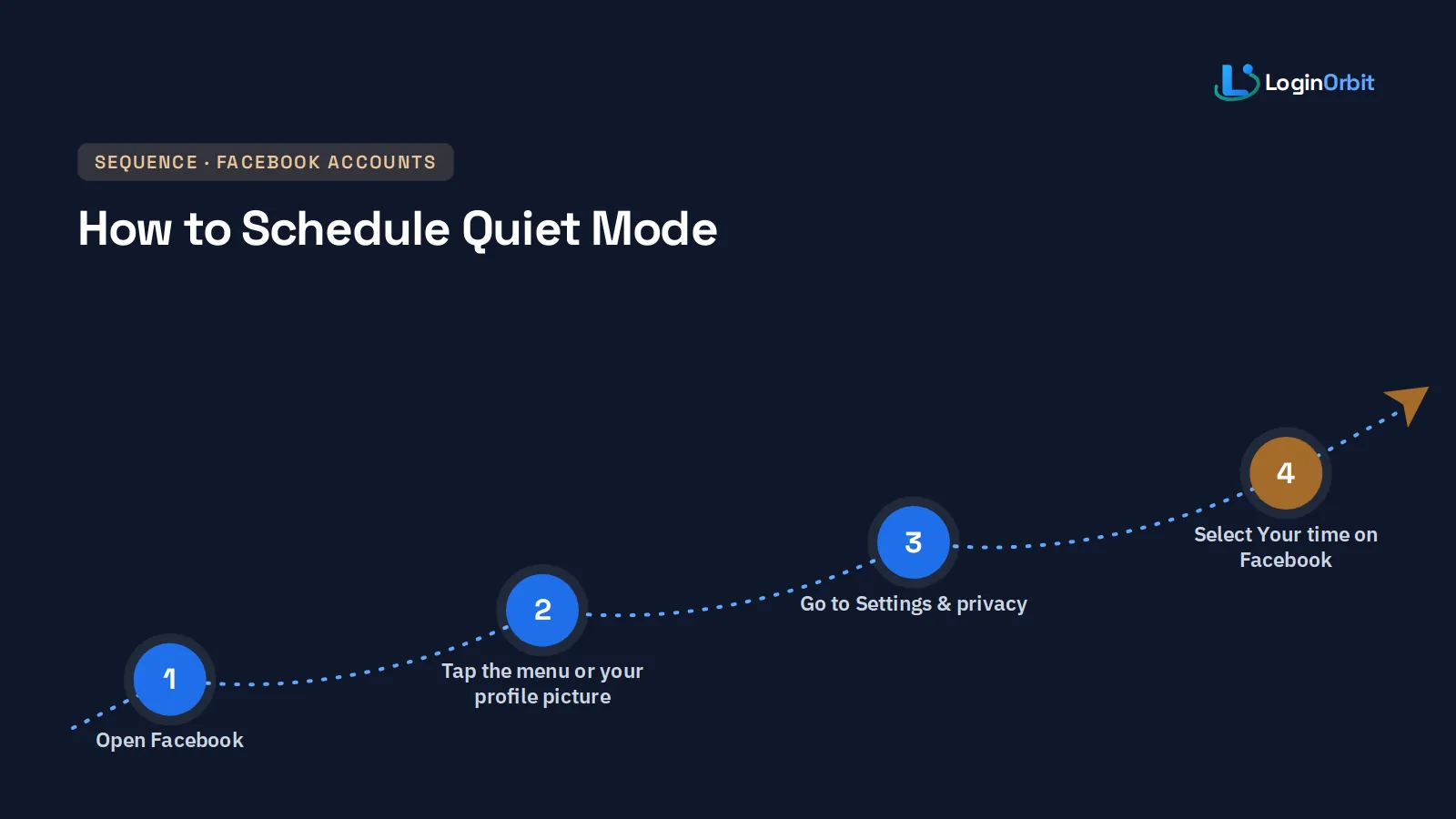
Scheduling is useful when you want a repeatable daily routine instead of manually starting a break. For example, you might schedule Quiet Mode during overnight hours, a regular study block, or a recurring work period.
The common scheduling process is:
- Open Facebook.
- Tap the menu or your profile picture.
- Go to Settings & privacy.
- Select Your time on Facebook.
- Tap Quiet mode.
- Choose Schedule or Set a schedule.
- Select the start time.
- Select the end time.
- Choose the days on which it should repeat.
- Save the schedule.
Some accounts display a single repeating schedule. Others may let you choose individual days. If you need different times for weekdays and weekends, create separate schedules only if Facebook provides that option. Otherwise, use the closest recurring schedule and change it manually when necessary.
| Scheduling choice | Best use | What to check |
|---|---|---|
| Manual activation | Travel, meetings, appointments | Remember to end it afterward |
| Same time every day | Sleep or a fixed routine | Check weekend behavior |
| Selected weekdays | School or work blocks | Confirm each chosen day |
| One-time duration | A movie, event, or flight | Verify the end time |
| Phone-wide Do Not Disturb | Silence several apps | Review emergency exceptions |
A schedule usually repeats according to the phone’s current time zone and clock. If you travel, use automatic date and time settings or review the schedule after landing. Daylight-saving changes can also make a formerly convenient schedule appear one hour early or late if the phone’s time settings are incorrect.
Quiet Mode doesn’t necessarily keep Facebook from using all background activity, and it doesn’t guarantee that every notification is erased. It’s primarily an interruption-management setting.
What Happens During Quiet Mode?
During an active quiet period, Facebook generally reduces or pauses the alerts covered by the feature. The app may show a notice explaining that Quiet Mode is active. You can often continue using Facebook normally, which means the feature is different from a full app lock.
The experience may include:
- No ordinary push notification banners for likes, comments, or other activity.
- Fewer sounds and vibrations from Facebook.
- A visible Quiet Mode reminder inside the app.
- Notifications becoming available after the period ends.
- Continued display of some account, login, safety, or service notices.
- Separate behavior for Messenger notifications.
The word “most” matters. Facebook can change which notifications are suppressed, and phone-level settings can override or supplement Facebook’s own controls. For instance, iOS Notification Summary, Android notification channels, battery restrictions, and system Do Not Disturb settings may affect what you see.
Will Facebook block access?
Usually, no. Quiet Mode doesn’t function as a strict parental-control lock. If you open Facebook while it’s active, you may still be able to browse. The reminder is intended to help you notice that you chose a break, not to physically prevent access.
If your goal is to stop yourself from opening Facebook, combine Quiet Mode with a device feature:
- iPhone Screen Time can limit app use.
- Android Digital Wellbeing can set app timers.
- iPhone Focus can silence selected notifications.
- Android Do Not Disturb can control sounds and interruptions.
- Removing Facebook from the home screen can add useful friction.
These phone settings are separate from Facebook and may require their own schedules.
What about Messenger?
Messenger can have its own notification controls, muted chats, and quiet periods. Facebook Quiet Mode may not silence every Messenger alert in every app version, especially if Messenger is installed separately. Review Messenger’s notification settings if messages continue appearing.
For notification behavior, Facebook’s own notification help guidance is the most relevant reference because the available categories and controls can change with the app: Facebook notification settings.
Quiet Mode Versus Other Controls
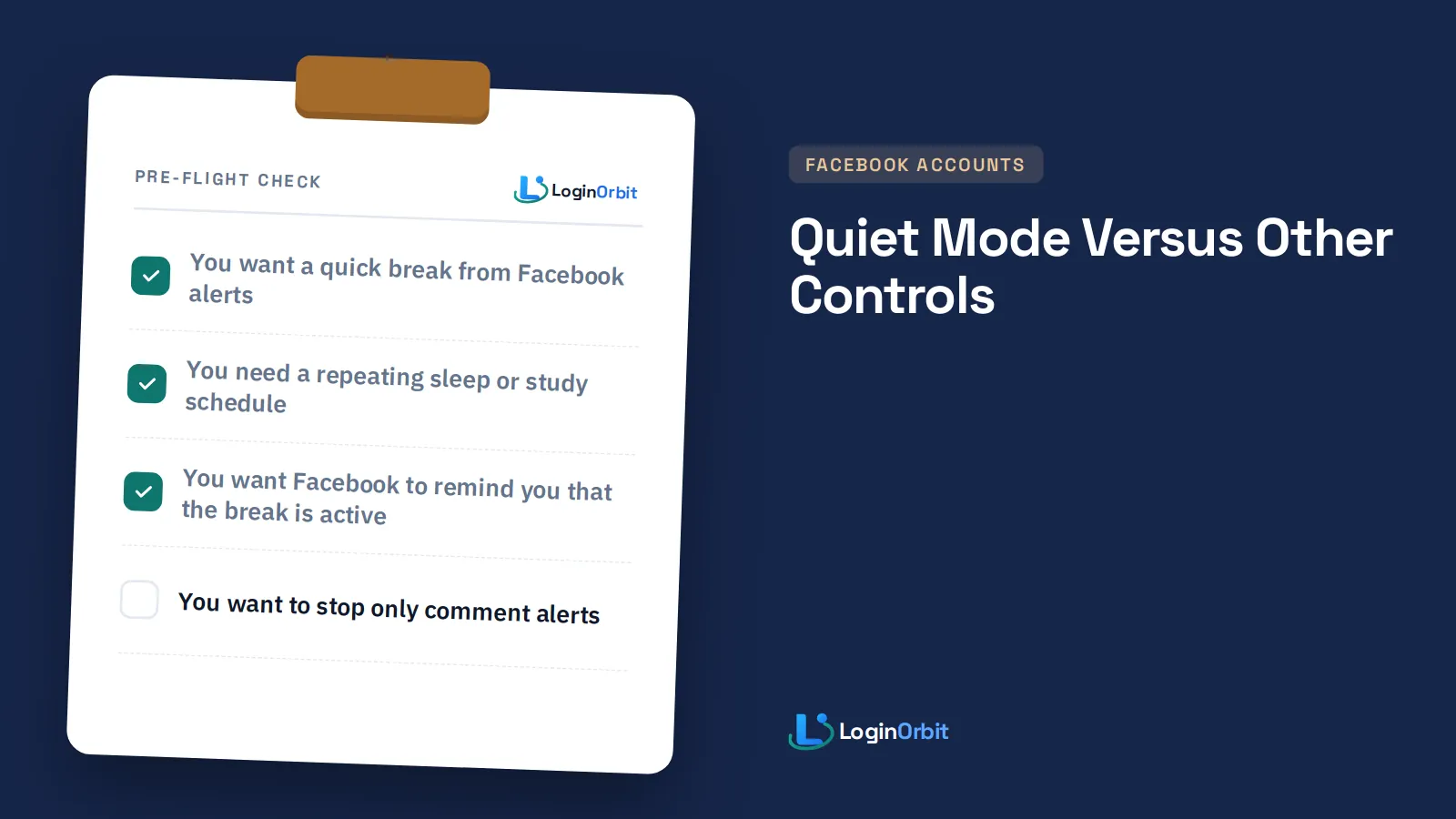
Choosing the right tool prevents frustration. Quiet Mode is best when you want a temporary, broad reduction in Facebook interruptions. It isn’t always the best answer when you need to silence one person, hide a particular type of alert, or prevent all phone activity.
Choose Quiet Mode when
- You want a quick break from Facebook alerts.
- You need a repeating sleep or study schedule.
- You still want to open Facebook if something important requires attention.
- You want Facebook to remind you that the break is active.
Choose notification settings when
- You want to stop only comment alerts.
- You want to keep messages but remove video recommendations.
- You want to control email, text, push, or in-app alerts separately.
- You want a long-term notification preference rather than a temporary pause.
Choose Snooze when
- You need to hide posts from a specific friend for a limited period.
- A group or Page is producing too much feed content.
- Your problem is what appears in the feed, not what your phone announces.
Choose device controls when
- You want to silence Facebook along with Instagram, TikTok, email, and games.
- You need an app-use limit rather than notification suppression.
- You want a strict barrier during sleep, work, or homework.
| Your goal | Best first setting | Why |
|---|---|---|
| Stop Facebook sounds during dinner | Quiet Mode | Fast temporary pause |
| Sleep without social alerts | Quiet Mode plus phone Do Not Disturb | Covers Facebook and other apps |
| Stop one group’s posts | Group notification settings or Snooze | Targets the source |
| Prevent opening Facebook | Screen Time or Digital Wellbeing | Adds an app-use restriction |
| Hide online status | Active Status | Controls presence, not alerts |
| Keep messages but stop reactions | Notification categories | More precise control |
Warning: Don’t assume Quiet Mode protects you from every alert. If an important notification must reach you, check your phone’s Facebook, Messenger, and system notification settings before relying on the feature.
Troubleshooting Missing Quiet Mode
Quiet Mode may be absent for several ordinary reasons. Facebook tests features, changes labels, and releases interface updates at different times. The feature may also be available in one app but not another.
Try these fixes in order:
- Update Facebook through the Apple App Store or Google Play.
- Force-close and reopen the app.
- Sign out and sign back in.
- Search Settings for quiet, time, and notifications.
- Check Your time on Facebook rather than general notification settings.
- Restart the phone.
- Confirm that you’re using the official Facebook mobile app.
- Test the setting on Wi-Fi and mobile data.
- Clear the Facebook cache on Android, if appropriate.
- Reinstall the app only after confirming you know your login details.
On Android, cache controls differ by manufacturer, but they’re often found under Settings > Apps > Facebook > Storage. On iPhone, there’s usually no equivalent general cache button; deleting and reinstalling the app may refresh local data.
If the switch won’t save
A schedule may fail to save because of an outdated app, a temporary service problem, incorrect phone time, or a connection interruption. Set the phone to automatic date and time, then try creating a short test schedule. If the test works, replace it with your preferred hours.
If notifications still appear
Identify which app produced the alert. A notification labeled Facebook may come from the Facebook app, Messenger, Meta Business Suite, a browser, or the phone’s system. Then check:
- Facebook push notification settings.
- Messenger conversation and call alerts.
- Browser notifications for facebook.com.
- Android notification channels.
- iPhone Focus and Notification Summary.
- Wearable-device notification mirroring.
- Email or text alerts that Quiet Mode may not cover.
Pro Tip: Read the notification’s app label before changing settings. Silencing Facebook won’t silence a Messenger alert if Messenger is the actual sender.
Privacy and Account Effects
Quiet Mode doesn’t change the audience for your posts or profile. It doesn’t make you anonymous, hide old comments, remove your name from search, or prevent Facebook from recording activity associated with your account.
It also doesn’t necessarily change Active Status. If you want people to stop seeing when you’re online, adjust Active Status separately. Turning off Active Status can affect what you see about other people, depending on Facebook’s current design.
Quiet Mode also does not:
- Delete notifications permanently.
- Delete messages or comments.
- Stop friend requests.
- Prevent someone from tagging you.
- Block Facebook ads.
- Stop all email communications.
- Disable account-security notices.
- Change Messenger read receipts.
- Prevent access through another browser or device.
If you share a phone with someone, remember that Quiet Mode is an account and app setting, not a private lock screen. Anyone who can open your logged-in Facebook account may be able to inspect or change the setting.
For stronger privacy, review Privacy Checkup, login alerts, two-factor authentication, app permissions, and audience controls separately. Quiet Mode should be treated as a convenience feature, not a security feature.
A Practical Setup Plan
A simple setup can make Quiet Mode more effective without requiring constant adjustments. Start with the period when interruptions cause the most trouble, then add supporting phone controls only if needed.
For sleep
- Set Quiet Mode for your normal bedtime window.
- Enable phone Do Not Disturb for other apps.
- Check Messenger separately.
- Allow emergency contacts through the phone’s system settings if appropriate.
- Review the schedule after traveling across time zones.
For work or study
- Use a weekday schedule.
- Add a Facebook app timer if browsing is the bigger problem.
- Keep calls and calendar reminders available through phone settings.
- Turn off unnecessary video, live, and group alerts.
- End the schedule when your workday changes.
For short events
- Turn on Quiet Mode manually.
- Choose a duration that extends slightly beyond the event.
- Avoid changing permanent notification preferences for a one-time need.
- Confirm that wearable alerts are also covered.
| Situation | Facebook setting | Optional phone setting |
|---|---|---|
| Overnight sleep | Scheduled Quiet Mode | Do Not Disturb |
| Two-hour class | Manual Quiet Mode | Focus or app timer |
| Weekend away | Scheduled or manual Quiet Mode | Low-notification Focus |
| Family event | Manual Quiet Mode | Silence social apps |
| Focused writing | Quiet Mode plus notification categories | Screen Time or Digital Wellbeing |
Review the result after one or two days. If you still receive interruptions, identify their source instead of repeatedly toggling Quiet Mode. The most effective setup may combine Facebook’s setting with Messenger controls and the phone’s notification system.
Related guides
- How scammers hack Facebook accounts
- How to Set Up a Facebook Account the Right Way
- How to Recover a Hacked Facebook Account Safely
Short on time? Our Facebook Account Setup & Security Service service takes care of the whole process.
Frequently Asked Questions
Is Quiet Mode the same as Do Not Disturb?
No. Quiet Mode is a Facebook feature that reduces Facebook interruptions. Do Not Disturb is a phone-level feature that can silence many apps, calls, and alerts according to your system settings. Using both may provide broader coverage, but their schedules and exceptions must be configured separately.
Can I still use Facebook in Quiet Mode?
Usually, yes. Quiet Mode normally pauses or reduces notifications rather than locking the app. You can generally browse, post, comment, and message while it’s active. If you need to prevent access, use iPhone Screen Time, Android Digital Wellbeing, or another device-level app restriction.
Does Quiet Mode stop Messenger messages?
Not always. Messenger may have separate notification behavior, especially when it’s installed as its own app. If message alerts continue, open Messenger’s notification settings and review chat, call, sound, and vibration controls independently from Facebook Quiet Mode.
Why can’t I find Quiet Mode on Facebook?
The feature may have moved, been renamed, or not be available in your current app version or account interface. Update Facebook, search Settings for “quiet” and “time,” and look under Your time on Facebook. If it remains unavailable, use Facebook notification settings or your phone’s Do Not Disturb controls.
Will people know I turned on Quiet Mode?
Quiet Mode is primarily a notification setting and doesn’t normally send friends a public announcement. However, it doesn’t automatically hide your online status or prevent messages. Adjust Active Status and Messenger settings separately if you want people to see less availability information.
Does Quiet Mode delete missed notifications?
No. It generally delays, suppresses, or reduces alerts; it doesn’t delete your account activity. When Quiet Mode ends, some notifications may appear, while others may remain available only inside Facebook. The exact result depends on Facebook’s current notification behavior and your phone settings.
What to do next
Set a short test period today, then check whether Facebook, Messenger, or your phone produced any remaining alerts. Once you identify the correct source, create a recurring Quiet Mode schedule for the part of your day you most want to protect, and add a device-level limit only if notifications aren’t the main distraction.