

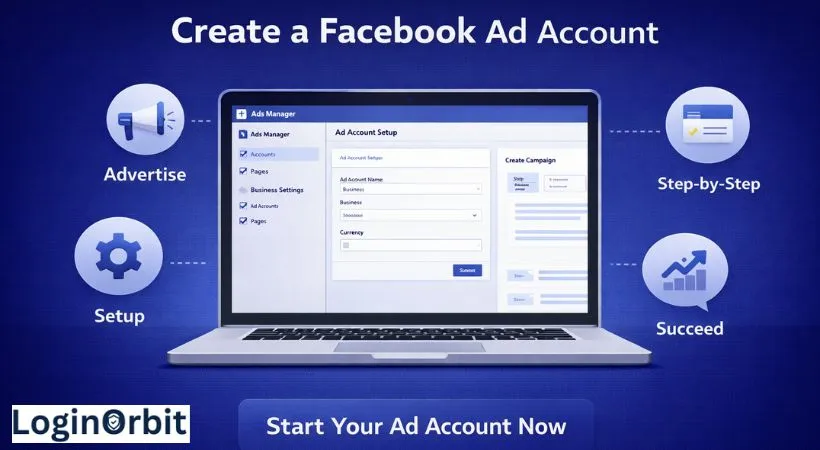
Thinking about running Facebook ads but not sure where to begin? Setting up a Facebook Ad Account is your first move to connect with a huge audience.
It’s easier than it sounds. Once you have an account, you get tools to reach more people and boost your sales. No confusing tech talk here—just simple steps you can follow right now.
Start with Facebook Business Manager
Facebook Business Manager keeps everything neat and tidy. Think of it as your digital office where you control your ads, pages, and team members.
Why use it? Because it:
- Keeps your personal Facebook separate from your business stuff
- Lets you manage multiple pages and ad accounts all in one place
- Allows you to give your team the right access without sharing your personal login
How To Create Your Business Manager Account
- Go to business.facebook.com and click “Create Account.”
- Enter your business name, your name, and a business email (not your personal one).
- Fill in your business address, phone number, and website.
- Review everything, then hit “Submit.”

Add Your Facebook Page and Ad Account
Inside Business Manager, you’ll link your Facebook Page and Ad Account. This is how you run ads that represent your business.
- Add Page: If you own the page, select this option.
- Request Access: If someone else manages the page, ask for permission.
- Add Ad Account: If you have an ad account already, add it here. If not, create a new one.
Don’t forget to assign roles to your team. That way, everyone has just the right access.
Understanding Roles and Permissions
Not everyone needs full control. Here’s a quick rundown:
- Admin: Full access to everything.
- Editor: Can create and edit ads.
- Analyst: Can view reports only.
Be careful who you give Admin rights to. Keep your account safe and tidy by reviewing these regularly.
Creating Your Facebook Ad Account
Ready to get your ad account set up? Here’s the path:
- Log in to Facebook Business Manager.
- In the menu, click Accounts then Ad Accounts.
- Hit the “Add” button and choose “Create a New Ad Account.”
- Fill out the details: account name, time zone, and payment method.
Choosing The Right Account Type
Here’s the deal:
- Personal Ad Account: Good for small projects or personal brands. Easy to use but has lower spending limits.
- Business Manager Account: Best for companies with multiple ad accounts. Offers more control and higher spending limits.
- Agency Account: Designed for agencies managing many clients. Keeps everything separate and organized.
Entering Your Business Details
Take your time here. Accurate info helps Facebook verify your account and improves your ad results.
- Business Name: Use your official name, no nicknames.
- Business Address: Include full details for location targeting and billing.
- Phone Number: Use a number you check often.
- Website URL: Make sure it starts with http or https and works properly.
Setting Up Payment Methods
You can’t run ads without payment info. Facebook accepts credit cards, debit cards, and PayPal.
- Go to your Ads Manager and open “Payment Settings.”
- Click “Add Payment Method” and enter your details carefully.
- Set one payment method as primary — that’s the one Facebook charges first.
- You can also set spending limits to keep your budget in check.
Keeping Your Account Secure
Here’s what I always do to protect my ad account:
- Enable Two-Factor Authentication: Adds a code step after your password.
- Assign Roles Wisely: Only trusted people get admin access.
- Check Activity Regularly: Look for anything unusual in your account settings.
Linking Your Facebook Page
Your ads need to show under your Page’s name. Linking your Page is a must.
- Open Business Manager and go to Business Settings.
- Find “Accounts” and then “Pages.”
- Click “Add” and type your Page name or URL.
- Confirm the link (you need to be an admin of the Page).
After linking, assign roles for people managing the Page to keep things running smoothly.
Launching Your First Campaign
Here’s how to start your first Facebook ad campaign:
- Pick a clear goal: Do you want more website visits? More sales? Choose the right campaign objective.
- Define your audience: Target by location, age, gender, and interests. The more specific, the better.
- Set your budget and schedule: Decide daily or total spend, and when your ads run.
- Create your ad: Use clear images or videos, write short headlines, and add a strong call to action.
- Review everything: Preview your ad, fix errors, then hit publish.
FAQs
How Do I Create A Facebook Ad Account?
Log into Facebook, go to Business Manager, click “Create Account,” and follow the steps.
What Info Do I Need?
Your business name, your name, email, and payment details for running ads.
Can I Have Multiple Ad Accounts?
Yes. Facebook lets you manage different accounts for different businesses or campaigns.
How Do I Link My Facebook Page To My Ad Account?
In Business Manager, go to “Accounts” > “Pages,” then add your Page.
What Currency And Time Zone Should I Pick?
Choose based on where your business operates. This keeps billing and reporting correct.
Is It Free To Create A Facebook Ad Account?
Yes. You only pay when you run ads or boost posts.
Wrapping Up
Creating a Facebook Ad Account is straightforward. Follow these steps, stay organized, and keep your goals clear.
Start small. Learn as you go. Adjust your ads based on what works. Advertising on Facebook isn’t magic — it’s about steady effort and smart choices.


