
When facebook sound is not working, the usual causes are a muted video, phone, or browser. Tap the video once, then raise your device’s media volume. If other apps have sound, check Facebook’s video and browser settings next. If no app has sound, the problem is probably your phone, computer, Bluetooth connection, or speaker. The fastest check is to play a video on Facebook and then play one in another app. This comparison tells you whether Facebook is the problem or the whole device.
Why Facebook sound stops working
Start with the video’s speaker icon, then raise the device’s media volume while the video is playing. A phone’s ringtone volume can be high while media volume is muted. If sound returns after disconnecting Bluetooth, the audio was routed to the paired headphones, car, or speaker rather than the phone.
If only Facebook is silent, close and reopen the app or browser before changing settings. In a browser, check the tab’s mute control and Facebook’s sound permission; changing the permission is appropriate only if other sites play normally. Update the app if an update is available. When no app produces sound, test headphones if possible. If both the phone speaker and headphones remain silent, the problem is outside Facebook and may require device support.
| Cause | How common | How to confirm it | Fix it yourself? |
|---|---|---|---|
| Video is muted | Very common | Speaker icon has a slash | Yes |
| Device media volume is low | Very common | Other videos are quiet | Yes |
| Bluetooth sends sound elsewhere | Common | Connected device shows active | Yes |
| Facebook app or browser glitch | Common | Restart restores audio | Yes |
| Browser sound permission blocked | Less common | Other tabs have sound | Yes with care |
| App needs an update | Less common | Old app version installed | Yes |
| Phone or speaker fault | Rare | No apps produce sound | No |
Muted video or media volume
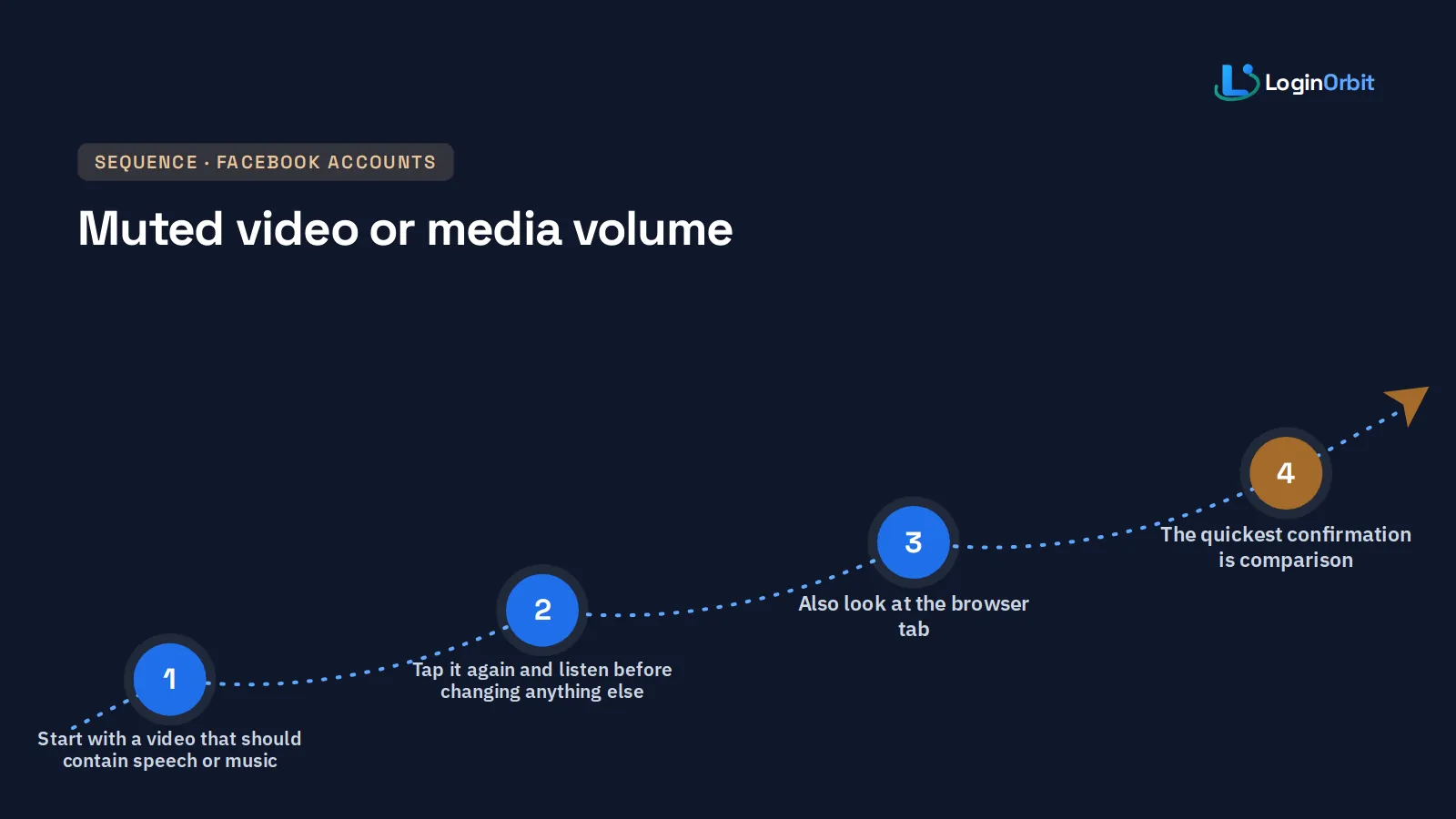
A muted video is the most likely cause when Facebook has no sound but your phone works normally. Facebook videos can start silently, and the video’s speaker button controls that clip separately from your phone’s main volume. A low media-volume setting can also affect Facebook while calls and alerts still sound normal.
Start with a video that should contain speech or music. Tap the video once so its controls appear, then tap the speaker icon. If the icon shows a slash, sound is muted. Tap it again and listen before changing anything else.
Next, press your device’s volume up button while the Facebook video is playing. On a phone, press the button during playback rather than from the home screen. Some devices show different controls for ringtones, calls, alarms, and media, so the displayed slider should say Media or show a speaker symbol.
If you’re using Facebook in a browser, move the pointer over the video and check its speaker icon. Also look at the browser tab. A crossed-out speaker on the tab means that tab is muted; right-click the tab and choose Unmute site or the similar option shown by your browser.
The quickest confirmation is comparison. If another Facebook video has sound after you unmute it, the first clip was muted or had no usable audio. If every Facebook video stays silent but YouTube or another app works, continue with Bluetooth and app or browser checks.
A common mistake is raising the ringtone volume instead of media volume. It costs nothing, but it wastes time and can make you think Facebook is broken. If media volume rises and the speaker icon is active, move to the next cause.
The time needed is usually only a few minutes. No repair part is involved, and you shouldn’t open the phone or computer to solve this symptom.
Bluetooth is taking the sound
An active Bluetooth connection can send Facebook audio to earbuds, a car system, a television, or a speaker instead of the device’s built-in speaker. This cause looks like a Facebook failure because the video timer moves normally while you hear nothing from the phone or computer.
Check the Bluetooth symbol in your device’s quick settings or control center. Look for a connected device, then play Facebook audio while that device is nearby. If sound comes from the earbuds or car, Facebook is working; the output choice is the problem.
The easiest test is to turn Bluetooth off temporarily. Keep the Facebook video open, then play it again through the built-in speaker. If sound returns, turn Bluetooth back on and select the output you actually want. You may need to pause and restart the video after changing the output.
This cause differs from a muted video in one clear way: the video’s speaker icon can be active while sound comes from another device. With a muted video, changing the output won’t make that clip audible until you unmute it.
On a computer, check the system’s sound-output menu, not only Facebook. Choose the intended speaker or headset. If you use a monitor with built-in speakers, the computer may be sending audio there even when no sound comes from the laptop.
Then reconnect it using the accessory maker’s instructions. Don’t reset unrelated network settings just for one silent Facebook video.
The trade-off is simple: switching Bluetooth off is fast, but it interrupts audio on other connected devices. If you need those devices, change the output instead of disconnecting everything.
Facebook app or browser glitch
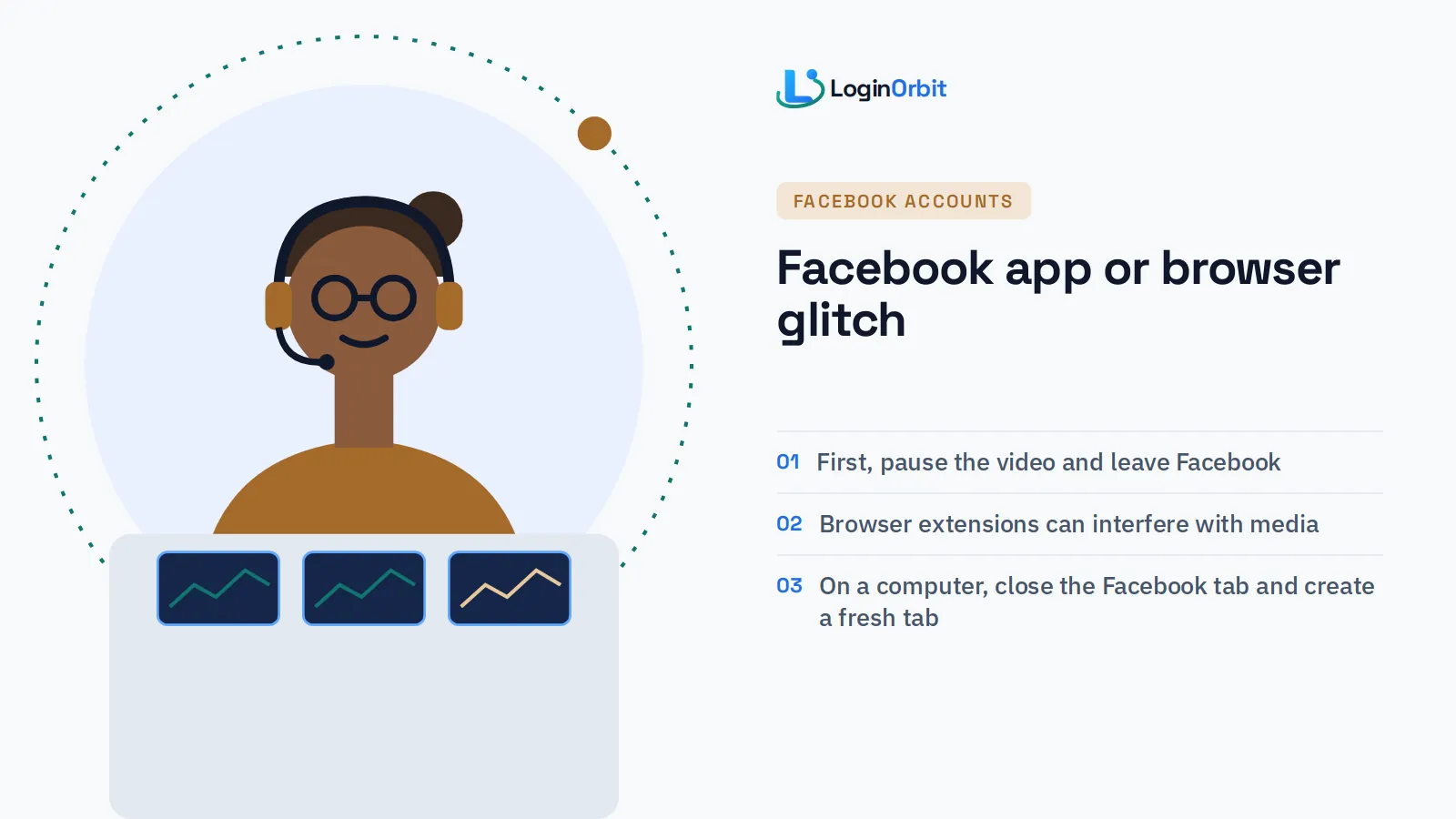
A temporary app or browser error can stop audio even when the video isn’t muted and the correct speaker is selected. This is more likely when Facebook audio worked earlier, stopped after switching apps, or returns after closing and reopening Facebook.
First, pause the video and leave Facebook. On a phone, open the recent-apps view and swipe Facebook away, then open it again. On a computer, close the Facebook tab and create a fresh tab. Play a different video, because one clip may have a separate content problem.
If the sound is still missing, restart the device. This clears a stuck audio session without deleting your Facebook account or photos. After restarting, test Facebook before changing deeper settings.
For the app, check the official app store for an available update. For a browser, update the browser through its own settings or official download page. Facebook’s help pages also cover video playback problems and account-side checks; use the Facebook video troubleshooting guide if the basic audio checks fail.
Browser extensions can interfere with media. Test Facebook in a private window, where many extensions are disabled. If sound works there, disable extensions one at a time and test after each change. Don’t remove saved passwords or clear all browsing data unless you’re prepared to sign in again.
If the app works in a browser but not on the phone, the app installation is the likely difference. If the browser works but the app doesn’t, reinstalling the app may help, but save your login details first.
Less common Facebook sound problems
-
Browser site sound is blocked: The clue is that Facebook alone is silent in that browser, while a private window works. Open the browser’s site settings, find Facebook’s sound or autoplay permission, and allow it. Also check the tab’s speaker icon; a muted tab can override the device volume.
-
A device focus mode changes audio: The clue is that sound returns after turning off a focus, silent, or do-not-disturb mode. Check the mode’s allowed-app and media settings, since some profiles silence alerts but still allow media, while others block all audio. Test a Facebook video after changing the mode.
-
A damaged speaker or headphone jack is involved: The clue is missing audio in several apps, not only Facebook. Disconnect Bluetooth devices, remove any wired headphones, and test the built-in speaker with another app. If audio works only through headphones or an external speaker, the speaker, jack, or connection may need repair.
-
The video itself has no usable audio: The clue is that other Facebook videos play sound normally. Try another video from a different page, then tap the video’s speaker control. A clip may have been uploaded without audio, or its audio may have been removed.
-
An account-side or platform problem exists: The clue is that Facebook fails on more than one device and network. If another account works on the same device, report the problem to Facebook rather than repeatedly changing local settings.
Stop DIY checks when no app produces sound, the device shows liquid or impact damage, or changing settings could erase data. Take the device to its manufacturer or a qualified repair shop; don’t open the housing or test internal parts yourself.
What fixing Facebook sound usually takes
A muted video or low media volume takes almost no time and needs no tool. The cost is smaller than replacing an accessory, but you’ll need to check the video while it’s playing so you change the correct volume control. The ringer or notification slider won’t necessarily raise video sound. Try another Facebook video before changing settings, because one silent upload can be a content issue rather than a device fault.
A Bluetooth output problem usually needs only the device’s sound menu. It may take longer if you must reconnect earbuds, a car system, or a speaker. Confirm that Facebook is sending audio to the intended output, then test another app through that same accessory. The trade-off is that changing output keeps the accessory connected, while turning Bluetooth off is quicker but interrupts it.
An app or browser glitch may need a restart, update, private-window test, or reinstall. Reinstalling takes more time and may require your Facebook login, so check the password or recovery method before removing the app. If Facebook works in a private window but not the normal browser window, an extension, cached data, or site setting is more likely than a broken speaker.
A blocked permission needs careful menu changes. Use the browser’s address-bar permissions or the device’s app settings, and change only Facebook’s sound permission. The exact menu name depends on your phone, computer, browser, and operating-system version; read the labels on your screen or in the product documentation. If other sites or apps are also silent, changing Facebook’s permission is unlikely to solve the wider problem.
A speaker or motherboard fault needs another person and possibly a replacement part. Repair is usually more costly than a setting change but may cost less than replacing the whole device. For a real quote, give a repair shop the device model from Settings, its condition, and whether headphones produce sound. If headphones work but the built-in speaker does not, describe that difference; it helps narrow the physical fault.
This troubleshooting isn’t for someone who needs to open the device, test live electronics, or recover a lost account. If a simple output check doesn’t separate Facebook from the device, stop and get qualified help. Don’t keep raising the volume if sound is distorted or crackling, since that can point to hardware trouble rather than a muted app.
When you want it set up without the guesswork, Facebook Account Setup & Security Service is the place to start.
Frequently asked questions
Why is Facebook video playing but no sound?
The video is usually muted, or your device is sending media audio to another output. Tap the video’s speaker icon, raise Media volume while the video plays, and check Bluetooth earbuds, cars, or speakers. If other apps have sound but every Facebook video is silent, restart Facebook and test a private browser window. If no app has sound, the problem isn’t limited to Facebook.
Can Facebook be muted separately from my phone?
Yes, a Facebook video can be muted while the phone’s general media volume is high. Tap the video and look for the speaker icon. A slash means that clip is muted. Also check whether the browser tab is muted on a computer. If one video has no sound but another Facebook video works, the first video or its mute control is the likely cause.
How long does it take to fix Facebook sound?
A basic mute or volume problem can take about 2–5 minutes when you can access the video and device controls. A Bluetooth reconnection or app update may take longer because it depends on the accessory and internet connection. If sound fails in every app, don’t keep repeating Facebook fixes; arrange device support instead.
Is it safe to reinstall Facebook to fix sound?
Yes, reinstalling the official Facebook app is normally safe for your account data, but confirm that you know your login details first. Your account, posts, and messages are stored with Facebook, while app preferences on the device may be removed. Try force-closing, restarting, and checking for an update first, because those steps don’t remove the app.
What happens if Facebook sound works in a private window?
It usually means the normal browser session has an extension, permission, or stored-site problem. Check whether the Facebook tab is muted, then review Facebook’s sound permission and disable extensions one at a time. Don’t clear every saved browser item immediately. That can sign you out of other sites and costs more time than checking the Facebook permission first.
Does it matter which browser I use for Facebook sound?
Yes, it can matter because browsers handle site permissions, extensions, and audio output differently. If Facebook has sound in one updated browser but not another, compare that browser’s tab mute, site sound permission, and extensions. If Facebook is silent in every browser and app, focus on device volume, Bluetooth output, and the device’s speakers instead.
What to do next
If the problem keeps returning, note when it happens and which device, browser, or connection you’re using. That pattern can point to a software bug or hardware issue. Keep Facebook and your device updated, and contact Facebook Support or the device maker if sound still won’t return after a restart.



