
How to link instagram to facebook in accounts center takes about 2–5 minutes when both apps are updated and you can sign in to each account. Open Instagram, go to Profile → Menu → Accounts Center, choose Accounts, then add your Facebook account and confirm the link.
The result can change if your apps show different menus, you use different Facebook and Instagram login details, or one account is already linked elsewhere. The steps below also explain what to check when Meta shows an error.
Who needs linked accounts
This guide helps Instagram users who want easier sharing between Instagram and Facebook. You may already have both apps installed, but you might not know where Meta moved the connection controls.
A person with a personal Facebook profile usually needs a simple account link. Someone managing a Facebook Page may need an extra step after linking, because the Instagram account and Facebook profile aren’t the same as the Page.
You might also be moving from an old connection made in Instagram settings. Accounts Center is now the main place to manage connected Meta accounts, although menu names can differ by app version and device.
This page serves best if you can sign in to both accounts and want to connect them without changing passwords. If you’re trying to recover a hacked account, remove an unknown account, or connect a business Page with role problems, use Meta support instead.
What controls the connection
Your login access matters most. You’ll need an active Instagram session and the Facebook login details for the account you want to add. If you can’t sign in to Facebook separately, fix that account first.
The app version can change the menu path. If you don’t see Accounts Center, update Instagram from your device’s official app store, then close and reopen it. Don’t follow a menu path from an old screenshot.
The account already connected matters too. Open Accounts Center → Accounts and check the listed profiles. If the correct Facebook account is already there, adding it again won’t create a second connection.
The target can also change the result. Linking Instagram to a Facebook profile may enable cross-posting, while sharing to a Facebook Page can depend on your Page access and professional account settings.
The mistake people get wrong most often is choosing the wrong Facebook profile during sign-in. Check the profile name and picture on the confirmation screen before you approve the connection.
Link Instagram step by step
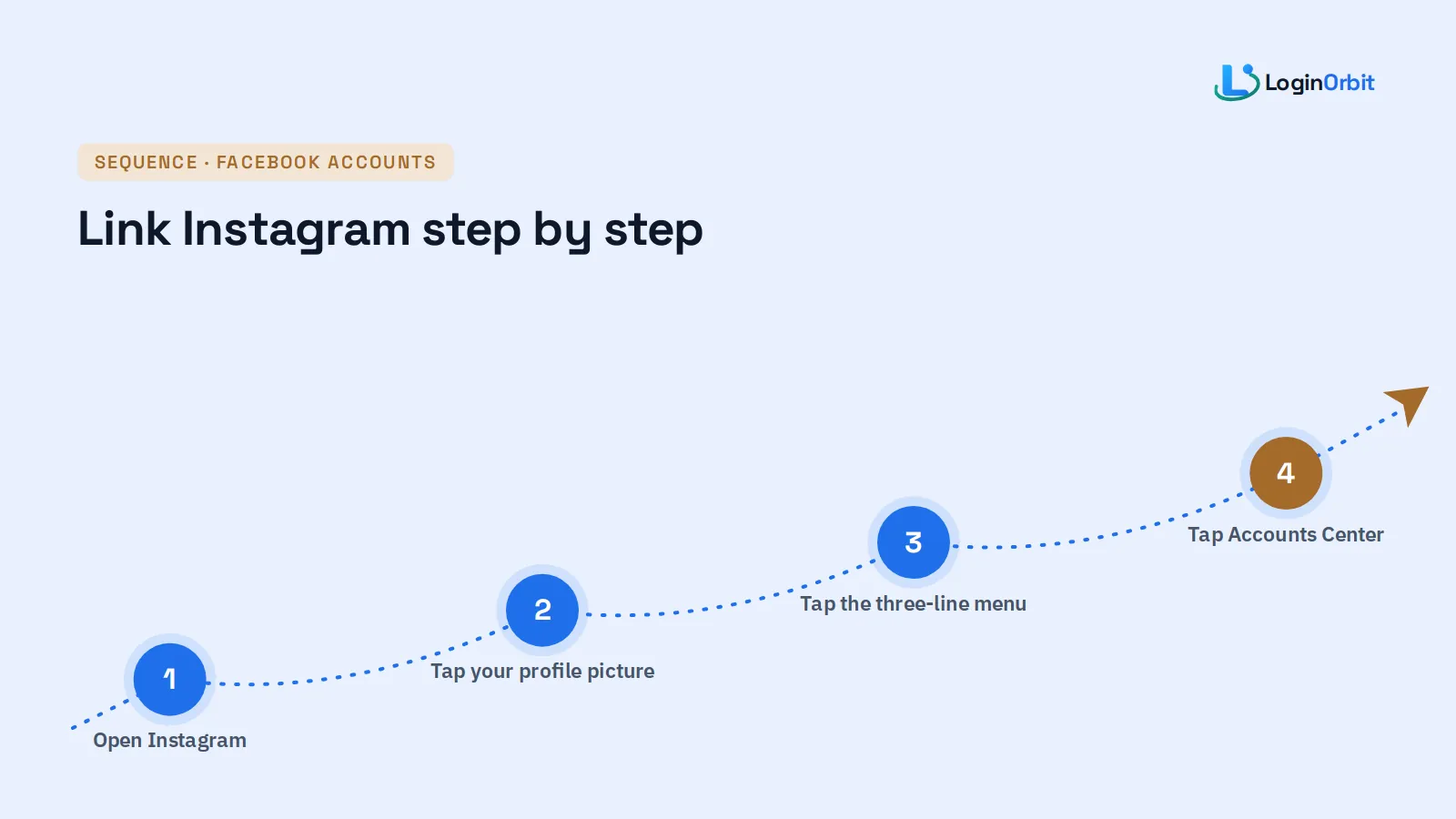
Use the Instagram mobile app for the clearest path. Menu labels can differ slightly on iPhone, Android, and newer Meta app versions.
- Open Instagram and sign in to the account you want to connect. Your Instagram profile page should load before you continue.
- Tap your profile picture in the bottom-right corner. You should see your Instagram profile, not an account-switching screen.
- Tap the three-line menu in the top-right corner. The menu panel should open.
- Tap Accounts Center. If it isn’t visible, update Instagram and reopen the app before trying again.
- Tap Accounts under the account settings area. You should see the Meta accounts already connected.
- Tap Add accounts. A screen for adding another Facebook, Instagram, or Meta account should appear.
- Choose Add Facebook account. If Facebook opens, check that it shows the correct Facebook profile.
- Enter your Facebook login details if Meta asks for them. Continue only when the displayed name matches the profile you want.
- Review the connected-account choices and tap the confirmation button shown by Meta. The exact wording can differ between app versions.
- Return to Accounts Center → Accounts and check that both profiles appear. If they do, the link is active.
The key judgement call is the Facebook identity shown before confirmation. If the name or profile picture is wrong, cancel and sign in to the correct Facebook account; approving the wrong one can send posts and account controls to the wrong profile.
If Meta asks you to solve a security check you can’t complete, stop there. Use Meta’s official account-recovery process rather than trying repeated passwords or third-party tools.
Connection cases compared
The right route depends on what you want the link to do, not just whether both apps are installed.
| Situation | What to do | What it takes | What to watch for |
|---|---|---|---|
| Personal profiles only | Add Facebook in Accounts Center | About 2–5 minutes | Confirm profile name |
| Instagram already linked | Check Accounts first | About 1 minute | Don’t add it again |
| Share Instagram posts | Turn on sharing controls | A few extra taps | Review each toggle |
| Connect a Facebook Page | Link profile, then choose Page | May need Page access | Profile isn’t the Page |
| Different account owner | Sign out and retry | Extra login step | Avoid wrong profile |
| App menu looks different | Update Instagram first | Download and restart | Labels may move |
Details that improve the result
Check before connecting
Confirm both apps use the accounts you actually want. Open Facebook separately, view the profile name, then return to Instagram and start the Accounts Center process.
Review the Accounts list before adding anything. If you see an unfamiliar profile, don’t continue. Remove it only after checking that it isn’t another account you still need.
Experienced users also check sharing controls after the link. A connection doesn’t always mean every Instagram post will automatically appear on Facebook.
Leave risky settings alone
Don’t change your password, recovery email, or two-factor authentication settings just to force a connection. Those controls solve account security problems, not ordinary linking problems.
Test with one ordinary post only after the accounts show correctly. Check the Facebook destination before sharing more content. If a Page is involved, confirm you have permission to publish there.
A linked account can make sharing easier, but it also increases the effect of a wrong setting. Keep automatic sharing off until you’ve confirmed the destination and audience.
Instagram and Facebook linking problems
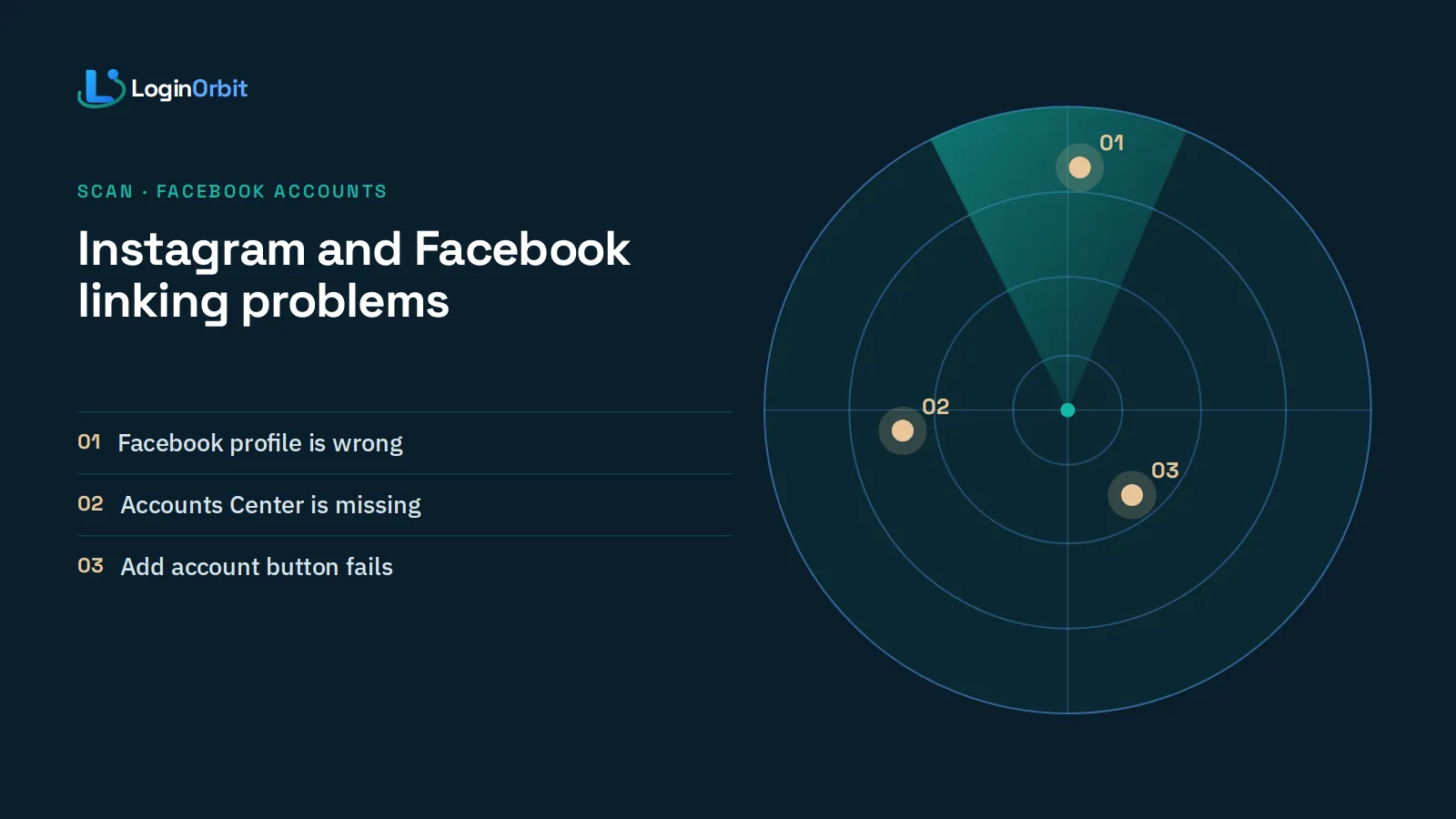
Most failed connections come from the wrong signed-in profile, an old connection, or an app that needs updating.
| What you notice | What it usually means | What to do first | How to stop it happening again |
|---|---|---|---|
| Facebook profile is wrong | Wrong account is signed in | Cancel and switch account | Check name before approval |
| Accounts Center is missing | App version or layout differs | Update and reopen Instagram | Keep apps updated |
| Add account button fails | Existing connection or session issue | Check Accounts list | Remove unused connections |
| Facebook Page is absent | Page access isn’t available | Check your Page role | Use an authorized profile |
| Posts don’t cross-post | Sharing setting is off | Review sharing controls | Test one post first |
| Login keeps looping | Session or security check issue | Sign out and retry once | Use official recovery |
| Unknown account appears | Unwanted account is connected | Stop and review account list | Change security details if needed |
Meta rules and account limits
Meta controls the connection through Accounts Center, but available features can differ by account type, region, app version, and Page permissions. A personal Facebook profile, professional Instagram account, and Facebook Page don’t have identical controls.
Meta’s own Accounts Center help information explains how connected Meta accounts and account settings work. Check the current Meta Help Center instructions if your screen uses different labels.
You must have permission to use every account you connect. If a Facebook Page doesn’t appear, ask the Page owner or an administrator to check your access. Don’t attempt to bypass a security check or someone else’s account permissions.
Rules can also change by country and product type. For a restriction affecting ads, commerce, age requirements, or account recovery, use the relevant Meta Help Center page for your country and account.
The real cost of linking
The direct cost is usually no money, but you’ll spend time checking two logins, the account list, sharing settings, and the final destination. A simple personal-profile link may take about 2–5 minutes when both sessions work.
The effort rises when you need to switch accounts, complete a security check, update an app, or connect a Facebook Page. Page permissions can add more work because the correct profile must have access.
The main risk is publishing to the wrong audience or destination. Compare the Facebook profile name, Page name, and post audience before you enable automatic sharing.
If Meta asks for account recovery, the cost becomes time and possible loss of access. Use the recovery steps shown by Meta, and don’t pay an outside service that promises instant access.
Keep the connection working
Check Accounts Center → Accounts if cross-posting suddenly stops or a Facebook Page disappears. The sign of a healthy link is that the intended Instagram and Facebook accounts appear together. If both accounts are listed but posts still fail, review the sharing settings for the specific post type rather than removing and reconnecting everything.
Review sharing controls after changing your password, switching Facebook profiles, or removing Page access. Meta may ask you to sign in again after a security change. If a Page is missing, confirm that you still have the required Page access on Facebook; being logged into the right personal profile doesn’t always restore Page permissions.
If you no longer use the connection, remove the unwanted account from Accounts Center rather than leaving an old profile attached. Before removal, note that this can affect cross-posting and other shared controls. Reconnect only the accounts you currently manage, and check the sharing destination afterward.
When a connected account belongs to someone else, don’t keep retrying. Stop and ask that account owner or Meta support to handle the access issue. Repeated attempts can attach the wrong profile or trigger additional security checks.
When linking is the wrong choice
Linking isn’t right if you need completely separate audiences or brands. Keep the accounts separate and publish to each platform manually, especially when captions, calls to action, posting times, or comment responses need to differ. A shared post can expose the wrong brand voice or send people to an account they don’t recognize.
It’s also the wrong approach if you don’t control the Facebook account or Page. Ask the owner to make the connection from an authorized profile instead. If the required Page or account doesn’t appear in the connection settings, stop rather than trying to work around the missing access.
Don’t use these steps for a hacked account, an unknown connection, or a failed identity check. Secure the account through Meta’s recovery and security tools; repeated login attempts can make the problem harder to resolve. Check recent sessions and connected apps after recovery, and remove anything you don’t recognize.
If your goal is Facebook advertising rather than simple sharing, use Meta Ads Manager and confirm the correct business assets. Linking alone doesn’t guarantee that you can advertise from a Page or business account. Check that the intended Page, ad account, and payment setup are selected before creating a campaign.
If you would rather have this handled for you, our Facebook Account Setup & Security Service service covers it end to end.
Frequently asked questions
Can I link Instagram to Facebook without the Facebook app?
Yes, usually. Instagram can open a Facebook sign-in page or use an existing browser session, so the Facebook app doesn’t always need to be installed. You’ll still need access to the correct Facebook account and may need to complete Meta’s security check.
Why can’t I find Accounts Center on Instagram?
An outdated app or different menu layout is the usual first check. Update Instagram, reopen it, and look again from your profile menu. If it’s still missing, use Instagram’s current Help Center instructions because Meta can change menu locations.
How long does it take to link Instagram and Facebook?
About 2–5 minutes when both accounts are available and no security check appears. Switching accounts, updating the app, recovering a login, or connecting a Facebook Page can take longer because each issue needs a separate check.
Is it safe to connect Instagram and Facebook?
Yes, when both accounts belong to you and you confirm the correct profile before approval. The link can make sharing easier, but it can also send content to the wrong destination if you don’t review audience and Page settings.
What happens if I link the wrong Facebook account?
Posts may be shared to the wrong profile, and you may see the wrong account in sharing controls. Return to Accounts Center, remove the incorrect connection, then sign in to the intended Facebook account before adding it.
Does linking Instagram to Facebook post everything automatically?
No. Linking the accounts and enabling automatic sharing are separate choices. Review the sharing controls in Accounts Center, then test one post and check its Facebook destination before turning on more automatic options.
Can I link Instagram to a Facebook Page?
Yes, but the Page may require the right Facebook access and account type. First connect the Facebook profile in Accounts Center, then check the available Page choices. If the Page is missing, ask an administrator to review your permissions.
How do I unlink Instagram from Facebook?
Open Instagram’s Accounts Center, choose Accounts, select the Facebook account, and follow the removal option shown. Check the warning first, because unlinking can change cross-posting and other shared account controls.
What to do next
Before changing any settings, open Instagram and go to Accounts Center → Accounts. Confirm that the Instagram profile and the Facebook account or Page you intend to use are listed there.
Make a test share, then check the actual Facebook destination rather than assuming it worked. If the post appears on the wrong profile, disconnecting and reconnecting the wrong account can make the mix-up harder to diagnose.
Stop and contact Meta support if you see an account you don’t recognize, can’t complete the security check, or lose access to either profile. Don’t share passwords or recovery codes with anyone claiming to offer help through an unsolicited message.



