
The common causes of facebook sign-up problems include an invalid email address, a blocked phone number, an unsupported browser, too many sign-up attempts, or a temporary security restriction. Fixes depend on whether the problem comes from your information, device, connection, or Facebook’s systems.
Key Takeaways
- Confirm that your name and birthday match Facebook’s account requirements and that every required field is complete.
- Try a different email address or phone number if Facebook says your contact information is already in use.
- Clear browser data, disable extensions, or switch to the official Facebook app or another browser.
- Stop repeated attempts if you see a security warning; waiting before trying again can prevent a temporary block from lasting longer.
- Never share a verification code with another person, even if they claim to be Facebook support.
- If registration still fails, use Facebook’s official help and account-recovery options rather than creating many new attempts.
Check Facebook’s Status
Before changing your settings, determine whether the failure is widespread. A Facebook outage, maintenance event, or problem with account registration can make a perfectly valid sign-up form fail.
Signs of a service problem
You may be dealing with a platform-side issue when:
- The page shows a blank form or spins indefinitely.
- The “Sign Up” button does nothing after you complete every field.
- Several browsers and devices fail in exactly the same way.
- Verification codes arrive very late or don’t arrive at all.
- Facebook displays a generic message such as “Something went wrong.”
- A friend or family member can’t create an account either.
Try again later if multiple people are reporting the same issue. Avoid submitting the form repeatedly every few seconds, because a large number of attempts can look suspicious and trigger additional security checks.
Check the basics first
Open another reliable website on the same device. If other sites are also slow or unavailable, restart your router or switch from Wi-Fi to mobile data. If only Facebook fails, close the tab completely and reopen the official Facebook website or app.
Pro Tip: Write down the exact error message before refreshing. “Email already in use,” “invalid phone number,” and “temporarily blocked” require different fixes, so the wording is useful evidence.
Verify Your Sign-Up Details
Small inconsistencies in the registration form can stop account creation. Facebook may reject information that’s incomplete, formatted incorrectly, already associated with an account, or flagged for additional review.
Name and birthday
Use the name you normally use in everyday life. Avoid entering a nickname, random characters, an excessive number of symbols, or a name that resembles an advertisement. Enter your date of birth accurately and check that the month and day aren’t reversed.
Facebook may ask for confirmation of identity later, so using fabricated details can create a much bigger problem than the original sign-up error.
Email address
Check the following:
- There are no spaces before or after the address.
- The domain is spelled correctly, such as
gmail.comoroutlook.com. - You can open the inbox and receive messages.
- The address isn’t already tied to an older Facebook account.
- Your email provider hasn’t placed Facebook messages in spam or junk.
If Facebook says the email is already registered, don’t create another account with small variations. Select the password-reset or account-recovery option and see whether an existing profile belongs to you.
Phone number
Enter the number with the correct country selected. Don’t add the country code twice. For example, using a country selector that already adds +1 and then typing +1 again can produce an invalid number.
Temporary, disposable, virtual, or internet-based numbers may not work reliably for account verification. If possible, use a regular mobile number that can receive SMS messages.
| Sign-up detail | Common mistake | Practical fix |
|---|---|---|
| Name | Nickname, symbols, or random text | Enter your ordinary everyday name |
| Birthday | Wrong month, day, or year | Recheck the date before submitting |
| Typo or existing Facebook account | Correct it or recover the old account | |
| Phone | Wrong country or duplicated code | Select the country once and enter the number |
| Password | Too short or copied with a space | Type a fresh, unique password |
Is Your Contact Information Blocked?
A phone number or email address can be refused even when you entered it correctly. Facebook may already associate it with an account, or the system may temporarily restrict it after unusual activity.
When an email is already used
An email address can belong to:
- An old Facebook profile you forgot about.
- An account created through a different sign-in method.
- A profile created by someone who previously owned the email address.
- A Facebook account where the address was added as a secondary contact.
Try password recovery using that email. If you recognize the profile, recover it instead of opening another account. Once inside, you may be able to update the email address or phone number in account settings.
When a phone number is rejected
Check whether the number is:
- A landline that can’t receive SMS.
- A VoIP number or temporary number.
- Already connected to another Facebook profile.
- Entered with the wrong country code.
- Unable to receive short-code text messages because of carrier settings.
Ask your carrier whether short-code or automated messages are blocked. Also confirm that your phone has signal, enough storage for incoming messages, and no SMS-filtering app hiding the code.
Warning: Don’t pay a stranger who promises to “activate” your Facebook account or bypass verification. Facebook doesn’t require a private intermediary to complete ordinary registration.
Fix Browser and App Problems
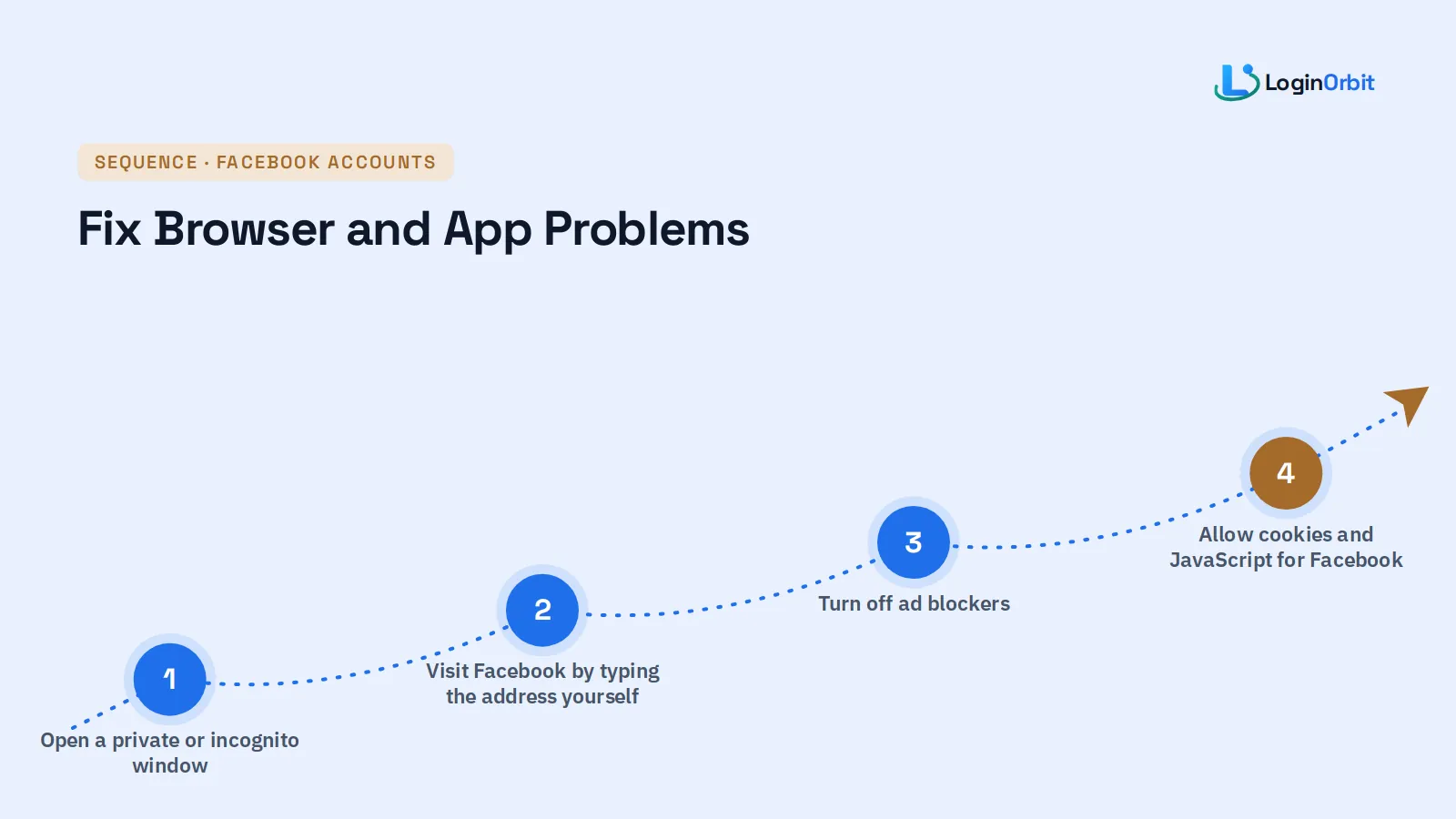
The sign-up page can fail because of damaged cookies, an outdated app, a blocked script, or a browser extension that interferes with the form.
Use a clean browser session
Try these steps in order:
- Open a private or incognito window.
- Visit Facebook by typing the address yourself.
- Turn off ad blockers, script blockers, and privacy extensions temporarily.
- Allow cookies and JavaScript for Facebook.
- Clear cached files and cookies for Facebook.
- Close all Facebook tabs and reopen the browser.
- Try another current browser, such as Chrome, Firefox, Safari, or Microsoft Edge.
A private window is especially useful because it starts without most saved sessions and extensions. If sign-up works there, the original problem is probably stored browser data or an extension rather than your account details.
Update or reinstall the app
On a phone or tablet:
- Update the Facebook app through the Apple App Store or Google Play.
- Restart the device after updating.
- Confirm that the operating system is reasonably current.
- Clear the app cache on Android.
- Delete and reinstall the app if the sign-up screen remains broken.
- Make sure the app was installed from the official app store.
On iPhone, removing and reinstalling the app can clear damaged local data. On Android, clearing cache is less disruptive than clearing storage; clearing storage may sign you out and remove saved app data.
Try the mobile website
If the app fails, open Facebook in a mobile browser. If the mobile browser fails, try the app or a desktop computer. A difference between platforms helps identify whether the issue is local to one installation.
| Test | What it rules out | What the result suggests |
|---|---|---|
| Private window | Old cookies and extensions | Browser data may be corrupted |
| Different browser | Browser-specific settings | Original browser is the likely cause |
| Mobile app | Desktop browser problems | App or phone settings need attention |
| Desktop computer | Mobile app and carrier issues | Phone installation or network may be involved |
| Mobile data | Home Wi-Fi filtering | Router, DNS, or network restriction may be involved |
Test Your Connection
A stable connection is required during registration, especially when Facebook loads a verification step or sends a security token. A page that appears complete may still fail if the final request never reaches Facebook.
Switch networks
Try changing only one factor at a time:
- Move from home Wi-Fi to cellular data.
- Use a trusted home network instead of public Wi-Fi.
- Restart the router.
- Disable a VPN or proxy temporarily.
- Avoid registering while connected to a workplace, school, hotel, or library network.
Public and managed networks may block certain scripts, domains, or verification services. A VPN can also make your activity appear to come from a different country or from an IP address shared by many users, which may trigger additional checks.
Check device time
Incorrect date, time, or time-zone settings can interfere with secure connections and one-time verification codes. Set the device to automatic date and time, then restart the browser or app.
Avoid rapid switching
Changing countries through a VPN, switching between several devices, and submitting the form repeatedly can create a pattern Facebook considers unusual. Use one trusted device and one ordinary connection while troubleshooting.
Pro Tip: A simple test sequence is more useful than random changes: try private browsing, then another browser, then mobile data. Record what changes after each test.
Handle Verification Codes
Facebook may require confirmation by email, SMS, or another security method. A missing or invalid code doesn’t always mean the account creation itself failed.
Code not received
Check:
- Spam, junk, promotions, and filtered folders.
- Whether the email address or phone number is correct.
- Whether your phone has service and can receive automated texts.
- Whether your email inbox is full.
- Whether your carrier blocks short codes.
- Whether a previous code arrived late.
Wait several minutes before requesting another code. Each new request may invalidate the previous code, so entering an older message can produce an “incorrect code” error.
Code expired
Use the newest code and enter it manually rather than copying extra spaces. If the message contains several numbers, make sure you use the actual confirmation code, not a reference number or phone number.
If a code never arrives after several reasonable attempts, stop requesting more. Use an available alternate method, such as email instead of SMS, or wait and try again later.
Unexpected verification message
If you receive a Facebook code when you didn’t request one, someone may be trying to register or access an account using your contact information. Don’t share the code. Change the password on your email account if you suspect it has been compromised, and review its recent sign-in activity.
Understand Temporary Restrictions
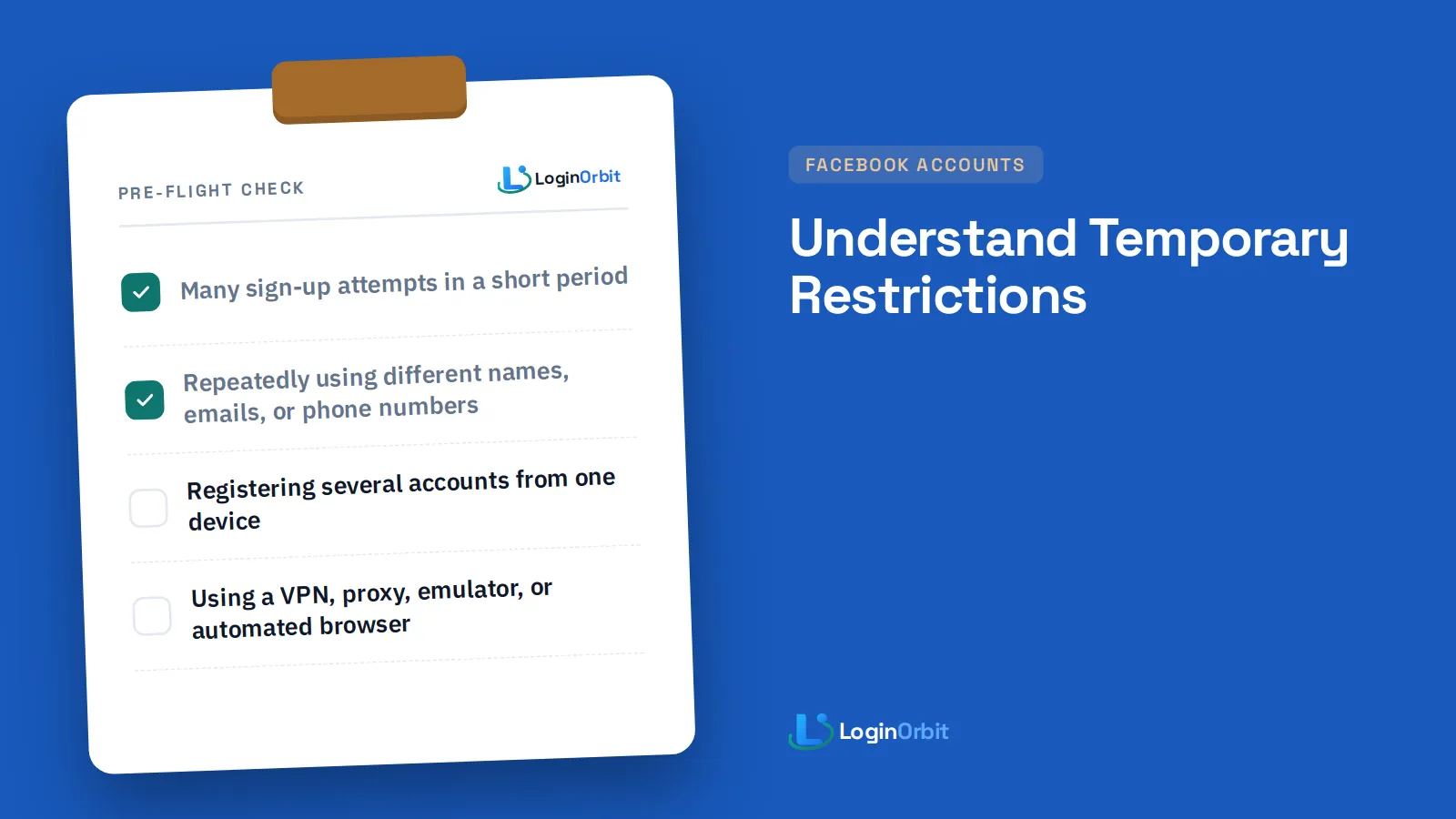
Facebook can temporarily limit registration when its systems detect patterns associated with spam, automation, fake accounts, or compromised devices. You may not have done anything malicious; repeated retries or shared networks can still cause a restriction.
Typical triggers
Possible triggers include:
- Many sign-up attempts in a short period.
- Repeatedly using different names, emails, or phone numbers.
- Registering several accounts from one device.
- Using a VPN, proxy, emulator, or automated browser.
- Entering verification codes incorrectly many times.
- Connecting from locations that change rapidly.
- Using a contact detail recently associated with abuse.
A temporary restriction may show a clear message, or it may appear as a generic error. Don’t try to defeat it by creating more accounts. That can extend the restriction or make later recovery harder.
What to do
Stop submitting the form and wait. The exact waiting period varies, so there’s no reliable universal countdown. After waiting:
- Use the same trusted device.
- Turn off the VPN or proxy.
- Use a normal home or cellular connection.
- Enter accurate information once.
- Request one verification code.
- Follow the on-screen instructions carefully.
If Facebook asks for identity confirmation, use only the official in-product process. Facebook’s help guidance on account creation explains that registration can be blocked when information or activity doesn’t meet its requirements; consult Facebook’s account creation help for the relevant official instructions.
Check Age and Eligibility
Age and eligibility rules can prevent registration even when the form appears correct. Facebook generally requires users to meet its minimum age requirement, which can vary according to local law and platform policy. Entering a false birthday isn’t a safe workaround.
Common eligibility issues
Registration may fail when:
- The entered birthday indicates the user is below the minimum age.
- The date is accidentally entered in the wrong order.
- A parent or guardian is trying to create an account for a child who is too young.
- The account is being created on behalf of someone else.
- Previous account activity caused an eligibility restriction.
If the wrong birthday was entered, don’t keep making new accounts with different dates. Follow the available correction or appeal process. A minor shouldn’t bypass age requirements by using an adult’s identity or contact information.
Account ownership
Create an account for yourself, using your own contact details. Avoid registering profiles for clients, customers, friends, or family members. Each person should create and manage their own account so that verification and recovery information remains under the correct person’s control.
Protect Your New Account
Once registration succeeds, secure the account immediately. A new account can be difficult to recover if its email address or phone number is inaccessible.
First security steps
Complete these actions:
- Choose a unique password that you don’t use elsewhere.
- Confirm the email address and phone number.
- Add a second recovery method if Facebook offers one.
- Turn on two-factor authentication.
- Review active sessions and remove unfamiliar devices.
- Save backup codes somewhere private, if provided.
- Install updates for your browser, operating system, and Facebook app.
Use an authenticator app or security key where available and appropriate. SMS is better than having no second factor, but it can be affected by carrier problems or number changes.
Avoid fake support
Facebook support scams often begin with a message claiming that an account is at risk or needs “manual activation.” Real support shouldn’t ask for your password, one-time code, or remote access to your computer.
Warning: Treat urgent messages, payment demands, and requests to move the conversation to WhatsApp, Telegram, or email as strong scam indicators. Go to Facebook yourself by typing the address or opening the app, instead of following a message link.
Use This Troubleshooting Order
A consistent sequence prevents wasted time and reduces the chance of triggering more restrictions. Complete each stage once before moving to the next.
| Order | Action | If it fails |
|---|---|---|
| 1 | Recheck name, birthday, email, phone, and password | Correct one field at a time |
| 2 | Try a private browser window | Switch to another browser |
| 3 | Disable extensions and clear Facebook data | Use the official app |
| 4 | Switch from Wi-Fi to mobile data | Restart the router and device |
| 5 | Request one new verification code | Check spam and carrier filtering |
| 6 | Stop repeated attempts | Wait before trying again |
| 7 | Recover an existing account | Use Facebook’s official help flow |
| 8 | Contact or use in-product support | Provide the exact error and steps |
What to record
Keep a short troubleshooting note containing:
- The exact error wording.
- Date and approximate time.
- Device and operating system.
- Browser or app version.
- Whether Wi-Fi and mobile data behaved differently.
- Whether email or SMS verification was attempted.
- Whether an existing account may use the contact information.
Don’t record or send your password, verification code, government ID, or full payment information in an ordinary support message.
When Should You Get Help?
Use official support when basic troubleshooting doesn’t work, the account appears to exist already, or Facebook requests an appeal or identity confirmation. The correct path depends on what you see on screen.
Choose the matching path
- Existing account: Use password recovery rather than new registration.
- Disabled account: Follow the appeal link shown in Facebook.
- Identity request: Submit information only through the official Facebook flow.
- Verification failure: Check alternate contact methods and wait before retrying.
- Generic error: Capture the message and report the technical problem if an option appears.
- Suspected takeover: Secure your email first, then use Facebook’s account recovery tools.
Support forms may ask for information needed to locate the account, but legitimate support shouldn’t need your password. Describe the steps that failed and attach only the minimum screenshot needed to show the error. Blur email addresses, phone numbers, codes, and unrelated private information.
Need it done properly the first time? See our Facebook Account Setup & Security Service service.
Frequently Asked Questions
Why won’t Facebook let me create an account?
The most common causes are an email or phone number already linked to another profile, incorrect birthday information, repeated sign-up attempts, browser problems, or a temporary security restriction. Check the exact error, try a private browser window, and avoid submitting the form repeatedly.
Why is Facebook not sending my confirmation code?
The code may be delayed, filtered as spam, blocked by your carrier, sent to the wrong contact detail, or invalidated by a newer request. Check your information and spam folder, wait several minutes, then use only the newest code. Try email instead of SMS if Facebook offers that option.
Can I create Facebook with a phone number only?
Facebook may offer phone-based registration in some regions and situations, but available options can vary. A phone number must be able to receive verification messages and may already be linked to another account. If phone registration fails, try a valid email address instead.
How long should I wait after too many sign-up attempts?
There’s no dependable universal waiting period because restrictions vary by account, device, network, and activity pattern. Stop trying for now, avoid VPNs and rapid device changes, and retry later from one trusted device using accurate information.
What should I do if my email is already used?
Try Facebook’s password-recovery process with that email address. It may belong to an older account, an account created long ago, or a profile made by a previous owner of the address. Don’t keep creating new accounts with minor email variations.
Is Facebook sign-up down for everyone?
Not necessarily. A blank page or generic error can result from an outage, but it can also come from cookies, extensions, an outdated app, a blocked network, or a temporary restriction. Compare a private browser, another device, and mobile data before assuming Facebook is down.
What to do next
Start with one clean attempt: verify your contact details, use a private browser or updated official app, switch to a trusted connection, and request only one code. If the same error remains, stop retrying and use the official recovery or support path that matches the message on screen.



