
Facebook Business Manager is now commonly called a Meta business portfolio; create or claim one, add your assets, invite people with limited permissions, and enable two-factor authentication.
Key Takeaways
- Create the portfolio with a company email and accurate legal business details.
- Add existing assets instead of creating duplicate Pages, Instagram accounts, or ad accounts.
- Give employees task-based access, not your personal Facebook password or full control.
- Verify your domain before running campaigns that send traffic to your website.
- Add a payment method only after checking the ad account’s currency and time zone.
- Review people, partners, pixels, catalogs, and billing every month.
What Business Manager Does
Meta Business Manager is an administration workspace for businesses that advertise or manage Facebook and Instagram assets. Meta also calls it a business portfolio, though many resources still say “Business Manager.”
A portfolio separates business resources from your personal Facebook profile. You can use it to manage:
- Facebook Pages
- Instagram professional accounts
- Ad accounts
- Meta Pixel and Conversions API connections
- Product catalogs
- Shops and commerce accounts
- Domains
- Saved audiences
- Agencies and outside partners
- Employees and assigned permissions
Your personal profile remains the identity used to log in. It doesn’t become public as the owner of every ad or Page action, although your name may appear in activity logs where appropriate.
Important distinction: Business Manager isn’t a replacement for a Facebook Page. A Page represents the business publicly; the portfolio controls who can manage that Page and how its advertising assets are organized.
A small business usually needs only one portfolio. Creating several can cause ownership confusion, duplicate ad accounts, disconnected tracking, and billing problems. If you already have assets in another portfolio, determine who owns them before creating anything new.
Before You Create It
Prepare the information and access you’ll need.
| Item to prepare | Why it matters | Good practice |
|---|---|---|
| Personal Facebook profile | Required login identity | Use your real, established profile |
| Business legal name | Identifies the organization | Match registration and billing records |
| Business email | Receives notices and invitations | Use a monitored company address |
| Facebook Page | Public business presence | Confirm you have admin or full control |
| Instagram account | Enables Instagram publishing and ads | Convert it to a professional account |
| Website domain | Supports tracking and trust | Have DNS or website-admin access |
| Payment method | Pays for advertising | Use a business card when possible |
| Staff details | Determines access | List each person’s actual job needs |
Before proceeding, sign in to your personal Facebook account and turn on two-factor authentication.
Check whether your Facebook Page is already owned by another business portfolio. In Page settings, look for business-account ownership or access information. Resolve any agency, former-employee, or previous-owner control before requesting access or creating a duplicate Page.
Warning: Never create a portfolio using an employee’s personal email as the only recovery path. If that person leaves, your business may struggle to regain control even when the Page itself is still visible.
Set Up Your Facebook Business Manager
The labels vary, but the process is similar.
1. Open Meta Business tools
Sign in to Facebook, open Meta Business Suite or Business Settings, and choose the option to create a business portfolio.
Enter:
- Your business name
- Your name
- Your business email address
Use a recognizable name.
2. Confirm the email
Meta sends a confirmation message to the business email. Confirm it before adding assets. If the message doesn’t arrive, check spam, confirm the address, and request another email after a short wait.
3. Add business details
Enter the business address, phone number, website, and legal details when requested. These details support verification. Keep them consistent with your website, invoices, and advertising information.
4. Record ownership
Save the portfolio’s ID and owner. You may need the ID when a partner, agency, developer, or support representative requests access.
| Setup choice | Recommended for a small business | Avoid |
|---|---|---|
| Portfolio name | Legal or recognizable trading name | “Test account” or an employee’s name |
| Owner | Business owner or senior manager | Temporary contractor |
| Shared monitored business address | One person’s abandoned inbox | |
| Number of portfolios | One central portfolio | A separate portfolio per campaign |
| Business details | Accurate, consistent records | Nicknames or mismatched addresses |
After creation, open Business Settings and inspect the overview. If you see restrictions, missing verification options, or an unfamiliar owner, pause before connecting valuable assets.
Add Pages and Instagram
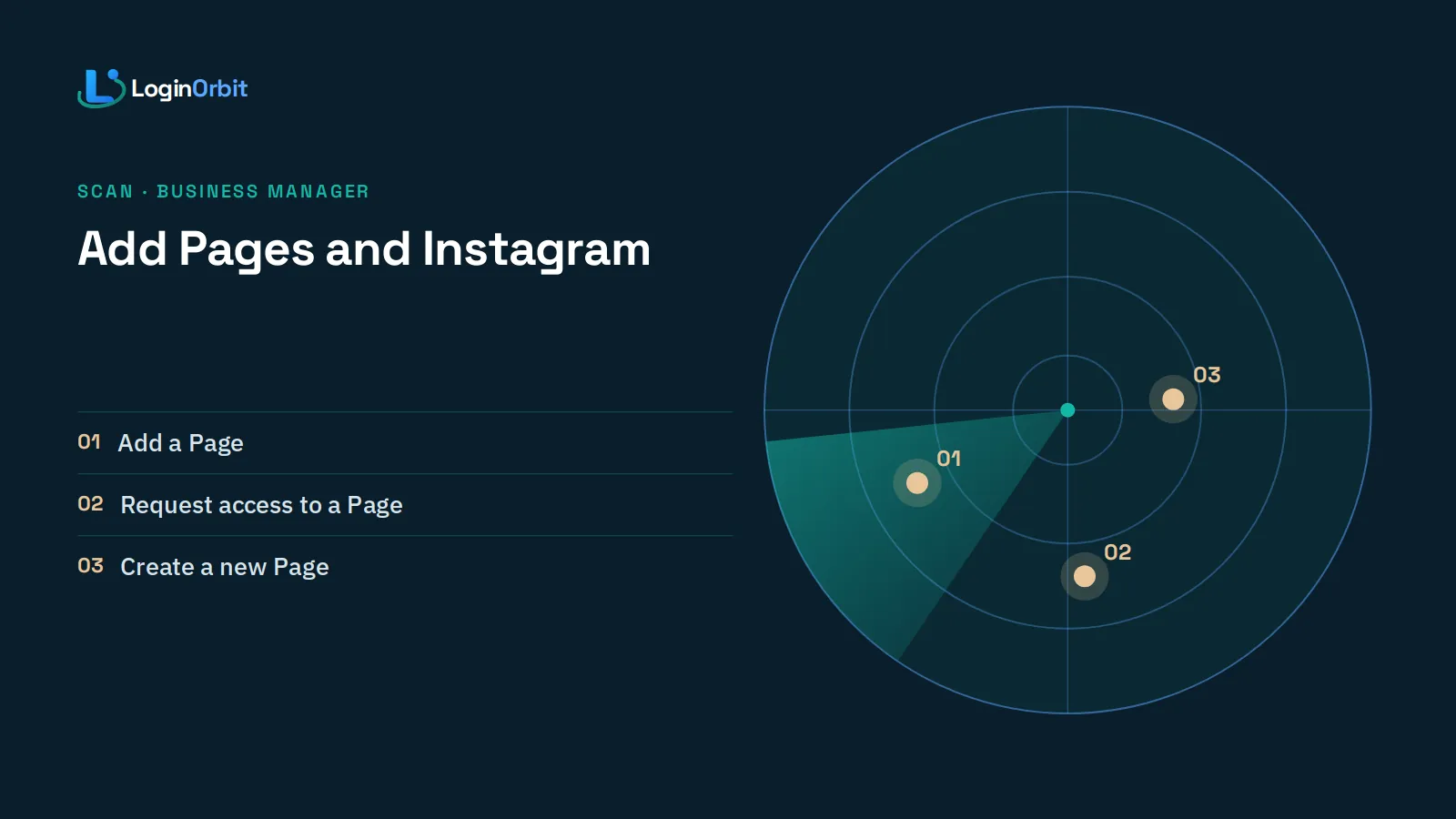
You can add an existing Page, request access to a Page owned elsewhere, or create a new Page. Choose carefully: ownership and access are different.
Add a Facebook Page
In Business Settings, go to Accounts, Pages, and choose the appropriate action:
- Add a Page: You own it and want it in your portfolio.
- Request access to a Page: Another business owns it, but you need to work on it.
- Create a new Page: Your business doesn’t have one yet.
To add a Page, search by Page name or paste its URL. Meta may approve the connection if your profile has sufficient control.
Connect Instagram
The Instagram account should be a professional account. In Business Settings, open Instagram accounts, choose Add, sign in to Instagram, and authorize the connection.
Check the result
Open Meta Business Suite and confirm that you can:
- Publish or schedule a test post
- View Instagram and Facebook notifications
- See the correct Page in the account switcher
- Select the intended Instagram identity in an ad preview
Pro Tip: Use a simple naming convention such as “Main Facebook Page,” “Main Instagram,” and “Local Leads Ad Account.” Clear names prevent expensive mistakes when more than one asset appears in a dropdown.
Add People and Permissions
The safest setup gives each person only the access needed for the job. Business Settings usually separates portfolio-level access from asset-level permissions.
Invite someone with their work email, select their access level, and assign individual assets. They receive an invitation that expires if not accepted within the applicable period.
Common roles include:
| Person | Typical access | Assets to assign |
|---|---|---|
| Owner | Full control | All business assets |
| Marketing employee | Partial access | Page, Instagram, ad account |
| Bookkeeper | Billing or finance access | Ad account billing only |
| Content creator | Content access | Page and Instagram |
| Web developer | Technical access | Pixel, dataset, domain |
| Agency | Partner access | Only the campaign assets |
Full control can allow someone to manage people, ownership, assets, and payment settings.
For a content creator, grant content and messaging permissions without billing or people-management authority. For a bookkeeper, provide billing access only if available. For an agency, use partner access and define the specific Pages, ad accounts, pixels, catalogs, and Instagram accounts it can use.
When an employee or agency leaves:
- Remove the person from the portfolio.
- Remove their direct access to each Page and Instagram account.
- Remove partner access for agencies.
- Review active ad campaigns and scheduled posts.
- Change credentials for systems outside Meta if they had access.
- Confirm that the business owner still has full control.
Don’t share one Facebook login among several workers. Shared credentials make it impossible to identify changes reliably and create avoidable security risks.
Connect an Ad Account
An ad account contains campaigns, payment settings, billing history, audiences, and reporting data. In Business Settings, open Accounts, Ad accounts, and select one of three options:
- Add an existing ad account
- Request access to an ad account
- Create a new ad account
Choose add only when the account belongs to your business and isn’t already controlled by another portfolio.
Before creating one, verify:
- Currency
- Time zone
- Business location
- Payment method availability
- Who will receive billing notices
- Whether the account is for the correct brand
Currency and time zone generally can’t be changed later.
| Account situation | Correct action | Why |
|---|---|---|
| Your existing account, no portfolio owner | Add it | Centralizes ownership |
| Agency-owned account | Request partner access | Agency retains ownership |
| Old account with clean history | Keep it if details are correct | Avoids unnecessary fragmentation |
| Restricted account | Resolve restriction first | A new account may not solve the cause |
| No account exists | Create one portfolio account | Keeps billing organized |
Assign people and Pages. Then open Ads Manager and create a draft campaign without publishing it.
Warning: Don’t open several ad accounts to bypass a rejected ad, disabled payment method, or policy restriction. That can make the business appear less trustworthy and may create additional restrictions.
Set Up Tracking and Domain
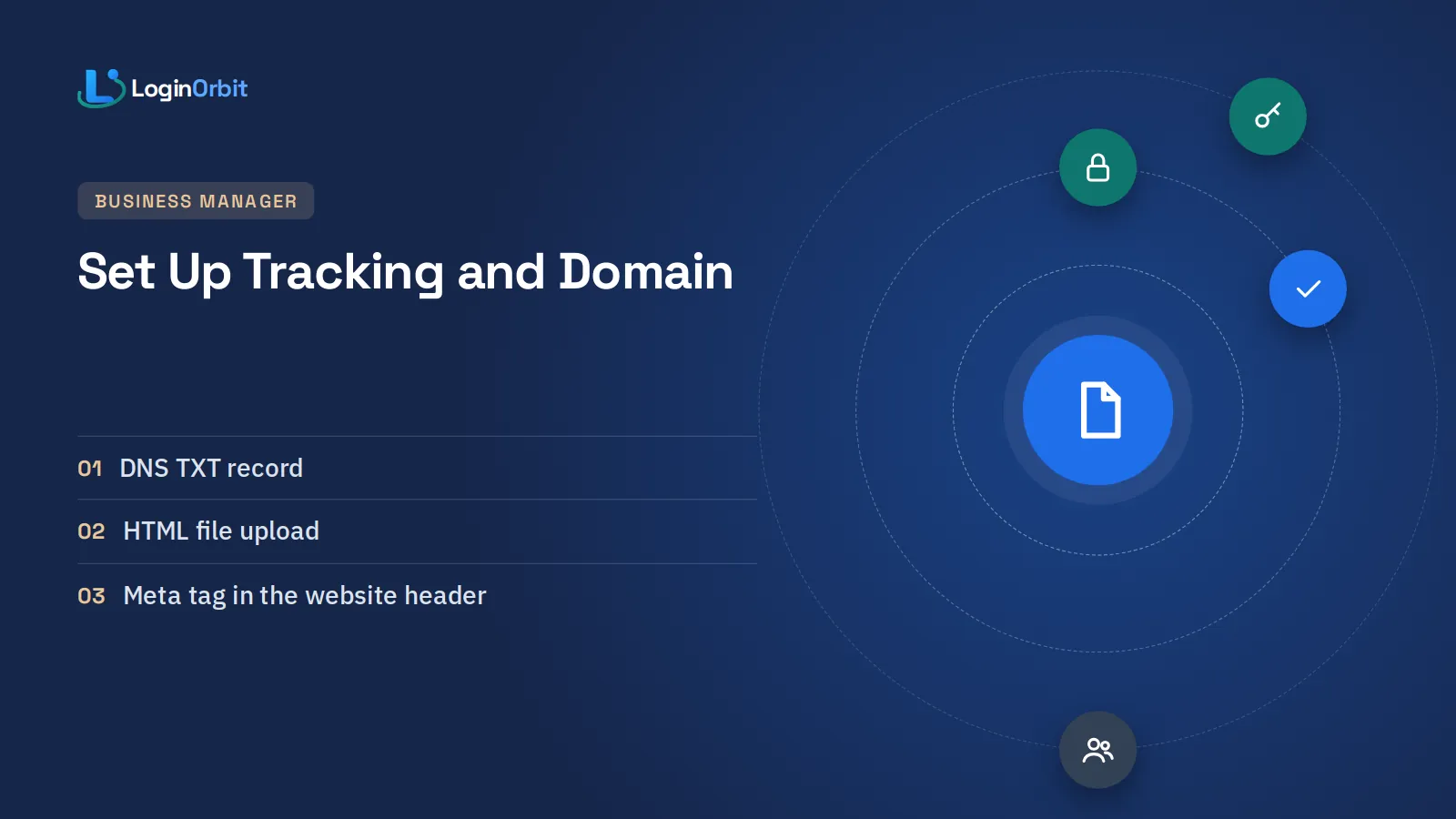
Advertising becomes more useful when Meta connects ad interactions with website actions.
Verify the domain
Add your website domain in Business Settings and verify ownership using one of Meta’s offered methods, such as:
- DNS TXT record
- HTML file upload
- Meta tag in the website header
DNS remains independent of a particular website theme. Your domain provider or web developer may need to add the record.
Use Meta’s requested root domain format. Don’t verify a domain you don’t own or control.
Install a data connection
Depending on your website platform, you may connect:
- Meta Pixel
- Dataset
- Conversions API
- A supported platform integration
- Manual event code
Track business-relevant actions such as Lead, Complete Registration, Contact, Schedule, or Purchase. Test events using a real but non-sensitive test action and confirm that the event fires once rather than repeatedly.
Configure events
Choose the events that match your business model:
- A plumber may track Contact and Lead.
- A salon may track Schedule.
- An online retailer may track View Content, Add to Cart, and Purchase.
- A consultant may track Lead and Complete Registration.
- A restaurant may track calls, directions, or online orders.
Tracking can’t repair a slow website, unclear offer, broken form, or weak follow-up process.
Pro Tip: Write down the expected customer journey before installing tracking: ad click, landing page, form completion, confirmation page, and staff follow-up. This makes testing much easier than clicking randomly through the site.
Verify Business and Security
Business verification isn’t always required on the first day, but Meta may request it later because of advertising features, account history, regulated industries, or unusual activity.
If requested, prepare official documents whose legal business name and address match the details entered in your business portfolio exactly, such as:
- Formation or registration records
- Utility or business-address documents
- Tax or government records
- A business phone number
- A website showing the same business identity
Submit clear documents through Meta’s interface.
- Turn on two-factor authentication for everyone.
- Use unique passwords.
- Remove former workers promptly.
- Review recent login activity.
- Keep recovery methods current.
- Confirm that administrators recognize one another.
- Avoid browser extensions that request unnecessary account access.
A business portfolio can be restricted for policy violations, suspicious behavior, payment issues, identity concerns, or repeated unsuccessful activity.
Launch a Safe First Campaign
Don’t make your first test a large, complicated campaign. Start by confirming the foundation.
Pre-launch checklist
- The correct Facebook Page is selected.
- The correct Instagram account is selected.
- The ad account has the intended currency and time zone.
- The payment method is valid.
- The website loads on mobile.
- The landing-page form works.
- The pixel or dataset receives the intended event.
- The destination URL is correct.
- The ad copy and image meet Meta’s advertising policies.
- At least two people can see the campaign status.
Use a modest test budget.
For lead campaigns, check lead quality and response time. For ecommerce, check purchases and profit rather than clicks alone.
Keep a basic record of:
- Campaign name
- Objective
- Audience
- Dates
- Budget
- Creative used
- Leads or sales
- Cost per result
- Follow-up outcome
This record helps distinguish an advertising problem from a sales-process problem.
Troubleshoot Common Problems
Page can’t be added
The Page may already belong to another portfolio, or your profile may not have full control. Ask the current owner to inspect Business Settings and grant access.
Instagram won’t connect
Confirm that you’re signing into the intended Instagram account, that it’s professional, and that you have the required access. Log out of other Instagram accounts in the browser and retry in a private window if Meta keeps selecting the wrong identity.
Ad account is unavailable
It may be owned by another business, already assigned elsewhere, disabled, or at a portfolio limit. Identify the owner and request access.
Payment method is rejected
Check the billing address, card limit, expiration date, bank approval, and account currency. A business card may require the bank to approve online or international transactions.
Business verification fails
Make sure the legal business name and address on your official documents match the details entered in your business portfolio exactly. Also check that your phone number and website are consistent. Avoid abbreviations in one record and a different legal name in another. If the interface offers an appeal or review request, use that process once the information is corrected.
People can’t see assets
Inviting someone to the portfolio doesn’t automatically assign every Page, ad account, or Instagram account. Open each asset’s permissions and assign the person the required task access.
Results or events look wrong
Check the event setup, browser and mobile behavior, duplicate code, consent settings, URL parameters, and reporting window. Test one action at a time and compare Meta’s report with the website, booking system, or order records.
Manage It Each Month
A portfolio needs routine maintenance. A monthly review can catch access and billing issues early.
| Monthly check | What to inspect | Action |
|---|---|---|
| People | Current employees and roles | Remove departed users |
| Partners | Agencies and contractors | End outdated access |
| Billing | Payment method and invoices | Update expired details |
| Campaigns | Active and scheduled ads | Pause unwanted campaigns |
| Tracking | Key website events | Test important conversions |
| Assets | Pages, accounts, catalogs | Remove duplicates |
| Security | Admins and login alerts | Investigate unknown activity |
Keep invoices and payment records with bookkeeping.
Don’t delete an unused ad account. Historical records may matter. Mark it clearly, remove unnecessary users, and leave it inactive unless required.
Pro Tip: Maintain a one-page access register listing every person, role, asset, and last review date. Store it in a secure business location, not in a public spreadsheet.
Want an expert to set this up with you? Take a look at Facebook Business Manager Setup Service | LoginOrbit.
Frequently Asked Questions
Is Facebook Business Manager free?
Creating a business portfolio and using Business Settings generally doesn’t carry a separate setup fee. You pay when you run ads, and the amount depends on your chosen budget, campaign delivery, taxes, and any applicable payment terms. Optional software, agency services, creative work, and website development cost extra.
Do I need Business Manager for one Facebook Page?
No. A very small business can manage a Page directly through Facebook. A portfolio becomes useful when you need Instagram, advertising, staff access, a domain, tracking, catalogs, or an agency. Set it up before those needs become urgent so ownership and permissions start cleanly.
Can I use a personal Facebook account?
Yes. Your personal profile is the login identity used to access the business portfolio, but it shouldn’t be used as a shared company login. Keep your profile secure, enable two-factor authentication, and invite other people through business permissions rather than sharing your password.
What is the difference between adding and requesting access?
Adding an asset means your portfolio owns or controls it. Requesting access means another person or business owns it while your team receives defined permissions. Use requesting access for agency-owned assets or a Page controlled by another organization; don’t claim ownership accidentally.
How many business portfolios should a small business have?
Most small businesses need one portfolio for one brand. Separate portfolios may make sense for genuinely separate legal businesses or independent organizations, but multiple portfolios create fragmented ownership, reporting, billing, and access. Consolidate where possible and document the reason for any separation.
What should I do if Meta restricts my account?
Read the exact restriction notice, check billing and identity details, review advertising-policy issues, and submit the available review request with accurate information. Don’t create multiple replacement accounts to evade the restriction. If an agency manages the account, make sure the business owner also has visibility into the notice.
What to do next
Start by turning on two-factor authentication, confirming who owns your Page and Instagram account, and creating one accurately named business portfolio. Then add only the assets and people you need, test a draft campaign, and schedule a monthly permissions and billing review before spending seriously.



