
Facebook app draining battery can usually be reduced by updating the app, limiting background activity, lowering location access, and checking your phone’s battery report. The biggest causes are video autoplay, background refresh, location services, notifications, weak mobile signals, and an aging battery. This guide shows how to find the cause, change the right settings, and know when Facebook isn’t the real problem.
Why Facebook Uses So Much Battery
Facebook uses more battery than a simple text app because it loads photos, videos, stories, ads, messages, and live updates. It may also use mobile data, location services, notifications, and background activity while you’re not looking at the screen.
The app itself isn’t always the main cause. A bright display, poor cellular signal, Bluetooth use, high refresh rate, or another app running in the background can make the battery percentage fall faster. On older phones, battery capacity also drops with age.
A common misconception is that closing Facebook every time will fix the problem. Force-closing it may help after a crash, but repeatedly closing and reopening apps can use extra power because the phone must load them again. Check the battery report first so you’re changing the setting linked to the real cause.
To check Facebook’s battery activity on iPhone, open Settings > Battery. On Android, open Settings > Battery > Battery usage; the exact names can differ by phone maker.
Facebook is mainly for people who want an active social feed, messaging, groups, video, or marketplace access. If you only need messages, Facebook Messenger or the mobile website may use less power in your situation, though the result varies by phone and usage.
How To Reduce Facebook Battery Drain
Use these steps in order. Check the battery report after changing one or two settings, so you’ll know which change helped.
-
Check Facebook’s battery share first. On iPhone, review the last 24 hours or 10 days in Settings > Battery. On Android, review the available battery-use period under Settings > Battery. If Facebook is low on the list, leave its settings alone and check the screen, signal, or another app.
-
Update Facebook and your phone. Install the latest Facebook version from the App Store or Google Play, then install any available iOS or Android update. Restart the phone after updating. If the drain began immediately after an update, wait until the phone finishes its background setup, then check the report again.
-
Stop unnecessary background activity. On iPhone, go to Settings > General > Background App Refresh and turn Facebook off. On Android, open Facebook’s app battery settings and choose Optimized or Restricted only if you’re comfortable receiving delayed notifications.
-
Reduce location access. Set Facebook’s location permission to While Using the App on iPhone or Allow only while using the app on Android. If you don’t use nearby features, Marketplace location, or location tagging, choose Don’t allow instead.
-
Limit video playback. In Facebook, open Menu > Settings & privacy > Settings, then find Media. Turn off autoplay or select On Wi-Fi only, where that option is available. This reduces unwanted video loading, especially on cellular data.
-
Reduce notification work. Turn off alerts you don’t need, such as live video, group activity, or suggested content. Keep message alerts on if you rely on Facebook for communication. On both platforms, notification controls are available in the phone’s app settings.
-
Test Facebook without mobile data. Turn off cellular data for Facebook for 30–60 minutes while using Wi-Fi. If the drain improves, weak signal or mobile video loading may be contributing. If it doesn’t, screen brightness, background activity, or battery condition deserves more attention.
The main judgment call is whether to restrict background activity or notifications. If you need instant Facebook messages, keep notifications and use a lighter restriction; if you mainly browse the feed, restrict background use and accept delayed alerts.
Facebook Battery Settings At A Glance
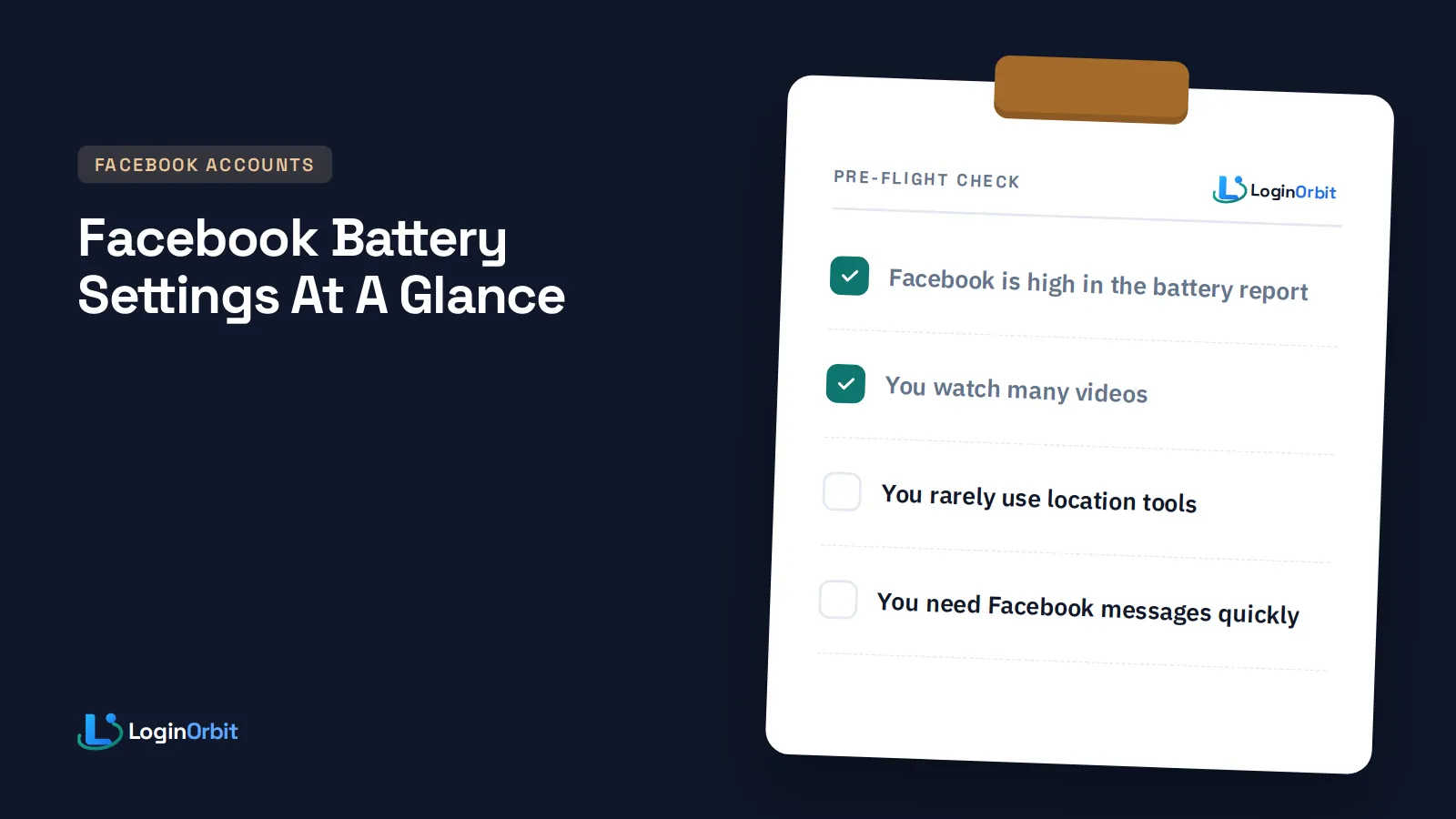
These settings are starting points, not guarantees. Your phone model, operating system, signal strength, screen brightness, and Facebook version can change the result.
| Situation | What to use | How long | What to watch for |
|---|---|---|---|
| Facebook is high in the battery report | Review app activity and restrict background use | Check after 24 hours | Delayed notifications |
| You watch many videos | Autoplay off or Wi-Fi only | Keep enabled | Videos won’t start automatically |
| You rarely use location tools | Location set to “Never” or “Don’t allow” | Keep enabled | Location tagging may stop |
| You need Facebook messages quickly | Keep notifications on; use optimized battery mode | Review after 1 day | Alerts may arrive later |
| Battery drops on cellular data | Use Facebook on Wi-Fi when possible | Test for 30–60 minutes | Weak signal can increase drain |
| Phone gets hot while Facebook runs | Stop using Facebook and keep or increase its background restrictions while the phone cools. | Recheck after cooling | Heat, crashes, or fast drain |
| Facebook stays high after settings changes | Update, reinstall, or use the mobile website | Test for 1–2 days | You may lose saved app data |
If Facebook remains near the top after a full day of normal use, the issue may be an app bug or a phone battery problem rather than one simple setting.
What Good Battery Troubleshooting Looks Like
Start with evidence instead of changing every setting at once. Check the battery screen, note Facebook’s percentage, and look for screen-on time, background activity, and whether the drain happened on Wi-Fi or cellular data.
Then change one group of settings. For example, turn off autoplay and set location to While Using the App. Use the phone normally for the rest of the day, then compare the battery report. Changing five settings together may save power, but you won’t know which one solved the problem.
Good troubleshooting also checks the phone’s condition. If the phone feels hot, stop using Facebook for a few minutes and let it cool. If the device gets hot while idle, restarts, swells, or loses power suddenly, stop trying app fixes and contact the phone maker or an authorized repair center.
Don’t install “battery booster” apps that promise instant repairs; they often add another background process and notifications. Don’t delete system files, change developer settings, or install unofficial Facebook versions.
A trade-off is unavoidable: tighter restrictions can extend battery life, but they can delay messages, stop automatic refresh, or reduce location features. If quick alerts matter more than background savings, keep notifications on and limit video and location use instead.
Facebook Battery Problems And Fixes
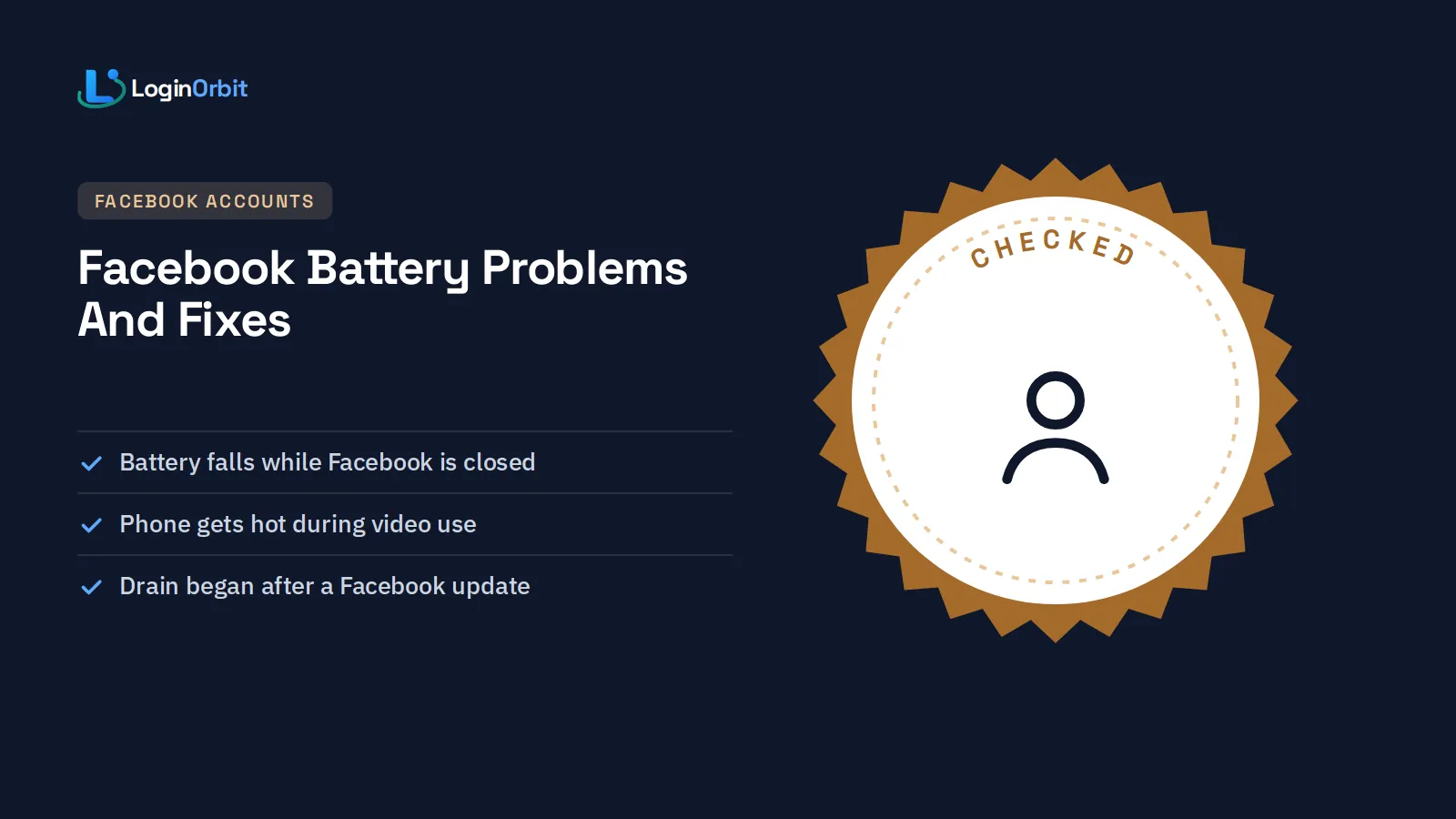
The battery report is more useful than guessing. Match what you notice with the first safe check below.
| What you notice | What it usually means | What to do first |
|---|---|---|
| Battery falls while Facebook is closed | Background activity or another app may be active | Check Facebook’s background use and the full battery list |
| Phone gets hot during video use | Video, display, data, or weak signal is creating extra work | Stop autoplay, lower brightness, and switch to Wi-Fi |
| Drain began after a Facebook update | The new version may be using unusual background activity | Restart, update again if available, or reinstall from the official store |
| Notifications arrive late after a fix | Battery restriction is limiting background work | Change Facebook from Restricted to Optimized |
| Battery drains across all apps | Facebook may not be the main cause | Check battery health, screen time, signal, and system updates |
| Facebook crashes and drains power | The app may be stuck or corrupted | Force-stop once, restart the phone, then reinstall if needed |
If the phone becomes unusually hot, swells, smells strange, or shuts down, stop charging and using it. A phone repair professional should inspect it; don’t open the device yourself.
Battery And Privacy Limits
Facebook’s exact background behavior depends on your phone, operating system, app version, permissions, and network. Apple and Google control some background rules, while Facebook controls features inside its app.
Battery settings don’t always remove every type of activity. A notification can wake the phone, a video can keep the display active, and poor cellular reception can make network tasks take longer. Your carrier, location, and signal strength also matter.
On iPhone, Apple shows battery health under Settings > Battery > Battery Health & Charging. On Android, the location and wording of battery-health information vary by manufacturer. Check your phone maker’s support page for the correct menu.
Privacy settings matter too. Location, contacts, camera, microphone, and notification access can each support a Facebook feature. If you don’t use that feature, remove its permission in the phone’s privacy settings.
Don’t open the phone or replace an internal battery yourself. A swollen or damaged battery needs an authorized repair center, because puncturing or crushing a lithium-ion battery can cause fire or injury. If a setting change doesn’t solve unusual heat or rapid drain, stop at the software checks and get the phone inspected.
Keep Facebook From Draining Again
After changing settings, keep a simple note of the date, Facebook version, and battery percentage shown in the report. Compare the result after a normal day, not just after a short period of browsing. Use a similar routine when comparing days; video, messaging, and notifications can change the result.
Keep Facebook updated through the official app store, and restart the phone when the app freezes or behaves strangely. If a reinstall is needed, confirm that you know your Facebook password and can access the account’s recovery method first. Don’t remove the app before checking this, since troubleshooting shouldn’t create an avoidable lockout.
Review permissions when you install a major update. Facebook may add features or change menu names, so location, notifications, and background settings can be worth checking again when the drain returns. If Facebook remains near the top after a normal day, change one setting at a time so you can tell what helped.
There’s no reliable fixed lifespan for a phone battery in this problem. Battery aging varies with heat, charging habits, phone design, and daily use. Read your own battery-health percentage, maximum-capacity message, or manufacturer diagnostic result to judge whether the battery itself is becoming the limit. If other apps show the same pattern, investigate battery health or another system process instead of treating Facebook as the only cause.
When Facebook Is The Wrong Choice
Facebook isn’t the best choice if you only need occasional messages. Use the mobile website when you’re comfortable checking messages manually, or use a separate messaging app when you need quicker alerts without loading a social feed.
It’s also a poor fit for a phone with very limited storage or an older battery that already struggles. Removing the app can recover its installed space, although the browser may still store some temporary data. If the device is otherwise worth keeping, have the battery checked or replaced through an authorized service center.
Don’t rely on Facebook as your only urgent communication method after restricting background activity. If messages must arrive quickly, keep notifications and the required background permissions enabled. Send a test message while the screen is locked before depending on that setup.
If every app drains the battery quickly, switching away from Facebook probably won’t fix the real issue. Check battery health, screen use, signal strength, and charging behavior. Compare Facebook with another frequently used app under similar conditions. If the phone still behaves abnormally, contact the manufacturer or an authorized repair provider.
Related guides
- How scammers hack Facebook accounts
- How to Set Up a Facebook Account the Right Way
- How to Recover a Hacked Facebook Account Safely
Need it done properly the first time? See our Facebook Account Setup & Security Service service.
Frequently asked questions
Can Facebook drain your phone battery?
Yes. Facebook can use battery through video playback, screen activity, notifications, location access, background refresh, and mobile data. The amount changes with your phone model, signal, permissions, and how long you watch videos. Check the phone’s battery report before blaming the app, because another app or the display may be using more power.
Why does Facebook drain battery in the background?
Facebook may receive notifications, refresh content, process account activity, or use permitted location features in the background. Your phone decides how much background work the app can do. Set background activity to optimized or restricted, but expect notifications and feed updates to arrive later.
How long should a Facebook battery test take?
Use a 30–60 minute comparison for a quick cellular-versus-Wi-Fi test, then check again after 24 hours of normal use. The longer test is more useful because battery drain changes with screen time, signal strength, video viewing, and other apps.
Is it safe to restrict Facebook battery use?
Yes, restricting Facebook battery use is generally safe, but it can delay notifications and stop automatic refresh. It won’t repair a damaged battery or fix a phone that becomes hot while idle. If the device swells, smells unusual, or shuts down unexpectedly, stop using it and seek professional repair.
What happens if I turn off Facebook background refresh?
Facebook may stop refreshing the feed until you open it. Notifications can also be delayed, depending on your phone and notification settings. Messages may still arrive, but the timing isn’t guaranteed. This setting is useful when you care more about battery savings than instant feed updates.
Can deleting Facebook improve battery life?
Yes, deleting Facebook can reduce its app activity, notifications, and background work. The improvement may be small if Facebook wasn’t high in your battery report. You can test the mobile website instead, but it may still use battery through the browser when you watch videos or keep the page open.
What to do next
Keep an eye on your phone’s battery report over the next few days after making changes. If battery life still drops quickly, test another demanding app, update your phone, or contact the manufacturer. You’ll soon see whether Facebook needs attention or the battery itself is ready for replacement.



