
This complete guide to facebook business manager for advertisers explains how to organize Meta ad accounts, Pages, people, payment methods, pixels, catalogs, and permissions in one business portfolio. You’ll use Meta Business Suite and Ads Manager for daily work, while Business Settings controls access and assets. The right setup depends on your business structure, not your campaign size. This guide covers setup, roles, common errors, limits, security, maintenance, and when a different account structure is safer.
What Business Manager actually does
Meta Business Manager is the control area for a company’s Meta assets. Meta now commonly calls the main container a business portfolio. It can hold Facebook Pages, Instagram professional accounts, ad accounts, datasets, catalogs, pixels, apps, and payment settings.
Business Manager isn’t the place where you write every ad. Ads Manager is used to create campaigns, choose audiences, set budgets, and read results. Meta Business Suite is mainly for publishing, messages, comments, and basic content planning. Business Settings is where you manage ownership, access, and security.
It’s useful for advertisers who work with several people, brands, Pages, or ad accounts. A solo advertiser with one Page and one ad account may need only a simple setup. An agency usually needs separate client assets and partner access.
The biggest misconception is that adding someone to a business gives that person access to everything. It doesn’t. Access is assigned asset by asset, with different permission levels. A person may manage a Page but have no access to an ad account.
Meta also separates people, partners, and assets. People are individual users. Partners are outside businesses, such as agencies. Assets are the Pages, ad accounts, catalogs, and data tools they may use.
For Meta’s current product names and setup screens, use the Meta Business Help Center. Screens can change by country, account type, and product rollout, so your menu may not match an older tutorial.
Set up Facebook Business Manager
Start with the business that will own the assets. If a client owns the Page, pixel, and ad account, the client should normally create and own the business portfolio. An agency can then receive partner access instead of taking ownership.
-
Create or select the business portfolio. Use a real business name and a business email that your company controls. Add your legal business details when Meta requests them. Don’t create several portfolios to solve a temporary access problem.
-
Add or request the Facebook Page. Choose Add a Page if the business owns it. Choose Request access to a Page when another business owns it. If you don’t have the needed Page permission, ask the current Page administrator to approve the request.
-
Connect the Instagram account. Use the professional Instagram account that represents the same brand. If Instagram belongs to another business portfolio, its owner may need to approve the connection or share it with your business.
-
Add or create the ad account. Select Add an ad account for an account your business owns, Request access for a client account, or Create a new ad account when no suitable account exists. Check the time zone and currency before creating it; these settings can affect reporting and may not be changeable later.
-
Add people with the smallest useful role. Invite each person by their own email or Facebook account. Give an employee only the assets and permissions needed for the job. Give an agency partner access through the partner option instead of sharing a password.
-
Set up billing carefully. Add the approved payment method to the correct ad account. Confirm the account’s spending limit, billing threshold, invoice details, and payment country. A payment method can work on one ad account and fail on another.
-
Install data tools only after ownership is clear. Create or connect the Meta Pixel and dataset, then give the correct ad account and people access. Your website developer may need technical access, but they don’t automatically need campaign or billing access.
-
Test before spending. Publish a low-risk draft or small test campaign only after checking the Page, Instagram identity, destination URL, tracking events, audience, budget, and payment method. If verification or a disabled-account notice appears, stop and use Meta’s account review process rather than creating another account.
The key judgment is ownership versus access. If your company owns the brand, create and keep the assets in its portfolio; if you’re an outside agency, request partner access. Sharing passwords or moving client assets into an agency’s portfolio can cause lost access, billing disputes, and difficult transfers.
Some cases need a person who handles Meta permissions, websites, or legal business records. Don’t change ownership, payment information, or domain records blindly if a failed change could block advertising; ask the business owner, finance contact, developer, or Meta support to handle that part.
Facebook Business Manager numbers and settings
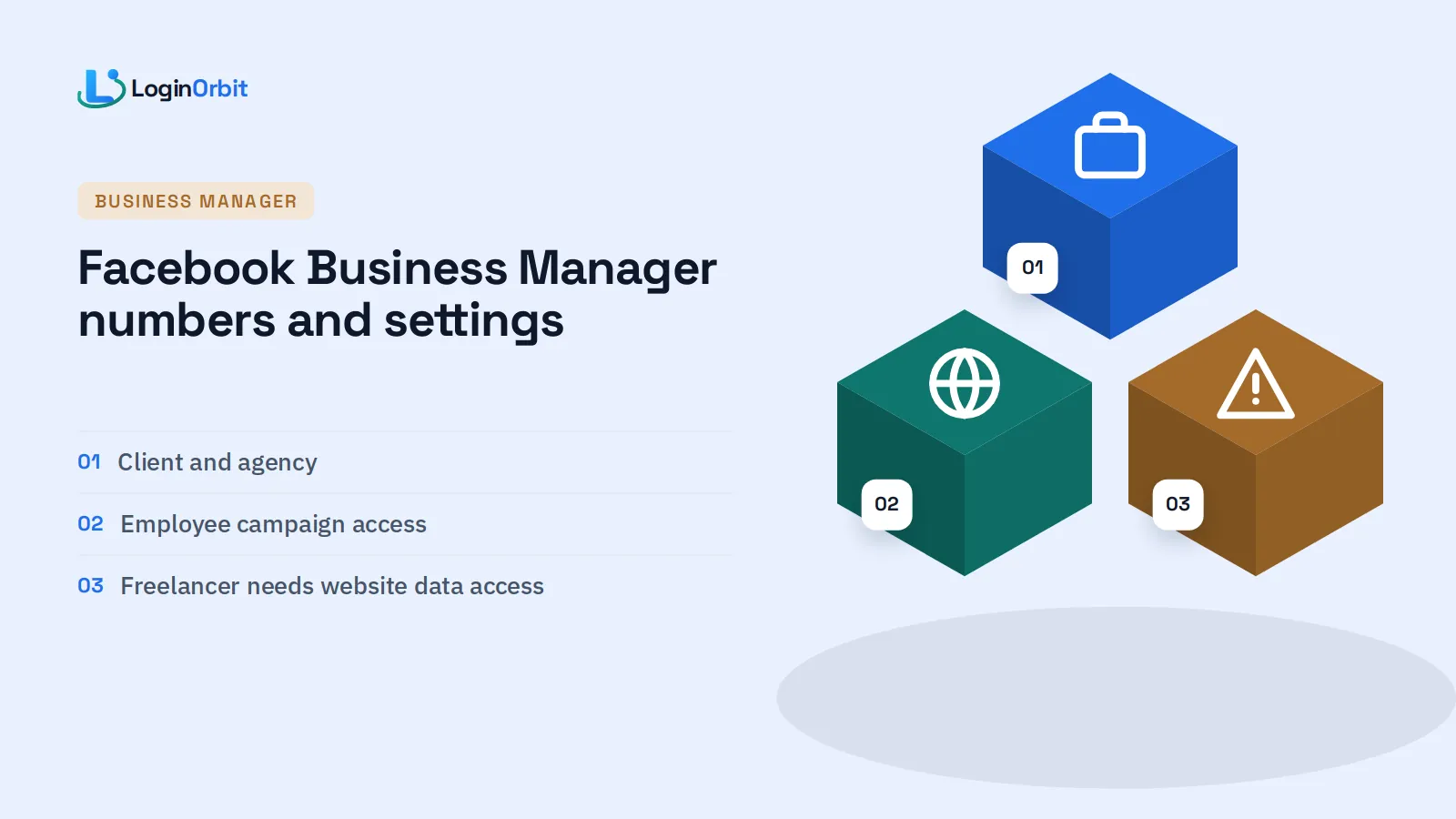
These settings are worth checking before you invite people or launch campaigns. The correct choice depends on who owns the asset and where the business operates.
| Situation | What to use | How long | What to watch for |
|---|---|---|---|
| One business, one Page | One business portfolio with the Page and ad account | Setup time varies | Don’t create duplicate portfolios for the same brand |
| Client and agency | Client-owned assets plus partner access | Approval time varies | The client must approve the request |
| Employee campaign access | Employee invitation with ad account access | Until removed | Use each person’s own login |
| Freelancer needs website data access | Dataset or pixel permissions only | For the project | Don’t give billing access by default |
| Several brands | Separate Pages, ad accounts, and catalogs under clear ownership | Ongoing | Label assets so the wrong brand isn’t used |
| New ad account | Correct time zone, currency, and payment details at creation | Before first campaign | These settings can affect reporting and billing |
| Former worker leaves | Remove the person and review partner access | Immediately after departure | Check tokens, apps, and shared accounts too |
If a setting is missing, check whether you’re looking at the right portfolio, asset, or ad account. Meta’s menus also differ when you’re an employee, an administrator, or a partner.
Details that protect ad results
Begin by drawing a simple ownership map. Write down the business portfolio, Page, Instagram account, ad account, dataset, domain, catalog, and payment owner. This catches a common problem: the campaign is in one business, but the Page or tracking tool belongs to another.
Next, name assets clearly. A label such as Brand-US-Ads-01 is easier to identify than a default number. Keep the time zone, currency, business country, and billing contact in your records. Don’t change these settings just to make reports look consistent with another account.
Add people in the order they need access. Give the business owner full control first, then give staff or partners limited roles. Check the asset list after every invitation. A person who can create ads may not need permission to change payment methods, manage people, or delete assets.
Before launch, preview the identity shown on the ad. Check the Facebook Page, Instagram account, display link, destination URL, privacy notice, and tracking event. Then open the ad on both mobile and desktop when possible. A correct campaign can still send visitors to the wrong page.
Partway through the first campaign, check delivery, rejected ads, spend, link clicks, and the event you expect to receive. Don’t make several major changes at once. If you change the audience, creative, budget, and landing page together, you won’t know which change affected the result.
People often add an agency as a full administrator because it feels faster. The cost is control: the agency may gain access to assets and settings it doesn’t need, and removing that access later may be harder than granting the correct partner permissions at the start.
Facebook Business Manager problems and fixes
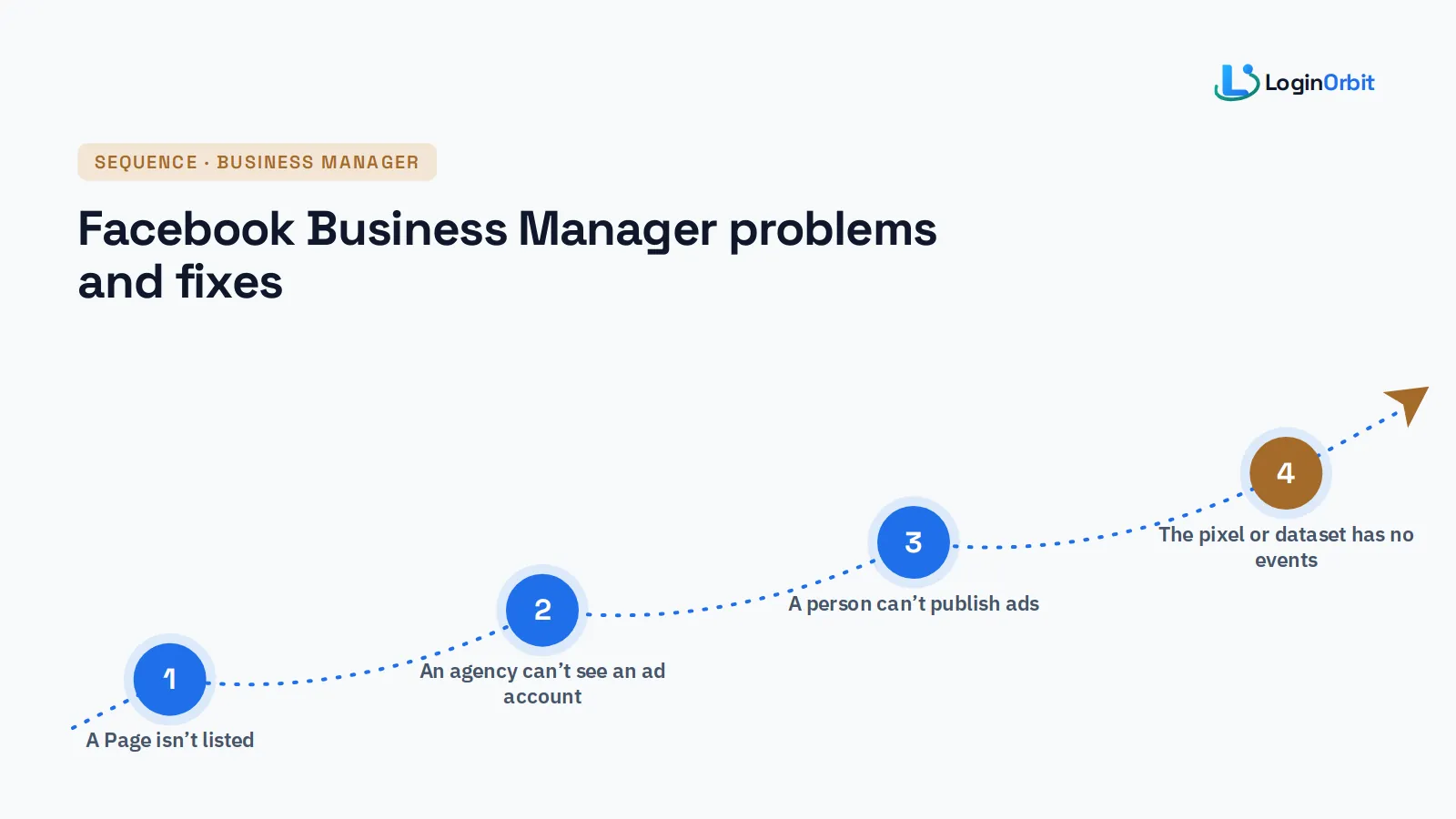
Most access errors come from using the wrong business, asset, role, or login. Check the business portfolio name and asset ID before changing settings.
| What you notice | What it usually means | What to do first |
|---|---|---|
| A Page isn’t listed | You’re in the wrong portfolio, or the Page has another owner | Search by the Page URL and ask its owner for access |
| An agency can’t see an ad account | Partner access wasn’t approved or the wrong ID was shared | Recheck the ad account ID and review partner permissions |
| A person can’t publish ads | They have Page access but not ad account access | Assign the needed role on that specific ad account |
| The pixel or dataset has no events | The code, event setup, or data permission is incomplete | Check the website setup and dataset access |
| A payment method is rejected | The bank, billing details, or ad account has a problem | Review billing in that ad account; don’t open a duplicate account |
| Ads are rejected | The ad or landing page may break Meta’s advertising rules | Read the rejection reason and request a review if appropriate |
If the same error continues after you’ve checked ownership and permissions, stop making repeated changes. Record the business ID, asset ID, error text, and recent action, then contact Meta support or the person who controls the asset.
Meta access and advertising rules
Meta access should follow the least-access principle: each person gets only the permissions needed for their work. Full control can allow changes to people, assets, settings, and ownership, so reserve it for trusted business administrators.
Use individual accounts, not a shared Facebook login. Shared credentials make it difficult to identify changes and increase the risk of losing access. Turn on two-factor authentication for everyone who can manage business assets. Meta may require additional security steps for some businesses or accounts.
Advertising rules also apply to the ad content, audience, destination, and business category. Financial products, housing, employment, politics, health claims, and other sensitive areas may have extra restrictions or reporting requirements. Read the policy notice shown in your account before publishing.
Domain verification, business verification, and identity checks may be requested. The exact documents and process can vary by country and business type. Use the legal business information that matches your records; false or mismatched details can delay review.
If an account is disabled or a payment issue becomes a business dispute, don’t try to bypass the restriction with new personal accounts. The business owner should use Meta’s review process, while legal, finance, or compliance professionals handle disputes that go beyond ordinary ad setup.
Keep the business account healthy
Review people and partner access whenever someone changes role or leaves the company. Remove old users, expired agencies, unused apps, and unknown system users. Then check which assets they could access, because removing a person from one asset may not remove every other permission.
Keep a private record of business IDs, ad account IDs, Page ownership, domain ownership, billing contacts, and the date of major changes. Store it in a company-controlled system, not only in one employee’s notes.
Watch for rejected ads, failed payments, unusual spend, missing events, and unexpected administrator changes. These signs need attention sooner than a monthly cleanup. If you see unknown activity, secure the affected personal accounts first, remove unfamiliar access, and contact Meta support.
When a campaign ends, pause it and keep the data you’re allowed to retain for reporting. Don’t delete an ad account just to make the dashboard cleaner. A future audit, refund question, or comparison may need its history.
When Facebook Business Manager isn’t best for advertisers
A simple solo business may not need a complex structure. If you manage one Page, one Instagram account, and one ad account alone, use a single business portfolio with clear ownership instead of creating separate portfolios for every campaign.
An agency shouldn’t own a client’s brand assets unless there’s a clear written reason. If the client owns the brand, keep the Page, Instagram account, dataset, domain, catalog, and ad account with the client. Use partner access for campaign work.
A new portfolio also isn’t the answer to a disabled account, rejected payment, or missing permission. Find the original owner and use the review or access process. If the problem involves contracts, ownership, privacy, or advertising law, involve a qualified lawyer or compliance professional.
If your business has several legal entities, countries, or brands, one shared structure may create reporting and billing confusion. Separate portfolios can be safer when ownership, payment responsibility, and data rights are genuinely different.
Short on time? Our Facebook Business Manager Setup Service | LoginOrbit service takes care of the whole process.
Frequently asked questions
Can I use Facebook Business Manager without a Facebook Page?
Yes, you can create a business portfolio before adding a Page, but many advertising and business tasks need a Page or Instagram identity. If you’re promoting a brand, prepare the correct Page and professional Instagram account first. Don’t create a temporary Page and assume it can always be merged or transferred without approval.
Why can’t I add my Facebook Page to Business Manager?
The Page may already belong to another business portfolio, or you may not have enough Page access. Check the Page’s ownership and ask its current business administrator to add you or approve a request. If you recently changed roles, wait for the owner to confirm access rather than creating a second Page.
How long does Meta business verification take?
Meta doesn’t give one universal processing time for every business. The timing depends on the country, documents, business details, and review queue. Make sure your legal name, address, website, and submitted documents match. If Meta requests more information, respond through the notice in Business Settings.
Is it safe to give an agency full control?
No, not by default. Give an agency partner access to the specific Page, ad account, dataset, catalog, or Instagram account it needs. Full control can allow changes to users, assets, billing, and ownership. Use it only when the agency has a clear business reason and a written agreement supports that access.
What happens if I lose access to Business Manager?
Your assets may still belong to the business, but you may be unable to manage them. Ask another verified business administrator to restore access and review recent changes. If no administrator is available, gather ownership records and use Meta’s support or account recovery process. Don’t pay an unknown person who promises instant recovery.
Can I have more than one ad account in Business Manager?
Yes, a business can manage multiple ad accounts, but Meta may apply account limits based on its account history and other factors. Use separate accounts only for real needs, such as different legal entities, currencies, or client ownership. Too many duplicate accounts can make billing, access, and reporting harder to control.
How often should I review Business Manager access?
Review access whenever a person, agency, role, or client relationship changes. A routine review can also catch old users, unused partners, and unexpected permissions. Check people, partners, Pages, ad accounts, datasets, catalogs, apps, and payment access separately because one permission change may not cover every asset.
What to do next
Keep your business portfolio tidy as your team and campaigns grow. Review access, payment details, tracking tools, and connected assets regularly, and remove anything you no longer use. If your structure changes, pause before creating new accounts and check how the change could affect reporting, security, and ownership.



