
Facebook emoji reactions not working is usually caused by a temporary app problem, an outdated app, or a network issue. First, try reacting to a different post and comment, then switch between Wi-Fi and mobile data. If reactions fail everywhere, check whether Facebook itself is having a service problem before changing account settings.
Why Facebook emoji reactions fail
The quickest clue is where the problem happens. If reactions fail only on one post, that post or its audience settings may be responsible. If they fail across Facebook, the app, browser, account session, or Facebook’s service is more likely involved.
| Cause | How common | How to confirm it | Fix it yourself? |
|---|---|---|---|
| Temporary app or browser glitch | Very common | Test another post | yes |
| Weak or blocked connection | Very common | Switch networks | yes |
| Outdated Facebook app | Common | Check app store | yes |
| Damaged app cache | Common on Android | Clear app cache | yes with care |
| Account session error | Sometimes | Log out and back in | yes |
| Post or group restrictions | Sometimes | Test other content | yes |
| Facebook service problem | Less common | Check several features | yes with care |
Start with a second post, then try both a personal post and a post in a group or Page. If reactions work in one place but not another, the content’s settings or your permissions are the stronger suspects. Group posts may also have restrictions that don’t affect your main feed.
If reactions fail everywhere, switch from Wi-Fi to cellular data, or try another network. A reaction that appears only after refreshing points to a connection or loading problem, not necessarily a disabled feature.
On Android, clear Facebook’s cache without clearing its storage first. Clearing storage can remove saved login details and other local data. On an iPhone, update the app and restart it instead; iOS doesn’t offer the same per-app cache control.
If several Facebook features fail at the same time, test again later before repeatedly changing account settings. Log out and back in only after checking the network and app version. That avoids turning a temporary service problem into an avoidable login recovery task.
A temporary Facebook app glitch
A short-lived Facebook glitch is the most likely cause when the reaction buttons appear, but your choice does nothing. The button may flash, return to its old state, or show a reaction that disappears after you refresh the page. This can happen in the Facebook app, a mobile browser, or a desktop browser.
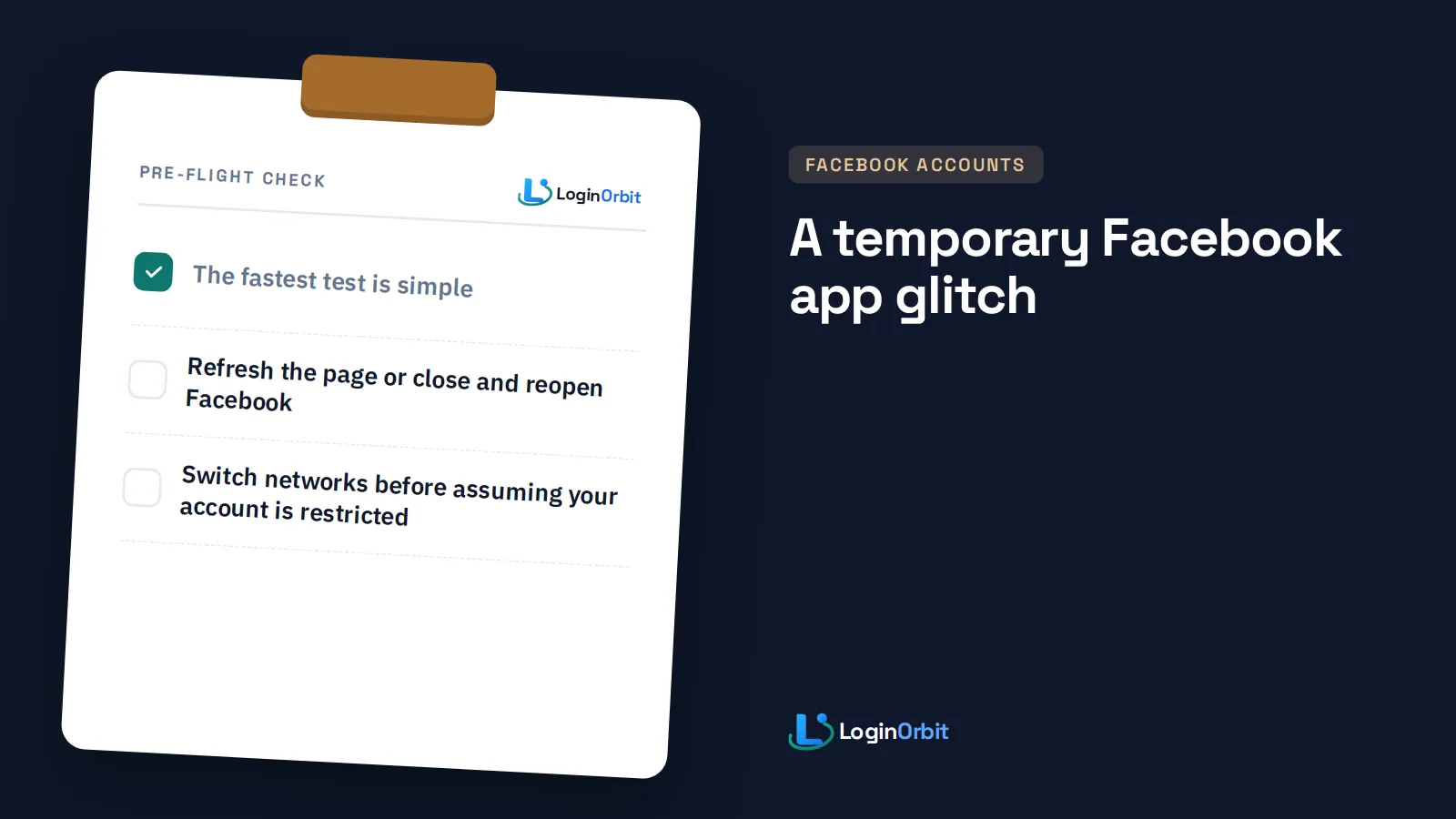
The fastest test is simple. Open a different post from a different person or page, and try one reaction there. Then open the comments on that post and test a comment reaction too. If both work, the original post is the problem. If neither works, continue with the connection and app checks.
Refresh the page or close and reopen Facebook. On a phone, swipe the app away from the recent-apps screen before opening it again. On a computer, refresh the page, then try a private or incognito window. The private window helps show whether an extension or stored browser data is interfering.
Try the reaction once, then wait for the button to change before tapping again. Repeated taps can leave the interface out of step with Facebook’s server. One practical mistake is tapping several times because the first tap seems slow; the result can be no visible reaction, a wrong reaction, or a reaction that vanishes after refresh.
If the same failure appears in the app and in a browser, the problem probably isn’t one damaged screen. Switch networks before assuming your account is restricted. If the reaction works on one network but not another, stop changing Facebook settings and investigate the connection or network filter.
This fix normally takes only a few minutes and costs nothing. It won’t help if the post owner has limited interaction, your account has a temporary feature restriction, or Facebook is having a wider outage. If a reaction works on other posts, don’t reinstall the app yet; that would add work without addressing the specific post.
A weak or blocked internet connection
A reaction needs Facebook to send your choice and receive an updated post. A connection can be fast enough to display old content but unreliable when you submit an action. That’s why the reaction icon may appear available even though your tap doesn’t stay saved.
This cause looks different from an app glitch: reactions often work after you change networks, while other Facebook actions may also pause or fail. Switch from Wi-Fi to mobile data, or from mobile data to a trusted Wi-Fi network. Then reload Facebook and test a new post.
Check whether videos, comments, and profile pages load normally. If all three are slow or stuck, Facebook’s reaction system probably isn’t the only problem. A workplace, school, hotel, or public network may also block parts of Facebook, so test on your own mobile connection if that’s allowed by your plan and local rules.
Turn off a VPN, private DNS service, or content-filtering app temporarily, if you use one and understand how to restore it. Don’t change router security settings just for a reaction problem. If the issue affects other devices on the same Wi-Fi network, restart the router using its normal controls or ask the network owner for help.
If reactions work on mobile data but not Wi-Fi, the trade-off is clear: mobile data may fix access, but it can use your plan’s allowance. For a lasting fix, the network owner or internet provider needs to check the connection or filtering. If reactions fail on every network, this is probably not the main cause.
An outdated app or browser
An old Facebook app or browser can display a reaction control that no longer works correctly with the current service. The strongest clue is that reactions fail in one app but work in a current browser, or that the problem began after a phone or browser update.
Check the Apple App Store or Google Play Store for a Facebook update. On a computer, update the browser through its own settings page, then restart it. Use the official Facebook app listing or Facebook’s help pages for supported access guidance; the Facebook Help Center explains how reactions are intended to work.
If an update is available, install it over a reliable connection and test reactions again. Don’t download an unofficial “fixed” Facebook app or a browser extension that promises extra reactions. Those tools can access your account or change the page without solving the service problem.
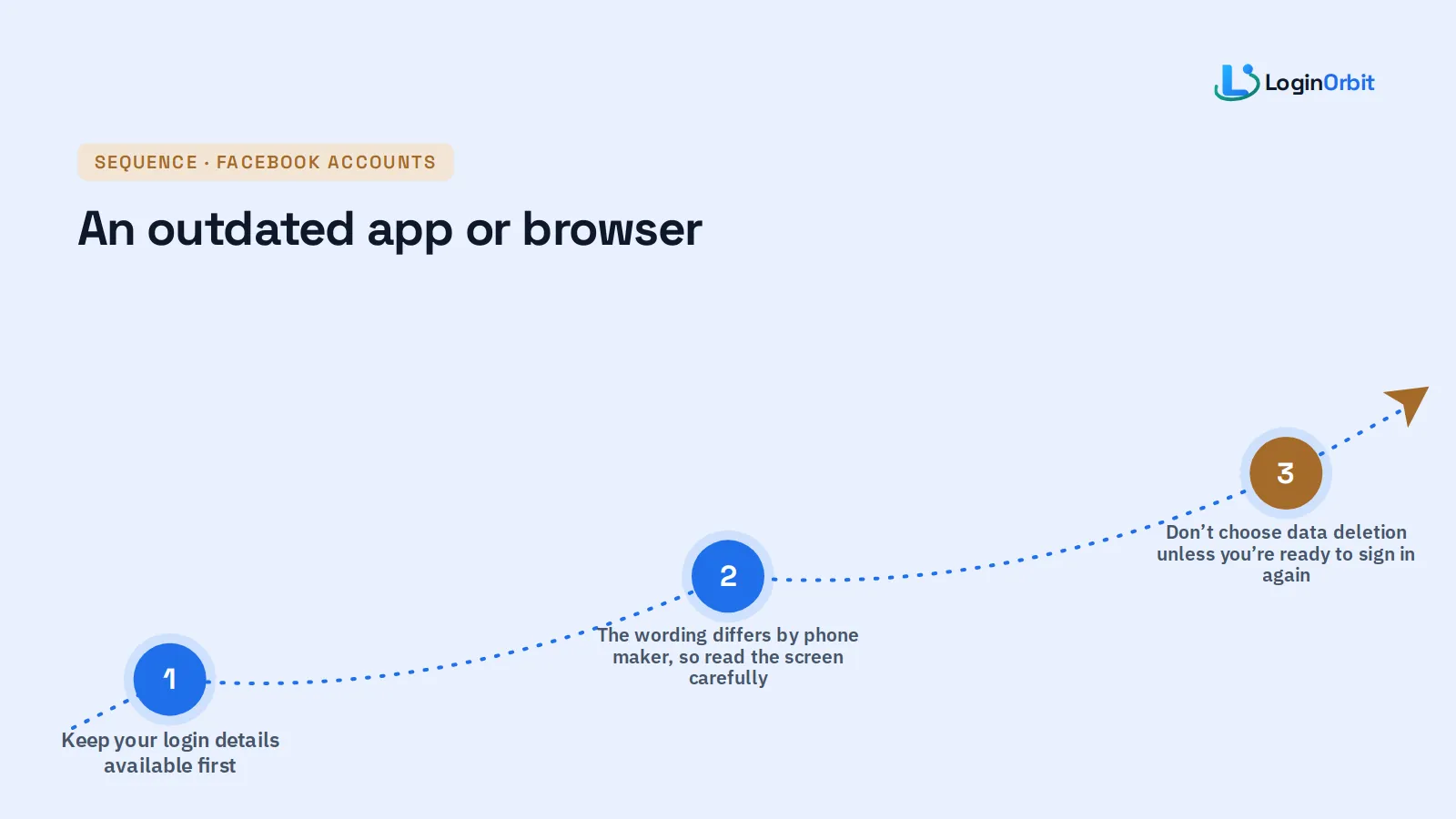
On Android, clearing Facebook’s cache can remove damaged temporary files without deleting your account. Open the phone’s app settings, choose Facebook, choose storage, and select the cache option only. The wording differs by phone maker, so read the screen carefully. Don’t choose data deletion unless you’re ready to sign in again.
On iPhone, there usually isn’t a separate cache button for Facebook. If updating and restarting don’t help, deleting and reinstalling the official app is the usual clean test. Keep your login details available first. If you use two-factor authentication, make sure you can receive its code before signing out.
An update can take longer on an older phone or a slow connection, and reinstalling uses storage and data. If the browser works but the app doesn’t, use the browser temporarily and report the app fault instead of repeatedly reinstalling it.
Account, post, or feature restrictions
A restriction is less common than a glitch, but it matters when reactions fail only on certain content. A group may limit who can interact, a page may have moderation controls, or Facebook may temporarily limit an account feature after unusual activity. The clue is that reactions work on ordinary public posts but not in one group, page, or comment thread.
Compare three places: a public post, a friend’s post, and the affected group or page. If only one location fails, read the group rules and check whether you can comment or share there. If every location fails while other account actions also show warnings, open Facebook’s Account Status or Support Inbox and read the message shown there.
Don’t create a second account to bypass a restriction. That can make an account review harder and may break Facebook’s rules. Also, don’t keep clicking the reaction button repeatedly; it won’t remove a server-side limit and can make the activity look less normal.
A post can also have different audience or interaction controls from another post. You can’t repair those controls from your phone unless you own the post or have the needed moderator role. Ask the group administrator about a group-specific problem, or use Facebook’s built-in report and support options for an account-wide issue.
If the problem follows your account across the app, browser, and networks, stop troubleshooting the phone. Facebook support is the right next step. Facebook doesn’t expose every internal reason for a reaction restriction, so the value you can read yourself is the exact warning in Account Status or Support Inbox.
Less common Facebook reaction causes
- A specific post was removed or changed: The reaction may vanish while the post, comment, or audience is being updated. Check whether other posts still accept reactions; if they do, the problem is probably limited to that item.
- A browser extension changed the page: Ad blockers or script tools may hide or break buttons. The strongest clue is that the reaction works in a private browsing window or after extensions are disabled.
- A phone accessibility or touch issue: The clue is that other on-screen buttons also miss taps. Try the same post with a mouse, another device, or a different part of the screen before changing Facebook settings.
- A Facebook account security check is pending: A login warning, verification request, or unusual-activity notice points to this cause. Finish the notice only inside Facebook’s app or official website.
- A wider Facebook service fault: If feeds, comments, messages, and reactions fail on several devices, wait for Facebook to restore service. Repeatedly reinstalling the app won’t fix a server-side outage.
Don’t open the phone, modify network equipment, or use account-recovery tools from an unofficial site. If reactions fail only in one browser, test a private window before resetting anything. If the next step involves security verification, account access, or a network you don’t control, use Facebook’s official support process, your device maker, or the network administrator.
What fixes Facebook emoji reactions not working involve
A quick app restart, page refresh, or network switch takes only a few minutes and needs no extra tool. It’s the best first choice because it has almost no downside. If the problem is limited to one post, there’s nothing to repair on your device.
Updating Facebook or your browser needs storage, a reliable connection, and sometimes a device restart. Clearing an Android cache is a small task, while reinstalling the app is a bigger reset because you’ll need to sign in again and may need a two-factor code.
A network problem may need the Wi-Fi owner or internet provider. An account restriction needs Facebook’s support tools, not a replacement phone. If you can react in a browser but not the app, keep using the browser while waiting for an app update.
Replace nothing unless other apps also fail because of a wider phone problem. Get a real quote only if a repair shop says the phone has a touch or software fault; the cost depends on the model, warranty, and local labor rate. Check the model in the phone’s Settings or on its label before asking.
Need it done properly the first time? See our Facebook Account Setup & Security Service service.
Frequently asked questions
Why are my Facebook reactions not working?
Facebook reactions usually fail because of a temporary app glitch, a weak connection, an outdated app, or a restriction on the post or account. Test a different public post first. If that works, the original content has different controls or a temporary issue. If nothing works, switch networks, update Facebook, and check Account Status or Support Inbox for a warning.
Can I fix Facebook reactions without reinstalling the app?
Yes, you can often fix them without reinstalling. Refresh Facebook, close and reopen it, switch between Wi-Fi and mobile data, and test the browser version. Android users can also clear Facebook’s cache from the phone’s app settings. If the browser works but the app still fails after an update, reinstalling becomes a clean test rather than the first step.
How long does a Facebook reaction glitch last?
A small app or service glitch may clear after a refresh or restart, but there’s no reliable time that applies to every Facebook fault. The useful check is whether reactions work on another device, network, or browser. If the problem affects feeds, comments, and messages too, wait for Facebook’s service to recover or use its support tools.
Is it safe to clear Facebook app cache?
Yes, clearing the app cache is generally safe because it removes temporary files, not your Facebook account. The exact menu differs by Android phone, so choose the cache option shown in the app’s storage settings. Don’t select storage or data deletion unless you’re ready to sign in again and restore any app preferences.
What happens if Facebook blocks my reactions?
Your reactions may fail across posts, or Facebook may show a warning about limited activity or account access. Check Account Status and Support Inbox while signed in. Don’t make another account or use an unofficial bypass. If Facebook asks for identity or security verification, follow the instructions on Facebook itself and contact support if the message is unclear.
Does it matter if reactions fail only on one post?
Yes, it matters because a one-post failure usually points away from your phone or internet connection. The post may have changed, been removed, or have different interaction controls. Test a public post and a comment elsewhere. If reactions work there, ask the group administrator or post owner about the specific content instead of reinstalling Facebook.
Why do my Facebook reactions disappear after I refresh?
A reaction that disappears after refresh wasn’t successfully saved, even if the button changed briefly. A weak connection, temporary Facebook error, or permission issue can cause that mismatch. Try one reaction on another post, then refresh once. If the result disappears everywhere, test another network and browser before checking your account status.
What to do next
If the problem continues after Facebook’s service returns, update the app and check for device software updates. You can also report the issue through Facebook’s Help & support menu, including what you tried and where reactions fail. That information helps Facebook identify account or device-specific problems more quickly.



