
Facebook message requests are usually in Messenger’s Message Requests folder, not your regular Chats list. Open Messenger, select your profile picture or menu, choose Message Requests, and review the “You May Know” and “Spam” sections. On Facebook desktop, open Messages and select Message Requests; menu names can vary slightly by app version, device, and account settings.
Key Takeaways
- Messenger app: Tap your profile picture or the menu button, then select Message Requests.
- Facebook website: Open Messages, choose the three-dot menu, and select Message Requests.
- Two folders: Check both “You May Know” and “Spam” because legitimate messages can be filtered.
- No notification: Requests may not create a normal Messenger alert, especially when the sender isn’t a Facebook connection.
- Respond carefully: Replying usually moves the conversation into your regular inbox and may signal that you have seen the request.
- Missing request: Search the sender’s name, check archived chats, update Messenger, and confirm you’re using the correct account.
Find Message Requests in Messenger
The Messenger mobile app is generally the quickest place to look. The exact icons may move after an update, but the destination remains the same: the Message Requests area.
On iPhone or iPad
- Open the Messenger app.
- Tap your profile picture in the upper-left corner. On some versions, tap the menu icon instead.
- Select Message Requests.
- Review the requests under You May Know.
- Tap Spam to see messages Messenger filtered more aggressively.
- Select a conversation to read it.
- Choose Reply, Delete, Block, or Report, depending on what you want to do.
If you don’t see the option immediately, scroll through the profile or settings page. It may appear under a section labeled Privacy, Safety, or Message Requests rather than near your active chats.
On Android phones and tablets
- Launch Messenger.
- Tap your profile image or the three-line menu button.
- Tap Message Requests.
- Open You May Know for ordinary filtered requests.
- Open Spam for messages identified as suspicious or unwanted.
- Choose an action from the conversation screen.
The Android and iPhone layouts are often similar, but Meta changes navigation gradually. Look for a search field or a settings category related to Privacy and safety if the shortcut is absent.
If Messenger opens Facebook instead
Some phones use Facebook’s built-in messaging interface, while others redirect you to the separate Messenger app. In that case:
- Open the Facebook app.
- Tap the Messenger icon.
- Open the menu from your profile picture.
- Look for Message Requests.
- Check both available folders.
Pro Tip: Search the app store for updates to Messenger and Facebook before troubleshooting further. A stale app can show an older menu or fail to load a request folder correctly.
Find Requests on Facebook Desktop
On a computer, message requests are accessed through Facebook’s messaging area. You may reach them from Facebook itself or from Messenger in a separate browser tab.
- Sign in to the correct Facebook account.
- Select the Messenger icon near the upper-right corner.
- Click the three-dot options button, if it appears.
- Choose Message Requests.
- Open You May Know and then Spam.
- Select a request to inspect or manage it.
Another route is to open Messenger in your browser, select the settings or profile menu, and choose the request folder there. Desktop labels can differ according to Facebook’s current interface, browser width, and whether you’re using a personal profile or a Page.
When the folder isn’t visible
Try these alternatives:
- Click See All in Messenger from Facebook’s message panel.
- Use the Messenger search field to find the sender.
- Open Archived chats and inspect older conversations.
- Check Facebook’s Notifications tab for a message alert.
- Sign out and back in to refresh account data.
- Try a private browser window with extensions disabled.
A request can be easy to miss when the website displays only recent conversations. The small options menu beside the search or message heading is often where Facebook places less frequently used folders.
Facebook Message Requests: What They Mean
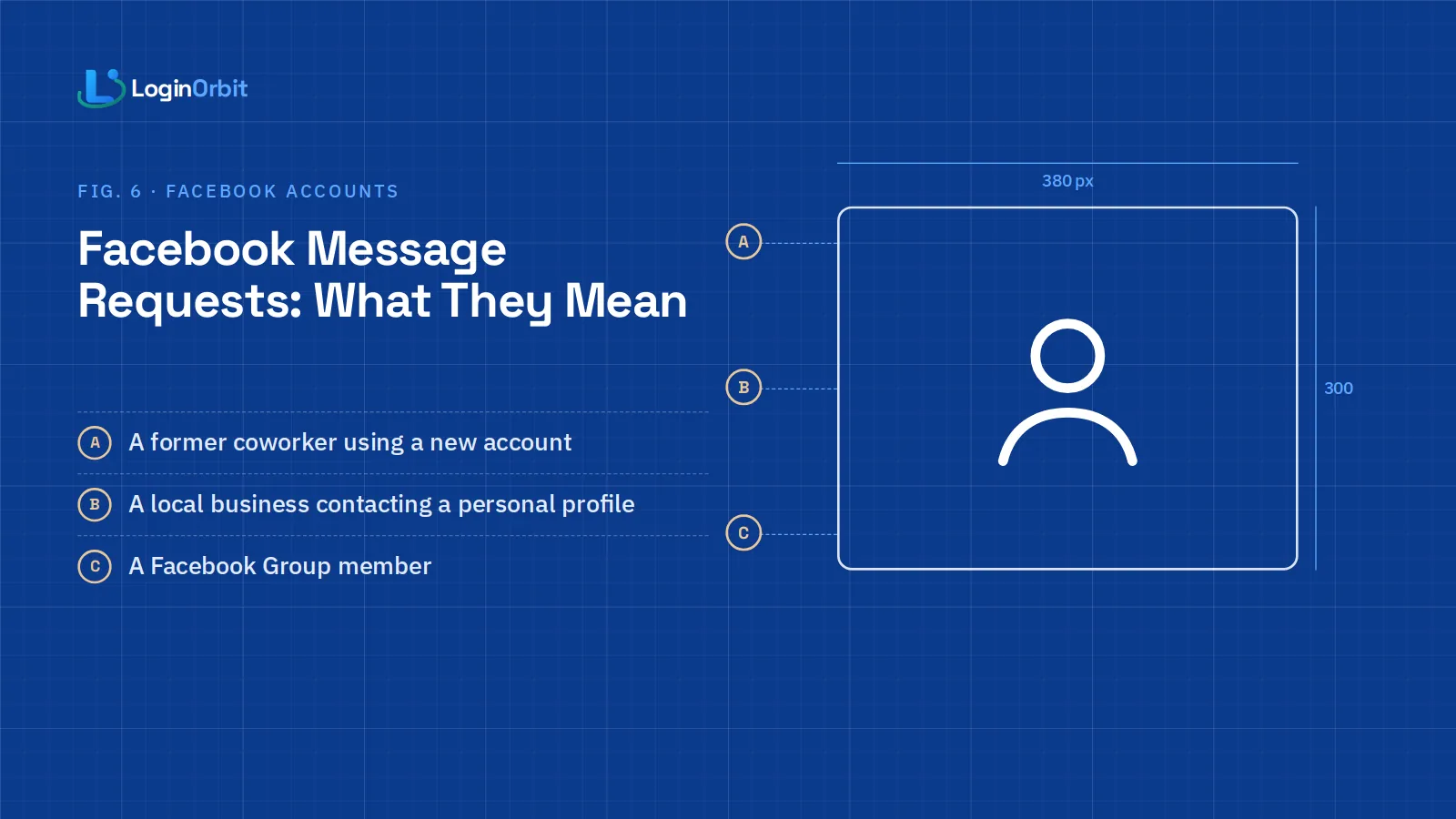
A message request is a message from someone Facebook doesn’t treat as a normal Messenger connection. This can include a person who isn’t your Facebook friend, a user you haven’t previously messaged, or someone whose communication falls outside your usual contact network.
Messenger separates these messages so unfamiliar people can’t automatically place conversations beside messages from friends and known contacts. Depending on your settings and relationship with the sender, a request may appear in You May Know or Spam.
Common request senders include:
- A former coworker using a new account
- A local business contacting a personal profile
- A Facebook Group member
- A friend whose account isn’t connected to yours
- A person who found you through a phone number
- A stranger sending promotional material
- Someone contacting you after a Marketplace interaction
The request folder doesn’t prove that a message is dangerous. It also doesn’t prove that it’s legitimate. Treat the folder as a screening area rather than a judgment about the sender.
You May Know Versus Spam
Messenger may divide requests into different categories. The labels and order can change, but the practical difference is important.
| Folder | What it usually contains | Recommended action |
|---|---|---|
| You May Know | People Facebook considers potentially relevant | Verify the sender before replying |
| Spam | Messages that resemble scams, bulk outreach, or unwanted contact | Avoid links; delete or report suspicious items |
| Regular inbox | Existing conversations or accepted contacts | Manage like an ordinary chat |
| Archived chats | Conversations removed from the main chat list | Search or open the archive to restore access |
A genuine message can land in Spam, especially if the sender has little connection to you or uses language that resembles mass messaging. Conversely, a polished scam can appear in “You May Know.” Folder placement is only one clue.
Pay attention to identity signals:
- Does the sender’s profile have a realistic history?
- Do you share friends, groups, work, or a local connection?
- Does the message explain why they contacted you?
- Is the sender demanding urgency, money, codes, or personal information?
- Does a link lead to a website you recognize?
- Are there unusual spelling, payment, or login requests?
Warning: Never share a Facebook password, two-factor authentication code, banking information, Social Security number, or government identification in response to a message request. Meta’s own help guidance also recommends being cautious with unfamiliar messages and suspicious links.
Open, Reply, Delete, or Block?
Opening a request lets you inspect the conversation, but the choices you make afterward affect what happens next. Use the option that matches your goal rather than replying automatically.
| Goal | Best choice | What to expect |
|---|---|---|
| Confirm who contacted you | Open and inspect | The sender may be able to tell the message was viewed |
| Continue a legitimate conversation | Reply | The chat generally moves into your normal inbox |
| Remove an unwanted message | Delete | The request disappears from your view |
| Prevent further contact | Block | The account can’t normally message or interact with you through the blocked profile |
| Report abuse or fraud | Report | Facebook receives the conversation for review |
| Avoid deciding today | Leave it alone | It remains in the request area until managed or filtered |
What happens when you reply?
Replying normally accepts the conversation for practical purposes. Future messages are more likely to appear in your regular inbox, and the sender may have more ability to communicate with you. Depending on read-receipt behavior, opening or replying may also reveal that the message was seen.
If the sender is legitimate, a short reply is enough:
- “Hi, how do we know each other?”
- “What is this regarding?”
- “Please contact me through the organization’s official page.”
- “I don’t recognize this account. Please explain.”
Don’t reply merely to tell a scammer to stop. No response is often safer than confirming that your account is active.
Delete versus block
Deleting removes the current request from your view, but it may not stop the person from trying again. Blocking is more appropriate when the sender is harassing you, impersonating someone, repeatedly contacting you, or sending suspicious material.
Reporting is useful when a request involves threats, fraud, hate speech, sexual exploitation, impersonation, or other rule violations. Save relevant details first if you may need them, including the profile name, message text, and date.
Why Requests Are Missing
Several normal account behaviors can make a request appear to vanish. The message may not actually be gone; it may be in another folder, account, or interface.
You checked only one folder
Start with both You May Know and Spam. Facebook’s filtering isn’t perfectly predictable, and the sender’s message may have moved after a system review.
You’re using the wrong account
Meta allows one personal Facebook account per person, so you may have a personal profile, or access to one or more Facebook Pages. Professional mode changes how your personal profile works and does not create a separate account. Confirm the profile image and account name before searching. A request sent to a Page won’t necessarily appear in your personal Messenger inbox.
The sender unsent the message
A sender can remove a message or conversation before you review it. In that case, the request may disappear without an obvious explanation.
The request was deleted
If you selected Delete, the message may no longer appear in the request list. Messenger doesn’t provide a normal recycle bin for restoring every deleted request.
The conversation is archived
Archived chats are hidden from the main inbox but aren’t necessarily deleted. Search the person’s name, open the result, and send a reply if you want to move the conversation back into active chats.
Facebook filtered or restricted it
Automated systems can hide messages associated with spam, suspicious behavior, or policy violations. In some cases, you may not receive a visible notice.
The app has a loading problem
A blank folder, endless spinner, or missing menu can result from:
- An outdated Messenger app
- A weak Wi-Fi or cellular connection
- Corrupted temporary app data
- A browser extension interfering with Facebook
- A temporary Meta service problem
- Incorrect phone date and time settings
Pro Tip: Compare two access methods. If the request appears on desktop but not in the app, the account data is likely present and the mobile interface needs updating or refreshing.
Search for a Specific Request
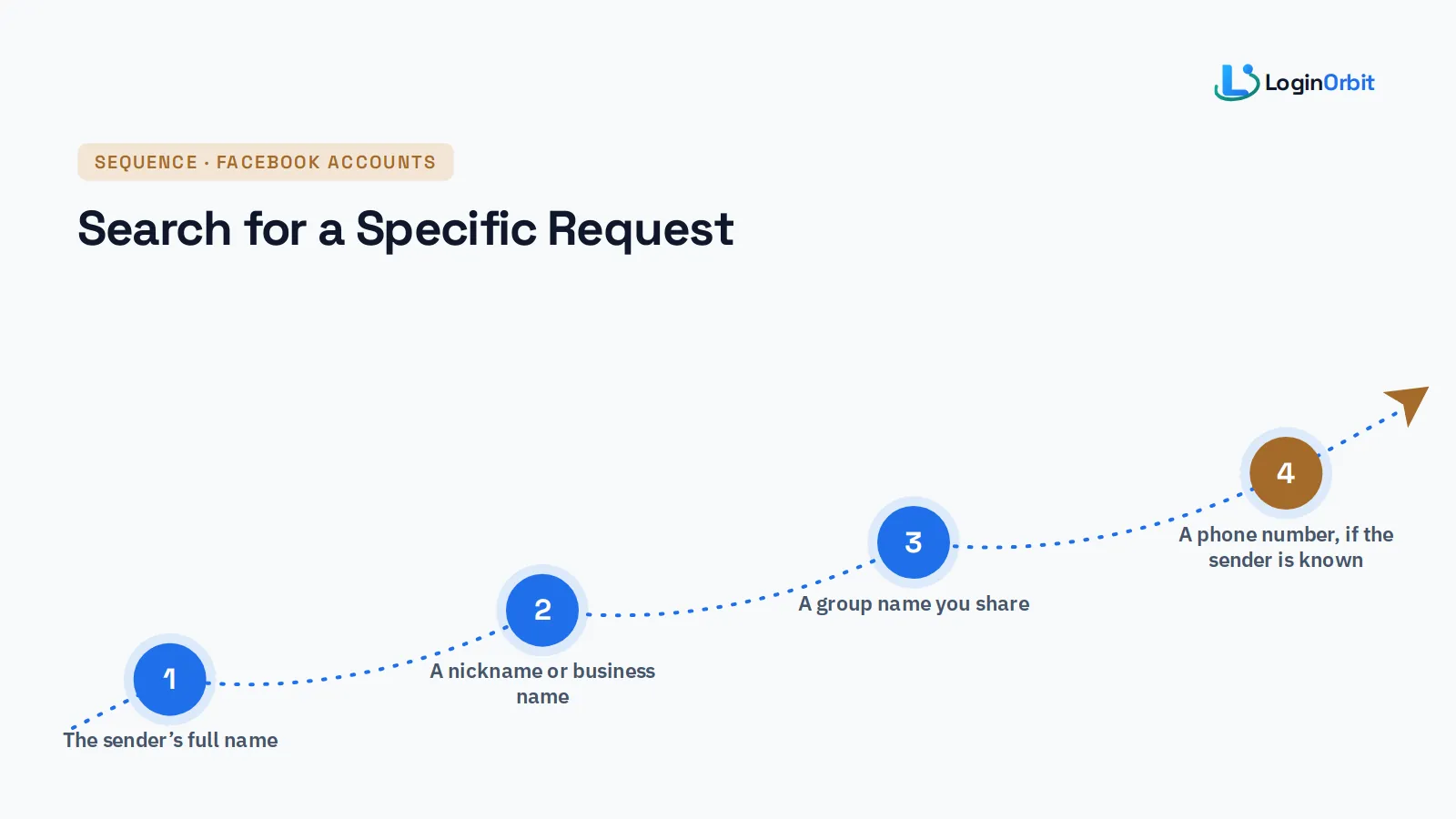
If you know the sender’s name, searching is often faster than scrolling through a long request list. Use Messenger’s search field and enter the person’s full name, partial name, or a distinctive phrase from the message.
Try these searches:
- The sender’s full name
- A nickname or business name
- A group name you share
- A phone number, if the sender is known
- A phrase such as “is this still available?”
- The name of a Marketplace item
Search results may show a regular chat, archived conversation, group conversation, or profile rather than an active request. Open the result carefully and verify the sender before replying.
If search returns nothing, check spelling, alternate names, and the possibility that you’re signed into a different profile. A deactivated, blocked, or deleted account may also stop appearing normally.
Adjust Message Delivery Settings
Facebook lets users control who can reach them and where certain messages are delivered. These controls can affect whether a new contact reaches your inbox, Message Requests, or Spam.
In Messenger, look for Privacy and safety, then Message delivery or a similarly named setting. Categories may include:
- People with your phone number
- Friends of friends
- Accounts you follow
- Followers of your profile
- People in Facebook Groups
- Others on Facebook or Instagram
- Marketplace contacts
For each category, Facebook may offer a destination such as Chats, Message Requests, or Don’t receive requests. The available categories depend on account type, region, connected services, and current Meta features.
| Setting choice | Practical result | When to use it |
|---|---|---|
| Chats | Messages arrive with ordinary conversations | You want maximum reach |
| Message Requests | Messages are held for review | You want contact without automatic inbox clutter |
| Don’t receive | Messages from that category are blocked from delivery | You never want that group contacting you |
Changing delivery settings doesn’t necessarily recover an old request. It mainly controls future messages. Review the settings on both Facebook and Instagram if your accounts are connected, because a person may contact you through either service.
Stay Safe With Unknown Senders
A message request can contain harmless contact, advertising, phishing, malware, harassment, or impersonation. Use a simple verification process before taking action.
Check the profile
Look for a consistent name, profile history, mutual connections, and activity that makes sense. A new account with copied photos, few posts, or contradictory locations deserves caution.
Verify outside Messenger
If the message claims to come from a bank, employer, school, delivery company, or government office, contact that organization through a phone number or website you already know. Don’t use contact details supplied in the request.
Avoid high-risk actions
Do not:
- Send a login code
- Move money or buy gift cards
- Install remote-access software
- Download an unexpected file
- Scan an unknown QR code
- Share a home address unnecessarily
- Send intimate images to an unverified person
- Click a shortened or suspicious link
Preserve evidence
For harassment, threats, or fraud, record the profile URL, screenshots, dates, and exact wording before deleting or blocking. If there’s an immediate physical threat, contact local emergency services. Facebook reporting isn’t a substitute for emergency help.
Warning: A familiar name and profile photo don’t prove identity. Accounts can be copied or compromised, so confirm through another trusted channel before discussing private matters.
Troubleshooting Checklist
Work through these steps in order when the folder or message won’t appear.
- Confirm the correct Facebook profile.
- Open Messenger rather than only the Facebook notification panel.
- Check You May Know and Spam.
- Search the sender’s name.
- Check Archived chats.
- Update Messenger and Facebook.
- Force-close and reopen the app.
- Restart the phone or computer.
- Test a different Wi-Fi or cellular connection.
- Try Facebook in a desktop browser.
- Disable browser extensions temporarily.
- Clear temporary app data where your device allows it.
- Check whether the sender deleted or unsent the message.
- Report a persistent technical issue through Facebook’s Help and Support menu.
Android-specific steps
On Android, open the phone’s app settings, select Messenger, and look for storage or cache controls. Clearing temporary cache can resolve display problems without deleting your account conversations. Avoid choosing a full data reset unless you know your login details and understand that the app may require a fresh sign-in.
iPhone-specific steps
On iPhone or iPad, updating the app or reinstalling it can refresh a damaged installation. Make sure you know the account email, phone number, and password before deleting the app. Conversations stored on the account should return after signing in, but local drafts and unsent content may not.
Browser-specific steps
On desktop, try a current version of Chrome, Safari, Edge, or Firefox. If the request appears in a private window, a cookie, extension, or cached page may be interfering with the normal session. Sign out of other Facebook accounts before signing back in.
Related guides
For hands-on help with this, our team offers Facebook Account Setup & Security Service.
Frequently Asked Questions
Where are message requests on Facebook?
In the Messenger app, open your profile picture or menu and choose Message Requests. On Facebook desktop, open Messenger, select the options menu, and choose the same item. Check both You May Know and Spam, because Facebook may place unfamiliar messages in either folder.
Can someone see that I opened a message request?
They may be able to see that the message was viewed, depending on Messenger’s read-receipt behavior and the current account settings. If you don’t want to signal engagement, avoid opening the request and use Delete, Block, or Report from the available preview options.
Why can’t I see Message Requests in Messenger?
The folder may be hidden by a changed interface, outdated app, incorrect account, or temporary loading problem. Update Messenger, search for the sender, check Spam and Archived chats, and try the desktop website. Also confirm that the message was sent to your personal profile rather than a Facebook Page.
Do message requests disappear?
They can disappear if you delete them, the sender unsends the message, Facebook filters or removes the content, or the account is deactivated. A request may also seem missing when it has moved to Spam, Archived chats, or another profile connected to your account.
How do I stop strangers from messaging me?
Open Messenger’s privacy and message-delivery settings. For each relevant category, choose Message Requests or Don’t receive instead of Chats. You can also block individual accounts. Review categories such as phone contacts, Group members, followers, and Marketplace users because each may have separate controls.
Is it safe to reply to a Facebook message request?
Reply only after verifying who sent it and why. Never provide passwords, login codes, financial information, or sensitive identity details. Avoid links and downloads from unknown senders. For suspicious messages, use Report or Block instead of continuing the conversation.
What to do next
Check both You May Know and Spam now, then search the sender’s name if the request is still missing. If you find something suspicious, don’t reply; save evidence, report the account, and block it. This quick review usually locates legitimate requests without exposing you to unnecessary risk.



