
Facebook notifications not working is usually caused by a phone notification setting, a Facebook alert setting, or a temporary app problem. Start by checking whether Facebook notifications are blocked in your phone’s Settings app. Then check Facebook’s own notification menu and test the same alert on another device or in a browser. If alerts work elsewhere, your phone is the problem. If they fail everywhere, the Facebook account, app, or service is more likely at fault.
Facebook notifications not working: likely causes
The cause usually becomes clear when you compare the phone, Facebook app, and account. Check the most common causes first, because changing advanced settings won’t help if the phone is blocking alerts completely.
| Cause | How common | How to confirm it | Fix it yourself? |
|---|---|---|---|
| Phone blocks Facebook alerts | Very common | Check app notifications | yes |
| Facebook alert type is off | Very common | Review notification settings | yes |
| Do Not Disturb is active | Common | Check Focus or DND | yes |
| App is outdated or stuck | Common | Update and reopen app | yes |
| Battery limits background activity | Common | Check battery restrictions | yes with care |
| Facebook session has an error | Less common | Test browser or another device | yes with care |
| Account or service problem | Rare | Check alerts everywhere | no |
Start with the phone’s notification settings, then open Facebook’s notification menu. If Facebook alerts are disabled at the phone level, enable them there first. If only one type is missing, such as comments or friend requests, the problem is probably inside Facebook’s own settings.
Check Do Not Disturb, Focus, silent mode, and any schedule that may suppress alerts. Also check whether notifications appear only when Facebook is open. That pattern points to battery restrictions or blocked background activity, rather than a missing alert preference.
Update Facebook, force-close it, and reopen it. If alerts work in a browser or on another device but not on the phone, the account is probably fine and the phone or app needs attention. Avoid clearing app data until you know your login details, because it can remove the current session.
If no Facebook alerts arrive on the phone, browser, or another device after the settings are correct, the issue may be an account or service problem. Check whether other Facebook features work normally, then wait and try again before changing more settings.
Phone notification permissions are off
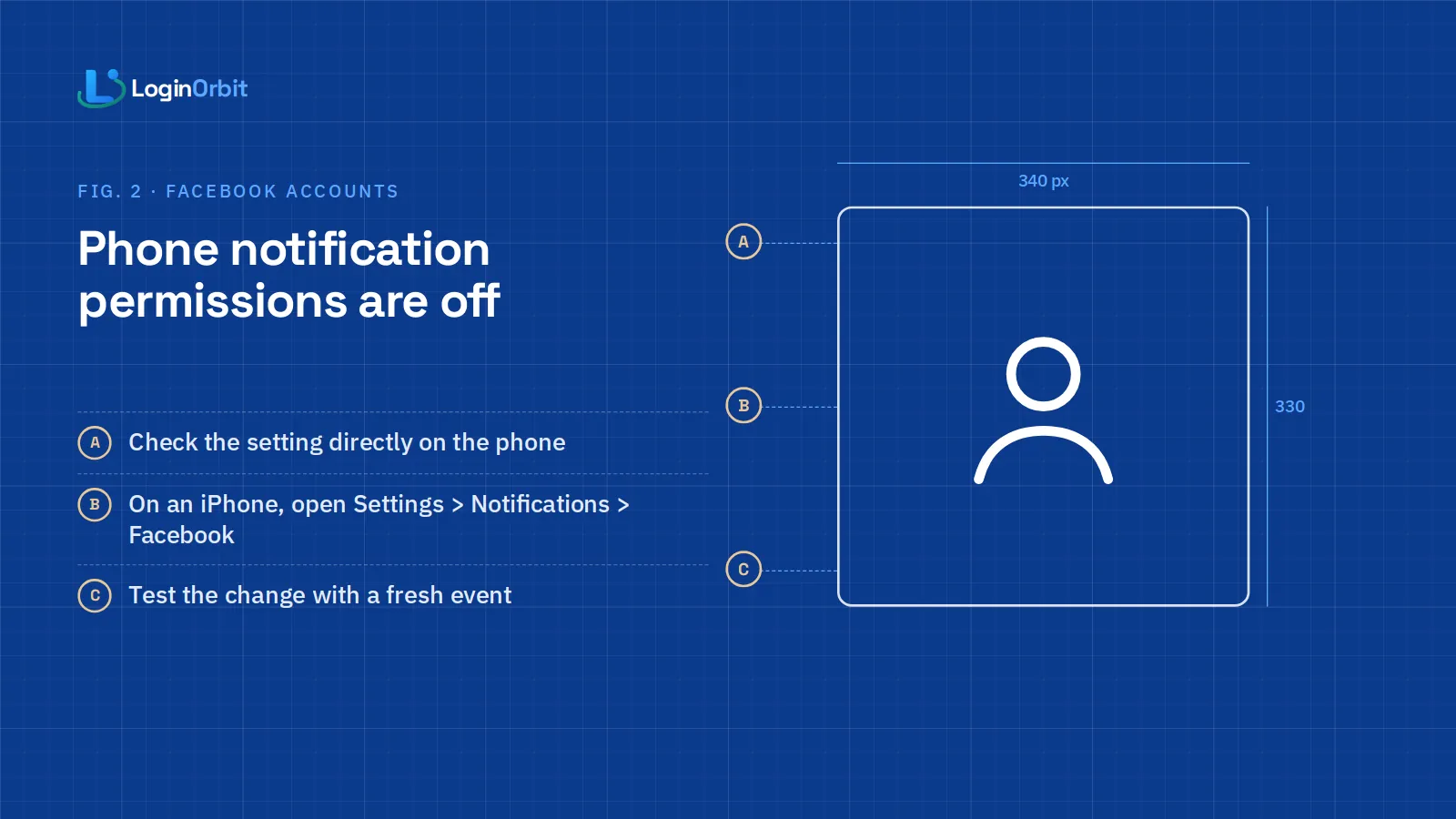
A blocked phone permission is the most likely reason Facebook alerts don’t appear at all. The Facebook app may still receive new activity, but your phone won’t show a banner, play a sound, or place an alert in the notification shade.
Check the setting directly on the phone. On an iPhone, open Settings > Notifications > Facebook. Turn on Allow Notifications, then review Lock Screen, Notification Center, Banners, Sounds, and Badges. The menu names can change slightly between iOS versions, so use the Settings search box if you can’t find Facebook.
On Android, open Settings > Notifications > App notifications, choose Facebook, and turn notifications on. Some Android phones place this under Apps > Facebook > Notifications. Turn on the main permission first, then check separate categories such as comments, friend requests, messages, and live video.
Test the change with a fresh event. Ask a friend to comment on a post, send a message, or send a friend request. A setting change won’t always create an old alert, so testing with new activity gives a cleaner result.
If one notification type works but another doesn’t, the main permission isn’t the problem. Open Facebook’s notification controls and enable only the alert type that’s missing. This is a useful distinction: if every Facebook alert is silent, check the phone; if only one category is missing, check Facebook.
The fix normally takes only a few minutes and needs no tool. It costs nothing, but there’s a trade-off: turning on every category can create a noisy stream of alerts. Keep only the types you’ll act on, such as direct messages or account security warnings.
If the Facebook entry isn’t listed in phone settings, open the app and allow notifications when prompted. If it still doesn’t appear after reinstalling from the official app store, stop changing system settings and contact Apple, Google, or your phone maker. The next step may depend on the phone’s software version.
Facebook alert categories are turned off
Facebook can allow notifications at the phone level while disabling individual alerts inside the account. This often affects comments, tags, group activity, friend requests, birthdays, or marketplace updates rather than every alert.
Open Facebook and select the menu. On many versions, go to Settings & privacy > Settings > Notifications. Review each category that matters to you, then choose whether alerts should arrive as push notifications, email, or text messages. Facebook can change menu labels, so use the app’s settings search if your screen looks different.
You can also review Facebook’s notification settings help from its official Help Center. The available choices can differ by account, country, device, and feature, so use the options shown on your own account rather than copying a list from another phone.
Tell this cause apart from a phone permission problem by checking the alert in both places. If Facebook shows the activity inside its notification bell but the phone shows no banner, the phone is blocking delivery. If the activity doesn’t appear in the bell, the Facebook category, account, or feature is more likely involved.
Check filters for Push, Email, and SMS separately. Turning on email won’t make a push alert appear, and a browser notification setting won’t control the mobile app. For group alerts, also check the group’s own notification choice because a group can be set to fewer alerts than your general Facebook account.
The usual fix is quick, but it may not affect past events. Create a new test after saving the setting. If the alert still fails, sign out only if you know the password and can complete any two-factor login step. Otherwise, don’t sign out yet; losing access during a troubleshooting attempt creates a separate account problem.
Focus, Do Not Disturb, or battery limits block alerts
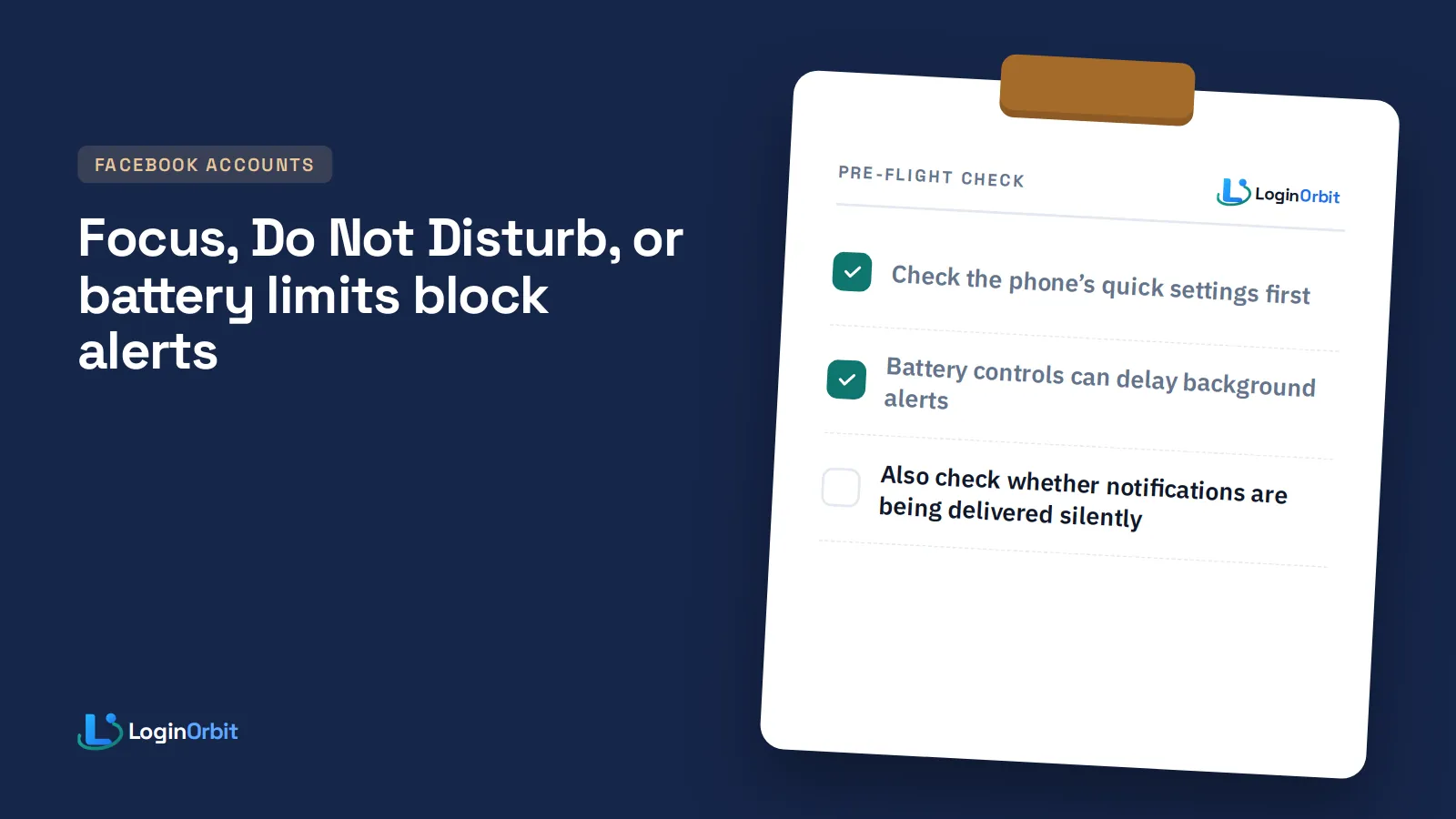
A phone can receive Facebook notifications but hide them through Do Not Disturb, Focus, a scheduled quiet period, or a battery-saving rule. This cause is different from a disabled permission: the Facebook setting may look correct, yet alerts appear later or stay hidden until the mode ends.
Check the phone’s quick settings first. Turn off Do Not Disturb or Focus for a short test, then create a new Facebook event. On an iPhone, review Settings > Focus and look for schedules or allowed apps. On Android, check Settings > Modes, Do Not Disturb, or the matching menu supplied by the phone maker.
Also check whether notifications are being delivered silently. A silent alert may appear in the notification shade without a sound or banner. If you see the alert after opening the shade, Facebook is probably working; the display or sound rule needs changing.
Battery controls can delay background alerts. Open the Facebook app’s battery setting and look for options such as Unrestricted, Optimized, or Restricted. Choose the standard or unrestricted option only for a test if your phone offers it. Battery-saving settings can extend battery life, but the trade-off is that some apps may refresh less often.
If Facebook alerts arrive only after you open the app, background activity is a strong clue. If alerts never appear even while the app is open, return to the phone permission and Facebook category checks instead.
The mistake here is turning off every battery or privacy control permanently. That can reduce battery life or allow more background activity without fixing the real issue. If alerts return after one setting changes, restore the other controls and keep the smallest change that solves the problem.
Less common Facebook notification causes
-
The app is outdated: A new Facebook feature may fail in an old app version; the clue is that alerts stopped after a phone or app update. Check the official app store for an available Facebook update, then test notifications again. If no update appears, the cause may be elsewhere.
-
A damaged app session: Notifications may return after closing and reopening Facebook; the clue is that Facebook works in a browser but not on the phone. Sign out only if you know the account password and recovery method, since signing out can make access harder if those details are unavailable.
-
A second Facebook account is active: Alerts may go to another signed-in account; the clue is that the account name differs when you open the profile menu. Switch to the intended account before changing notification settings, or you may fix the wrong profile.
-
A temporary Facebook service issue: Alerts fail on the app, browser, and another device; the clue is that other people report the same outage. Avoid repeatedly changing settings while the service is failing, and test again after the issue is reported as resolved.
Don’t open the phone or try to repair system components yourself. If the problem needs account recovery, service logs, device diagnostics, or changes to business or developer settings, contact Meta Support, Apple, Google, or the phone maker.
What fixing Facebook notifications usually involves
A phone permission problem usually needs only the Settings app and a new test alert. It’s the quickest fix and costs less effort than reinstalling Facebook. If the issue affects only comments, tags, or group activity, changing the matching Facebook category is more precise than enabling every notification.
A Focus or battery problem may take longer because you’ll need to check schedules, silent delivery, and background activity. The cost is mainly battery life or less quiet time if you allow more alerts. Keep the change limited to Facebook where your phone allows it.
An app problem may require an update, a restart, or reinstalling Facebook. Reinstalling takes more time and can require your password, login code, or access to the email address and phone number on the account. Don’t uninstall the app if you can’t complete those login checks.
An account or service problem needs someone else when normal settings work everywhere. Meta Support can check account-level issues, while Apple, Google, or the phone maker can handle system-level faults. For a real repair quote, use the support page inside the relevant app or device settings; the cost depends on the device, warranty, and support plan.
This isn’t for someone who needs instant alerts for safety, work, or account security and can’t afford missed messages. Use another trusted contact method until Facebook alerts work again. If alerts are blocked only on one phone, fix that phone. If they fail on every device and browser, contact Meta instead.
Our team handles exactly this through Facebook Account Setup & Security Service.
Frequently asked questions
Can Facebook notifications stop working after an update?
Yes, they can stop after an app or phone update, but an update isn’t proof that it caused the problem. First check the phone permission, Facebook alert category, and Focus or Do Not Disturb settings. Then update Facebook again if a newer version is available. If the app works in a browser but not on the phone, the phone app or its session needs attention.
Why am I getting Facebook notifications late?
Delayed alerts usually point to Focus, Do Not Disturb, background activity, or battery restrictions. Check whether the alert appears only after you open Facebook. If it does, review the app’s battery setting and allow normal background activity for a test. If alerts are delayed across several devices, check Facebook’s account settings or wait for a service issue to clear.
How long does it take for Facebook notifications to work again?
A permission or category change should take effect within a few minutes after a new Facebook event, assuming the phone is online. Older alerts won’t always appear after you enable notifications. If nothing arrives after a fresh test, compare the app with Facebook in a browser. That comparison shows whether the problem is local to the phone or linked to the account.
Is it safe to allow Facebook notifications?
Yes, allowing notifications is generally safe, but it gives Facebook permission to display alerts, sounds, or badges. You don’t need to enable every category. Choose only messages, account warnings, or other alerts you want. Avoid notification previews on a shared or unlocked screen if private message text could be visible to someone nearby.
What happens if I reinstall Facebook?
Reinstalling removes the local app and signs you out, but your Facebook account and posts stay online. You’ll need the correct password and may need a two-factor code. Reinstall only after checking permissions and settings. If you can’t access the account without the current app session, don’t remove it until you’ve confirmed another login method.
Does it matter whether I use Wi-Fi or mobile data?
Yes, a weak or blocked connection can delay new Facebook activity, but it usually won’t switch notification permissions off. Test with Wi-Fi and mobile data separately. If alerts work on one connection only, check the phone’s data restriction for Facebook or the network’s filtering rules. If neither connection works on any device, the account or Facebook service is more likely involved.
Can Facebook notifications work in a browser but not the app?
Yes, browser alerts and mobile-app alerts use separate permission paths. If the browser works, check the phone’s Facebook permission, app notification categories, battery limits, and app session. If the browser also fails, review Facebook’s account notification settings. Delivery can vary by phone model, operating-system version, account, and alert type; those values are shown in your own settings screens.
What to do next
If alerts still don’t appear after you’ve checked the usual settings, update Facebook and your phone, then contact Facebook Support with details about the missing alert. Keep notifications enabled for important messages in the meantime, and check the app occasionally for a fix or service update.



