
Facebook reels not working usually means an app glitch, weak connection, or an account and feature restriction. The fastest check is to open another Reel, switch between Wi-Fi and mobile data, then close and reopen Facebook. If every Reel fails on both connections, check whether Facebook has an outage or whether the app needs an update. If only one video fails, the problem is usually that video, not your phone. Don’t delete the app first, because you may lose unsaved drafts.
Why Facebook Reels stop working
The likely causes are ranked below. Start with the first row, then move down only if its check doesn’t explain the problem.
| Cause | How common | How to confirm it | Fix it yourself? |
|---|---|---|---|
| App cache or temporary glitch | Very common | Other features also lag, or Reels work after reopening the app | Yes |
| Weak or blocked connection | Very common | Reels work on mobile data when Wi-Fi fails, or on Wi-Fi when mobile data fails | Yes |
| Outdated Facebook app | Common | An update is available in the App Store or Google Play | Yes |
| Video or account restriction | Common | Only some Reels fail, disappear, or show an error | Yes, with care |
| Low phone storage or memory | Less common | The phone warns about storage, or other apps close unexpectedly | Yes |
| Facebook service outage | Less common | Reels fail for other people on both Wi-Fi and mobile data | Yes |
| Damaged app installation | Rare | Reinstalling fixes every screen and feature | Yes, with care |
Force-close Facebook, reopen it, and try a different Reel before changing settings. If switching between Wi-Fi and mobile data changes the result, restart the router or disable any VPN, content filter, or workplace network blocking Facebook.
For restrictions, check Facebook’s Account Status and the Reel’s visibility, audio, and copyright notices. Don’t repeatedly upload the same rejected video; that can create further review problems.
If Facebook is down for other users, wait rather than repeatedly reinstalling the app. Before reinstalling, save any drafts you need and confirm that you know your Facebook login details.
A stuck Facebook app session
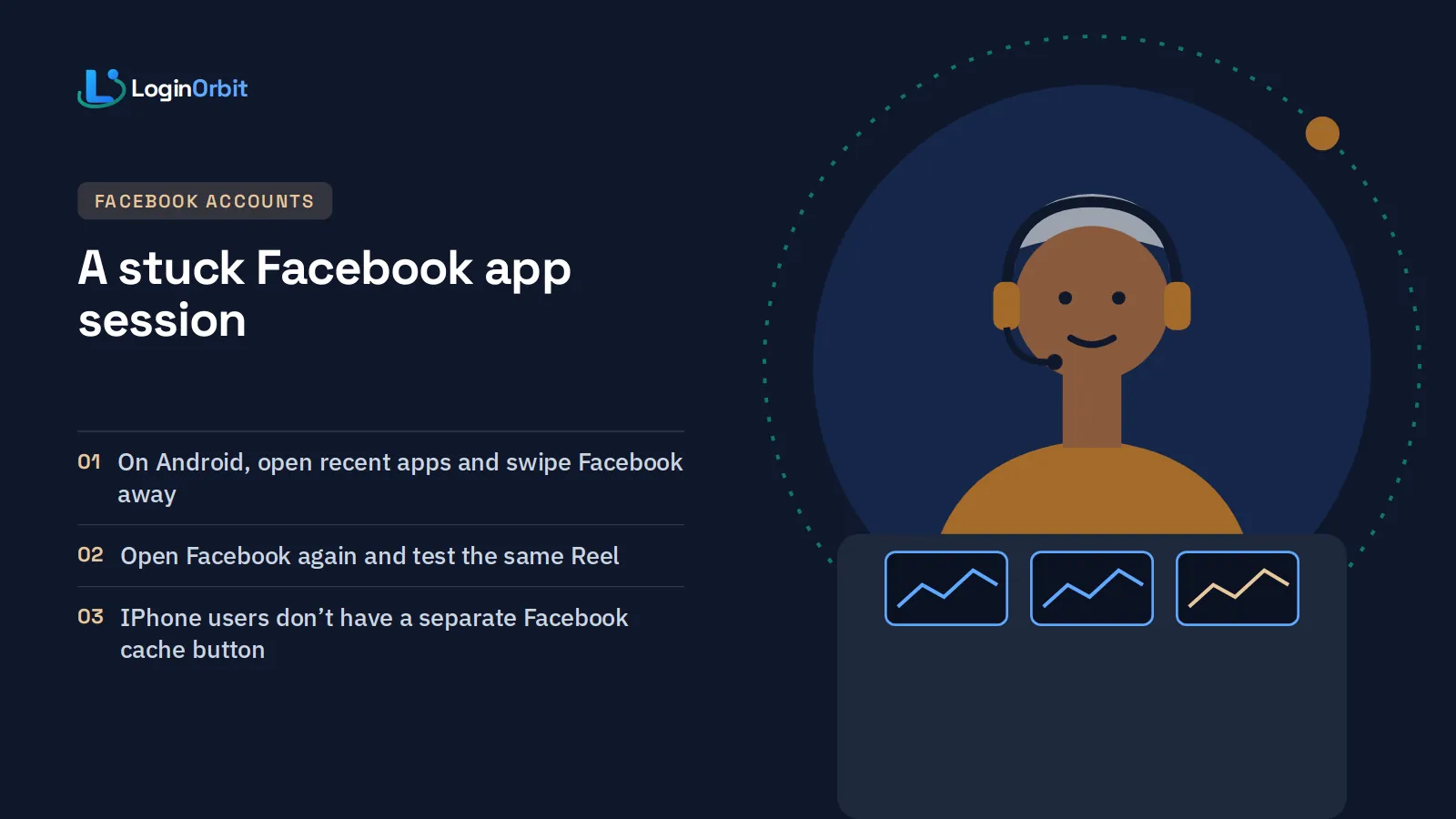
A frozen Facebook session is the most likely cause when Reels keep loading, show a black screen, or stop after a few seconds. The app can still display menus while its video service has stopped responding. This is different from a bad internet connection, which usually affects other apps too.
First, open Facebook and try your Feed, notifications, and one Reel from a different profile or page. If several parts of Facebook are slow, fully close the app. On an iPhone with Face ID, swipe up from the bottom and remove Facebook from the app switcher; on an iPhone with a Home button, double-click the Home button first. On Android, open recent apps and swipe Facebook away.
Open Facebook again and test the same Reel. If the video plays now, the session was stuck and no deeper repair is needed. If it still fails, restart the phone before changing app settings. A restart clears temporary memory used by the app, but it won’t repair an account restriction or a service outage.
Android users can clear Facebook’s cache from Settings > Apps > Facebook > Storage & cache > Clear cache. The exact labels vary by phone maker and Android version, so read the menu on your phone before tapping. Don’t choose Clear storage unless you’re ready to sign in again and accept that unsynced app data may be removed.
iPhone users don’t have a separate Facebook cache button. Closing the app and restarting the phone are the safe first checks. If the issue remains, compare Facebook in a mobile browser. Browser playback works while the app fails points to the app installation, not your account.
This fix usually takes only a few minutes and costs nothing. The trade-off is that clearing cache or reinstalling can remove downloaded app data, while waiting may leave the fault untouched. If closing and reopening changes nothing on both Wi-Fi and mobile data, check the connection next.
A weak or restricted internet connection
A poor connection often causes endless loading, blurry video, or Reels that play without sound. Tell this cause apart from an app glitch by testing another video service and switching connection types. If Facebook works on mobile data but not Wi-Fi, your home network is the stronger suspect.
Move close to the Wi-Fi router and try another Reel. Then turn Wi-Fi off and test with mobile data, if your plan allows it. Do the reverse if mobile data is the connection that fails. If one connection works, don’t reinstall Facebook; that won’t repair a router, signal, VPN, or network filter.
Turn off any VPN, private DNS, or network-filtering app for one test. These tools can block parts of a service without blocking Facebook’s home page. If Facebook works after the change, add Facebook to the tool’s allowed list or contact the tool’s support team.
Check whether other people on the same Wi-Fi have the same problem. If they do, restart the router using its normal power button or app instructions. Don’t press a factory-reset button unless your internet provider tells you to, because it can erase the network setup.
A workplace, school, hotel, or public Wi-Fi network may block video traffic. Use a trusted private connection instead. If mobile data works but Wi-Fi still fails after the router restart, ask the internet provider to check the line or filtering. If neither connection works, the cause is more likely Facebook, the app, or your account.
An outdated Facebook app
An old Facebook app can fail after Facebook changes its video service. The clue is simple: Reels fail after an app or phone update, and the app store shows a Facebook update. If only one Reel fails while other videos work, an update is less likely to be the cause.
Open the Apple App Store or Google Play Store and search for Facebook. Read the available action beside the app. If it says Update, install it on a stable connection, then reopen Facebook. If it says Open, the store doesn’t offer a newer version for your phone at that moment.
Check your phone’s operating-system update page too. An old operating system can prevent a current app from working correctly, but don’t install an unofficial Facebook package from a website. Use the official app store, because outside files can create security and sign-in risks.
Make sure the phone has enough free storage for the update. The exact amount depends on the phone and the update, so read the storage warning shown by the store instead of guessing. Remove large, replaceable files only after checking that you have a backup.
If the update fixes Reels, keep the app’s automatic updates enabled when practical. If no update exists and Facebook fails on both connections, don’t keep repeating the same update check. Test Facebook in a browser and move to the account and service checks.
Account, video, or feature restrictions
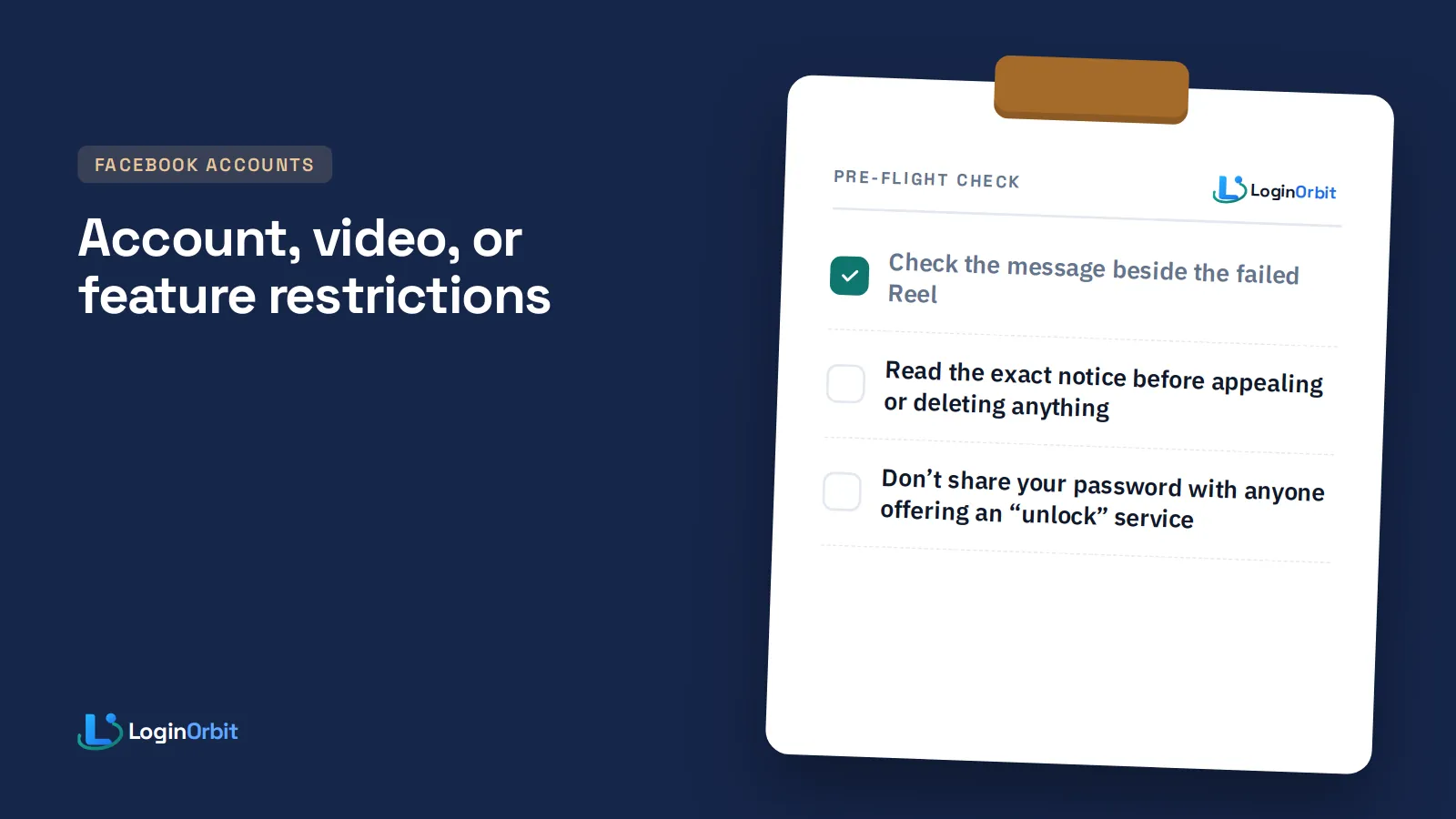
A restriction is more likely when only certain Reels fail, your own Reel won’t publish, or Facebook shows a warning. This cause differs from a general app fault because another account, profile, or video may still play on the same phone and connection.
Check the message beside the failed Reel. A video may be unavailable because its owner removed it, changed its audience, or limited where it can play. If other public Reels play normally, you can’t repair that individual video from your phone.
For your own Reel, open Facebook’s account or support area and look for notices about content, recommendations, or feature limits. Read the exact notice before appealing or deleting anything. Deleting a Reel can remove the evidence needed to understand the decision, and repeated uploads can make the situation harder to track.
Sign out only if the account behaves differently in a browser or on another trusted device. Then sign in through the normal Facebook app or website. Don’t share your password with anyone offering an “unlock” service. Facebook won’t require a stranger’s remote-access tool to restore ordinary Reel playback.
If Facebook asks for age, identity, or policy confirmation, follow the official on-screen route. If you can’t find a safe support route, use Meta’s report a problem instructions. Include the phone type, app version, exact error, and whether Wi-Fi and mobile data were both tested.
Other Facebook Reel causes
- Low storage: The phone’s storage warning appears, or Facebook closes during video playback. Check the storage settings before reinstalling Facebook; deleting or moving large videos can make room without removing account data.
- Low memory: Reels stop after other large apps have been running. Close unused apps, then reopen Facebook. If Reels work only after that, the problem is temporary memory pressure rather than a damaged account.
- Service outage: Reels fail for several people, while local apps and websites work normally. Check whether other Facebook features also fail and wait for service to recover instead of repeatedly changing phone settings.
- Damaged installation: The browser works, but the app fails after every safe restart and update check. Reinstall the app only after confirming you know the login details and can complete any required sign-in or verification.
- Unsupported device software: The app store won’t install the current version, or Facebook shows a compatibility notice. Use the browser temporarily; don’t install an unofficial Facebook copy to bypass the device requirement.
Don’t open the phone or change hidden system files to fix Facebook Reels. If the next step involves account recovery, payment access, remote control, or advanced phone repair, stop and use Meta support, your phone maker, or a qualified technician.
What fixing Facebook Reels usually needs
The simplest fixes need only a few minutes: close Facebook, restart the phone, change connection, and install an available update. These steps don’t need a tool or replacement part. They’re the best choice when other Facebook features are also slow.
A connection problem may need access to the router, a different trusted network, or help from your internet provider. The cost is usually smaller than replacing the phone, but it depends on your plan and whether the provider finds a wider service fault. Ask the provider for a diagnosis before agreeing to paid work.
An account restriction needs time to read the notice and submit the correct appeal. It can’t be repaired by clearing cache or buying a new phone. Keep screenshots and the exact warning, but don’t send passwords, security codes, or remote-access permission.
Reinstalling Facebook is a last app-level option. It takes longer than restarting and may remove drafts or saved local data, so check those first. If the browser also fails on several trusted connections, wait for a service issue to clear or contact Meta. A repair shop can check the phone, but it can’t lift a Facebook account restriction.
The exact repair cost depends on the phone model, warranty, provider, and required part. Read the model on the phone’s Settings > About page and ask for a written quote before approving work.
Want an expert to set this up with you? Take a look at Facebook Account Setup & Security Service.
Frequently asked questions
Why are Facebook Reels not loading today?
Facebook Reels may not load because of a temporary outage, a weak connection, or an app problem. Test one Reel on Wi-Fi and another on mobile data. If both connections fail while other apps work, wait briefly and check Facebook’s own notices or support pages. If only your account fails, look for a restriction message. Don’t assume your phone is broken until browser playback and another connection have also failed.
Can I watch Facebook Reels without the app?
Yes, you can often watch public Facebook Reels in a mobile or desktop browser. Open Facebook’s official website, sign in if asked, and search for the video or profile. Some features may be limited outside the app, and private or age-limited content may still remain unavailable. If the browser works but the app doesn’t, update or reinstall the app rather than changing your account settings.
How long does Facebook Reels take to start working again?
A temporary app or service fault may clear in minutes, but Facebook doesn’t provide one fixed repair time for every Reel problem. You can check the result after restarting the app, switching connections, and trying a browser. If the issue continues after those checks, record the error and report it. Don’t repeatedly upload the same Reel while Facebook is still showing a publishing failure.
Is it safe to clear Facebook cache?
Yes, clearing Facebook’s cache on Android is generally a safe first check when the app is stuck. It removes temporary files, not your Facebook account or posted content. The menu differs by phone, so use your phone’s app settings. Don’t tap Clear storage unless you’re prepared to sign in again and possibly lose local app data such as unsynced drafts.
What happens if I reinstall Facebook?
Reinstalling removes the app from the phone and downloads a fresh copy. Your posted Facebook content stays on your account, but unsaved local drafts or downloaded data may disappear. Check drafts first, then install Facebook only from the Apple App Store or Google Play Store. If Facebook also fails in a browser, reinstalling probably won’t fix the underlying account or service problem.
Does it matter if only one Reel won’t play?
Yes, it matters: one failed Reel usually points to that video or its audience settings, not your phone. Test two or three different public Reels; if they play, the original may be deleted, restricted, or temporarily unavailable. If every Reel fails on the same connection, check the app, network, and account.
What to do next
If the problem continues after Facebook returns to normal, contact Facebook support and include your phone model, app version, and a short description of what happens. Keep the app updated and save important Reel drafts elsewhere when possible, so a future glitch won’t cost you hours of work.



