
When a Facebook feed is not refreshing, the usual causes are a weak connection, an outdated app, or a temporary Facebook problem. Start by switching between Wi-Fi and mobile data, then close and reopen Facebook. If the feed works on one connection but not the other, your network is the likely cause.
If both connections fail, open Facebook in a browser or on another device. A working browser feed points to the app; a broken feed everywhere points to Facebook’s servers, your account, or a wider service problem. Don’t delete the app first, because you may lose unsaved drafts and still have the same issue.
Why Facebook feed won’t refresh
The table ranks the causes from common to less common. Check the first matching clue before changing several settings at once. Test the feed after each fix so you know which change worked.
| Cause | How common | How to confirm it | Fix it yourself? |
|---|---|---|---|
| Weak or blocked connection | Very common | Try another network | yes |
| App cache or stuck session | Common | Browser works normally | yes |
| Outdated Facebook app | Common | Update is available | yes |
| Facebook service problem | Occasional | Feed fails everywhere | yes |
| Background data restriction | Occasional | Other apps also pause | yes with care |
| Account or feature restriction | Less common | Warnings appear | yes with care |
| Damaged app installation | Rare | Reinstall fixes it | yes with care |
If the feed works on mobile data but not Wi-Fi, restart the router and check whether other sites load. If it fails on both networks, try Facebook in a browser before reinstalling the app.
A service problem is more likely when the feed fails on different devices and networks. Waiting and checking again later is safer than repeatedly changing account or app settings.
Don’t clear app data or reinstall first if Facebook shows a warning. Read the notice and follow its instructions, because removing the app won’t remove an account restriction. Enable background data only if other apps also stop updating and your data plan allows it.
A weak connection stops new posts
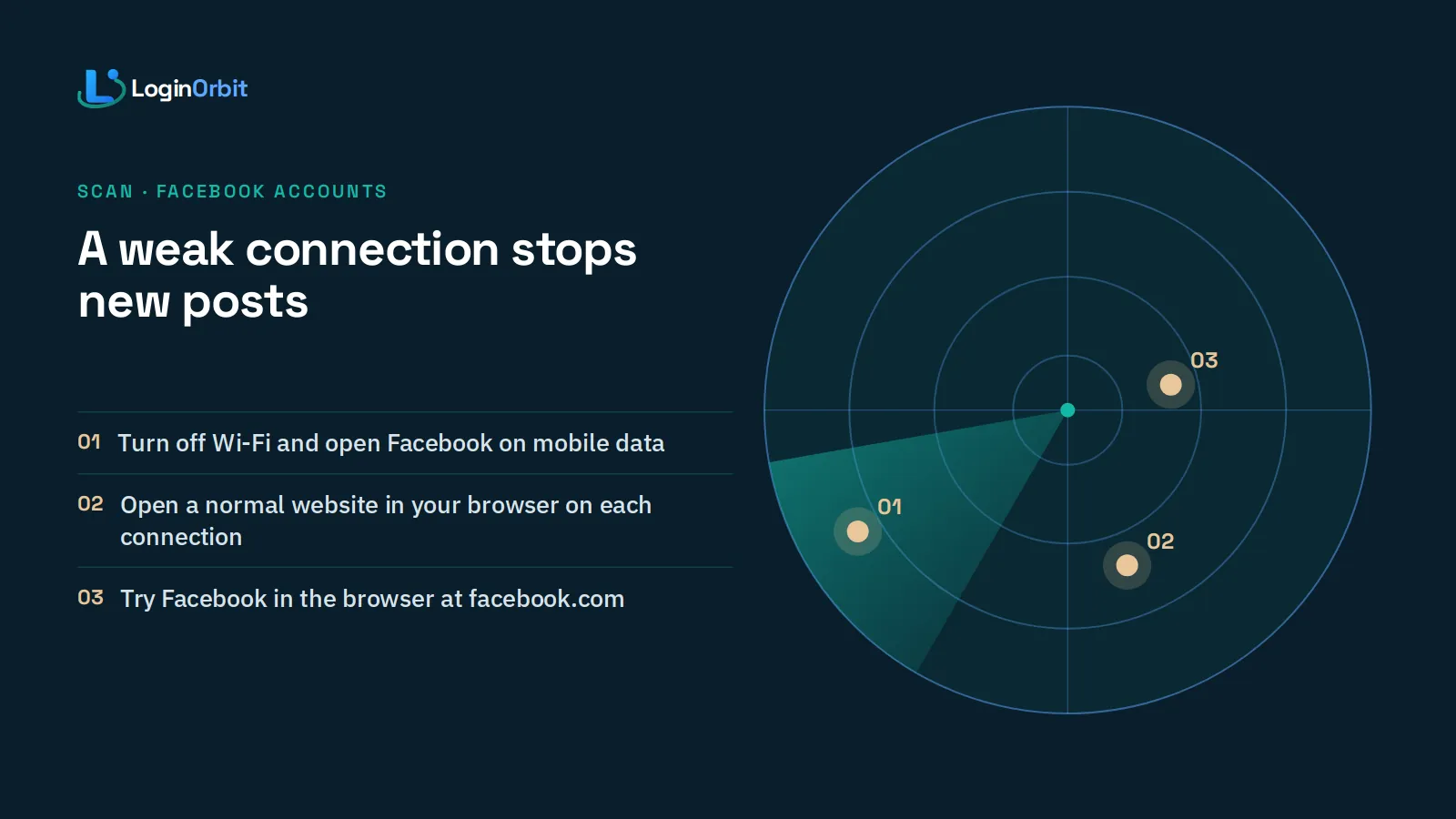
A poor connection is the most likely cause when Facebook shows old posts, spins without ending, or displays a “couldn’t refresh” message. The app needs a working path to Facebook’s servers, and a Wi-Fi icon alone doesn’t prove that the path is usable.
Test the connection without changing Facebook first:
- Turn off Wi-Fi and open Facebook on mobile data.
- If that fails, turn mobile data off and try a different Wi-Fi network.
- Open a normal website in your browser on each connection.
- Try Facebook in the browser at
facebook.com. - Ask someone on the same Wi-Fi network whether Facebook loads for them.
If Facebook works on mobile data but not your home Wi-Fi, restart the router and test again. If other websites also fail, contact your internet provider. If only Facebook fails on that network, a network filter, VPN, DNS setting, or workplace firewall may be blocking part of the service.
The fastest fix is to use the connection that works. If you’re on public or work Wi-Fi, sign in to its web portal first. Some networks allow basic browsing but block social media, video, or app traffic.
A VPN can also interfere with loading, especially when its server is busy or Facebook challenges the connection. Turn the VPN off briefly, then test Facebook again. If the feed returns, use another VPN server or leave the VPN off for Facebook.
The trade-off is simple: mobile data may restore the feed, but it can use your plan’s data allowance. If the feed works only after switching networks, the Facebook app probably isn’t the first thing to repair.
A stuck app session blocks the feed
A stuck login session can make the feed appear frozen even though your internet works. This cause looks different from a weak connection because other websites load normally, while Facebook may work in a browser but not in the app.
First, force-close Facebook and open it again. On iPhone, swipe up to the app switcher and swipe Facebook away. On Android, open recent apps and dismiss Facebook; some Android phones also offer App info > Force stop.
Next, sign out of Facebook, close the app, and sign in again. Save any post or comment draft before signing out. Unsaved text may disappear, and Facebook may ask for a security check when you return.
Android users can clear Facebook’s cache through Settings > Apps > Facebook > Storage and cache > Clear cache. Menu names vary by phone maker. Clear the cache, not the storage, unless you’re prepared to sign in again and reset local app data.
iPhone doesn’t offer the same general cache button for Facebook. Use Settings > General > iPhone Storage > Facebook > Offload App, then reinstall it from the App Store. Reinstalling removes the local app copy, so check that you know your login details first.
These steps usually take only a few minutes, but the time can be longer if Facebook requires identity verification. If Facebook also fails in a browser after you sign in again, stop treating this as an app-cache problem.
An old app version causes loading errors
An outdated Facebook app can fail after Facebook changes part of its service. The clue is a pending update in the App Store or Google Play, or a feed that works in a browser but not in the installed app.
Check the store page for Facebook and install the available update. On Android, Google explains its Google Play update steps for updating apps. On iPhone, open the App Store, tap your profile picture, and review the available updates.
Keep enough free storage for the update to finish. If the store shows no update, compare the app version with the version listed in Facebook’s store page. Don’t download an APK or modified Facebook app from an unknown website; it can create account and security risks.
After updating, restart the phone and test the feed on a normal connection. If the update is large or your connection is slow, installation can take longer than opening Facebook itself. If Facebook still fails in both the updated app and a browser, the version wasn’t the main cause.
An update can also change where settings appear. That doesn’t mean the feed is broken. Look for the normal Home or Feeds area before changing privacy, notification, or account settings.
Facebook or account limits may be involved
A Facebook service issue is less common than a connection or app problem, but it affects more than one device. The strongest clue is that the feed won’t load in the app, a browser, or another device on different connections.
Ask another person whether Facebook is working for them. You can also check Facebook’s official channels for an outage notice, but don’t assume silence means your account is at fault. Service problems can affect only certain features or regions.
Account limits are another possibility when Facebook shows a warning, asks for a review, or blocks actions such as commenting and posting. Read the notice inside Facebook and use its review process. Don’t create a second account to bypass a restriction; that can complicate recovery.
Background-data restrictions can affect refreshes when the app is closed. Check your phone’s battery and data settings, then allow Facebook background data if you need timely feed updates. The setting names differ between Android phones and iPhones.
A mistake that costs time is repeatedly refreshing the feed while Facebook is having a service problem. It won’t repair the server, and it can trigger extra security checks if you keep signing in and out. If the issue lasts across devices and networks, wait for Facebook’s service to recover or use Facebook Help for account-specific support.
Less common Facebook feed causes
These causes are real but usually leave a clear clue:
- Phone storage is nearly full: Updates fail, photos may not save, and other apps may crash or open slowly. Check the phone’s storage settings, not just Facebook; free space before retrying.
- Incorrect phone date and time: Secure connections may fail when the device clock is badly wrong. Turn on automatic date, time, and time-zone settings, then restart Facebook.
- Parental or workplace controls: Facebook may load partly, but videos or feed requests stay blocked. If Facebook works on mobile data but not the managed network, a filter is more likely than an app problem.
- Corrupted system software: Several apps show network or login errors after a system update. Install any pending system patch, then restart the phone; if other apps remain affected, treat this as a device issue.
- Account security review: Facebook asks for a code, identity check, or password change before normal access. Complete the prompt only in the official Facebook app or at Facebook’s website, and don’t share a code with anyone.
If only Facebook is affected, don’t reset the entire phone or change network settings first. If several apps fail, or the problem began after a system update, device support is the better next step.
If the next step involves changing router security, editing DNS settings, recovering an account, or bypassing a workplace filter, stop there. Ask your internet provider, device maker, workplace administrator, or Facebook account support to handle it; the wrong change can affect other devices or lock you out.
What fixing Facebook feed requires
A connection fix usually takes a network change, a router restart, or help from your internet provider. First, check whether other websites or apps load on the same connection. If they also fail, troubleshoot Wi-Fi or mobile service before changing Facebook. Testing on cellular data can confirm a network problem, but it may use your data allowance.
A session fix needs a force-close, sign-out, or cache clear. Try force-closing first, then reopen Facebook before signing out. Signing out can trigger a security check, so keep your password and recovery method available. If the feed works in a browser but not the app, the session or app is more likely than the connection.
An app fix needs enough phone storage and access to the App Store or Google Play. Updating is usually simpler than reinstalling. Reinstalling takes more time and removes local app data, so use it after restarting and updating have failed. Download only the official Facebook app from your device’s store.
A restriction or account fix may need Facebook’s review process rather than a phone setting. If Facebook shows a warning, blocked feature, or review prompt, follow that notice instead of repeatedly changing network settings. Don’t pay a third party that promises instant account recovery. For a real quote on internet or device repair, check the provider’s official support page or ask for a written estimate before work starts.
If you would rather have this handled for you, our Facebook Account Setup & Security Service service covers it end to end.
Frequently asked questions
Why is my Facebook feed not updating today?
A connection problem or temporary Facebook fault is usually responsible. Test mobile data, another Wi-Fi network, and Facebook in a browser. If all three fail on more than one device, the problem likely isn’t your app. If only your phone’s app fails, force-close it, update it, and sign in again. Don’t reset the whole phone for a Facebook-only problem.
Can a VPN stop Facebook from refreshing?
Yes, a VPN can stop or slow Facebook’s feed when its connection is unstable or filtered. Turn the VPN off briefly and open Facebook again. If the feed returns, try another VPN server or exclude Facebook from the VPN if your service supports that option. If nothing changes, the VPN wasn’t the cause, so test your network and app next.
How long does a Facebook outage usually last?
There’s no reliable fixed time for a Facebook outage. The duration depends on the affected service, region, and repair work. Check Facebook on different networks and devices rather than refreshing one app repeatedly. If other people report the same failure, wait and try again later. If only your account fails, use Facebook’s account support instead of treating it as an outage.
Is it safe to clear Facebook’s cache?
Yes, clearing the app cache is generally safe on Android because it removes temporary files, not your Facebook account. Facebook may load more slowly the first time afterward while it rebuilds those files. Don’t choose Clear storage unless you’re ready to sign in again and lose local app data. iPhone users normally need to offload or reinstall the app instead.
What happens if I delete and reinstall Facebook?
Your Facebook account, friends, and server-saved posts stay online, but local drafts and app preferences may disappear. Reinstallation can fix damaged app files, but it won’t solve a Facebook outage or blocked network. Confirm that you know your password and can receive security codes before deleting the app. Try updating and signing in again first.
Does it matter if Facebook works in my browser?
Yes, it points toward an app problem rather than a full account or service failure. Update Facebook, force-close it, and clear its Android cache or reinstall it on iPhone. If the browser also shows an old or empty feed on different networks, check for a service issue or account warning. Browser success doesn’t prove the phone’s app is current.
Why does Facebook show old posts but not new ones?
Old posts can remain in the app’s local cache while new feed requests fail. Test another network, then close and reopen Facebook. If the browser shows new posts, update or reinstall the app. If every device shows the same old content, Facebook may be having a feed-service problem or your account may need a review.
What to do next
If the problem continues, check Facebook’s service status and wait a little before trying again, since wider outages can take time to resolve. You can also report the issue through Facebook’s Help Center, including your device, app version, and a short description of what you’re seeing.



