
A Facebook friends list that is not loading is usually caused by a temporary app or connection problem, not a deleted friend list. Refresh Facebook, test the list on another connection, then update or reinstall the app if the problem continues.
The fastest check is to open Facebook in a private browser window on the same device. If the friends list works there, the app cache, app version, or a browser extension is likely causing the problem. If it fails everywhere, Facebook may have a temporary service problem or your account may need review.
Why your Facebook friends list won’t load
The common causes are easy to check, but they don’t all need the same fix. Start with the first row and stop when the list works again.
| Cause | How common | How to confirm it | Fix it yourself? |
|---|---|---|---|
| Temporary Facebook loading error | Very common | Try again later | yes |
| Weak or unstable connection | Very common | Open another website | yes |
| Outdated Facebook app | Common | Check app store | yes |
| Damaged app cache | Common | Browser works normally | yes with care |
| Browser extension conflict | Less common | Use private window | yes |
| Account or feature restriction | Uncommon | Check account status | yes with care |
| Facebook-side account bug | Rare | Fails on every device | no |
If another website also fails, switch between Wi-Fi and mobile data, then try the list again. If only Facebook fails, force-close the app or refresh the browser before changing account settings.
Update the Facebook app through your device’s app store. On Android, clearing Facebook’s cache can help; clear the cache only, not stored app data, unless you’re prepared to sign in again. On a browser, open Facebook in a private window. If the list loads there, disable extensions one at a time to find the conflict.
When the list fails on one account but works for another, check Account Status before reinstalling anything. A restriction or feature problem won’t be fixed by clearing cache. If the list fails on every device and connection, wait and report the problem rather than repeatedly changing passwords or deleting the app.
A temporary Facebook loading error
A temporary loading error is the most likely cause when your friends list was working before and suddenly shows a blank page, spinning circle, or error message. Facebook can fail to return one part of your account even while posts, messages, or notifications still work.
Check the problem before changing anything. Open Facebook, go directly to your profile, and select Friends. Wait for the page to finish loading once. Then close the app or browser fully, reopen it, and try the list again.
Next, compare two routes:
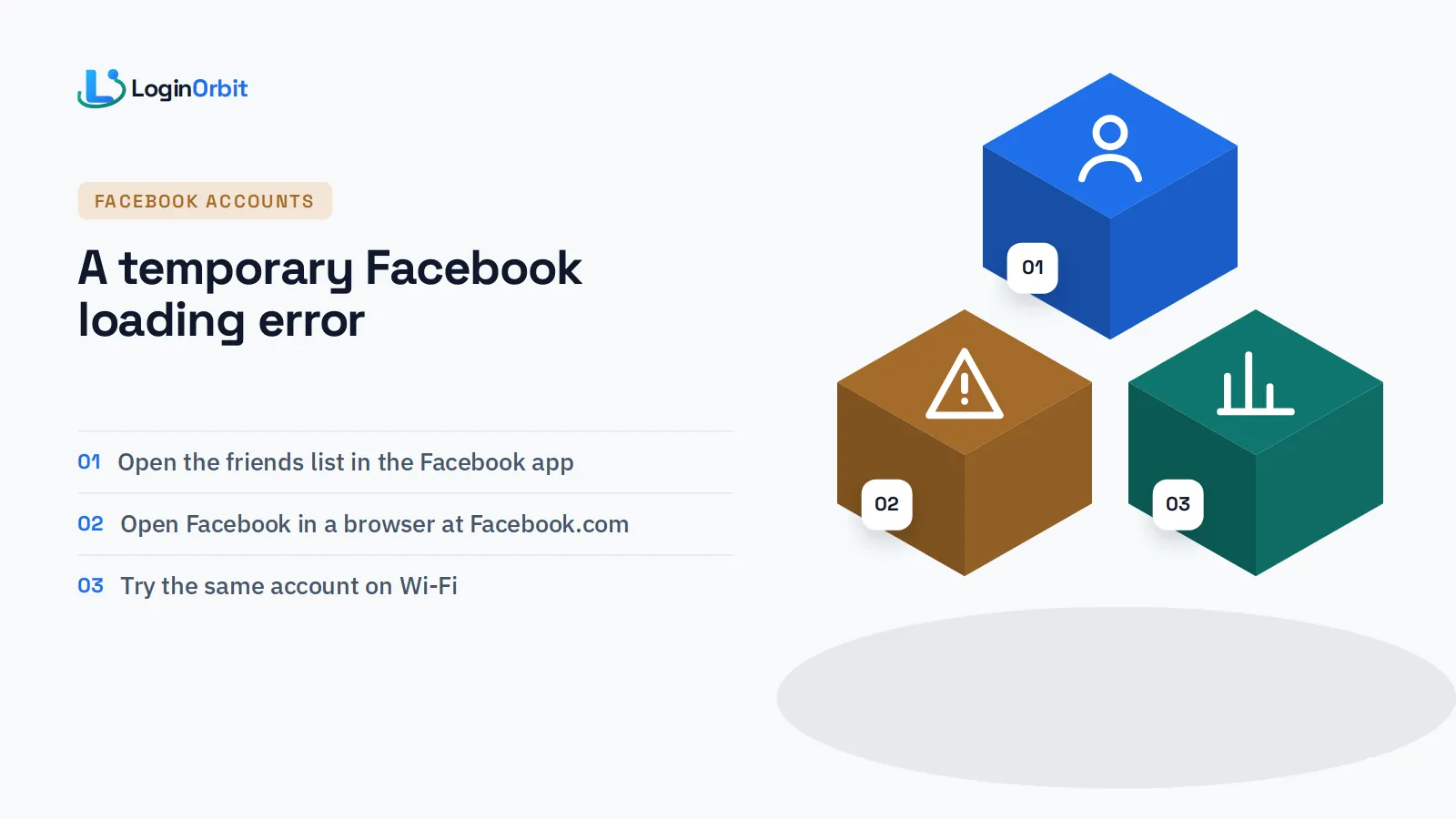
- Open the friends list in the Facebook app.
- Open Facebook in a browser at Facebook.com.
- Try the same account on Wi-Fi.
- Try it again on cellular data.
- Check whether only one list fails, such as Recently Added or Birthdays.
If the list works in one route but not another, the failing app, browser, or connection is the likely cause. If it fails in every route, wait and test again later instead of repeatedly changing account settings.
The fix usually costs only a few minutes. Sign out only after you’ve confirmed that you know your password and can receive any security code Facebook may request. A common mistake is deleting and reinstalling the app before testing the browser; that can waste time and may create a login problem without fixing a Facebook-side error.
Facebook’s own help system is the right place to report a repeated feature failure; use its Report a problem instructions when the list fails across devices and connections.
Don’t assume that a blank list means your friends were removed. A missing friend list and an empty list can look similar, but a profile that still shows your normal friend count points more strongly to a loading problem.
A weak or changing internet connection
A poor connection can stop the friends list from receiving its data even when Facebook’s first screen opens. This cause is different from an app problem: other pages may load slowly, images may stay blank, or the list may work after switching between Wi-Fi and cellular data.
First, open a different website or app that needs the internet. If it also loads slowly, move closer to the Wi-Fi router or switch to cellular data. If you’re on cellular data, check whether Facebook is allowed to use mobile data in your phone’s settings.
Then reload the list after the connection changes. Don’t keep tapping Friends while the connection is unstable. Multiple requests can leave the app showing an old loading screen, so close Facebook completely and open it once after the connection is steady.
If Facebook works on cellular data but not Wi-Fi, restart the router and test again. If every other service works but Facebook alone fails, the connection probably isn’t the main cause. In that case, check the app version, browser, or Facebook service status instead.
The time needed is usually short, but the result depends on whether you control the network. A public, school, work, or managed network may block or filter some traffic. If only that network fails, ask its administrator rather than changing advanced phone or router settings.
An outdated app or damaged cache
An old Facebook app can show a broken friends page after Facebook changes part of its service. A damaged temporary file can cause a similar symptom, especially when the browser version works but the installed app does not.
Check the app store for Facebook before removing anything. Read the installed version and the available version on the app’s official store page. If an update is available, install it over a reliable connection, then restart Facebook.
On Android, you can usually clear Facebook’s cache from the phone’s app settings. Choose Facebook, open Storage or Storage & cache, and select Clear cache. The wording differs by phone maker, so use your phone’s own instructions if those labels aren’t present.
On iPhone, iPad, and some Android phones, there may be no separate clear-cache button. Use Facebook’s in-app storage options if shown, or remove and reinstall the app only after confirming your login details and two-factor authentication method.
The time depends on the app download and your connection. Reinstalling uses more data than clearing a cache, so it’s the better choice only when the app still fails after an update and a full restart. If the browser works but the updated app does not, the app installation is the stronger clue.
Don’t clear app data casually. Clearing data may sign you out and remove local settings, while it won’t repair a Facebook-side account error. If the problem remains after a clean, current installation, move to account checks rather than repeating the same reinstall.
Browser extensions or blocked site data
A browser can load Facebook’s main page while blocking the scripts needed for the friends list. Privacy extensions, ad blockers, blocked cookies, stale site data, and strict browser settings can all change what Facebook can display.
The quickest test is a private or incognito window with the same browser. Sign in only if you’re comfortable doing so, then open the friends list. If it works privately, disable extensions one at a time in the normal window and reload after each change.
You can also test another browser. If the list works there, the Facebook account is less likely to be the problem. Clear site data for Facebook only rather than wiping the whole browser, because a full browser reset can remove saved preferences and sign-ins for unrelated sites.
Check that JavaScript and required cookies aren’t blocked for Facebook. Don’t download an unknown “Facebook repair” extension or browser tool. Those tools can create privacy and account-security risks, and they aren’t needed for a normal loading failure.
A browser fix may take several minutes if you need to identify one extension. If you use a work or school browser, an administrator may control these settings. You’ll need that administrator if the private window and another managed browser both fail in the same way.
The key difference is simple: if the list works in a private window, focus on browser settings; if it fails there and in the app, browser extensions are unlikely to be the main cause.
Less common Facebook list problems
-
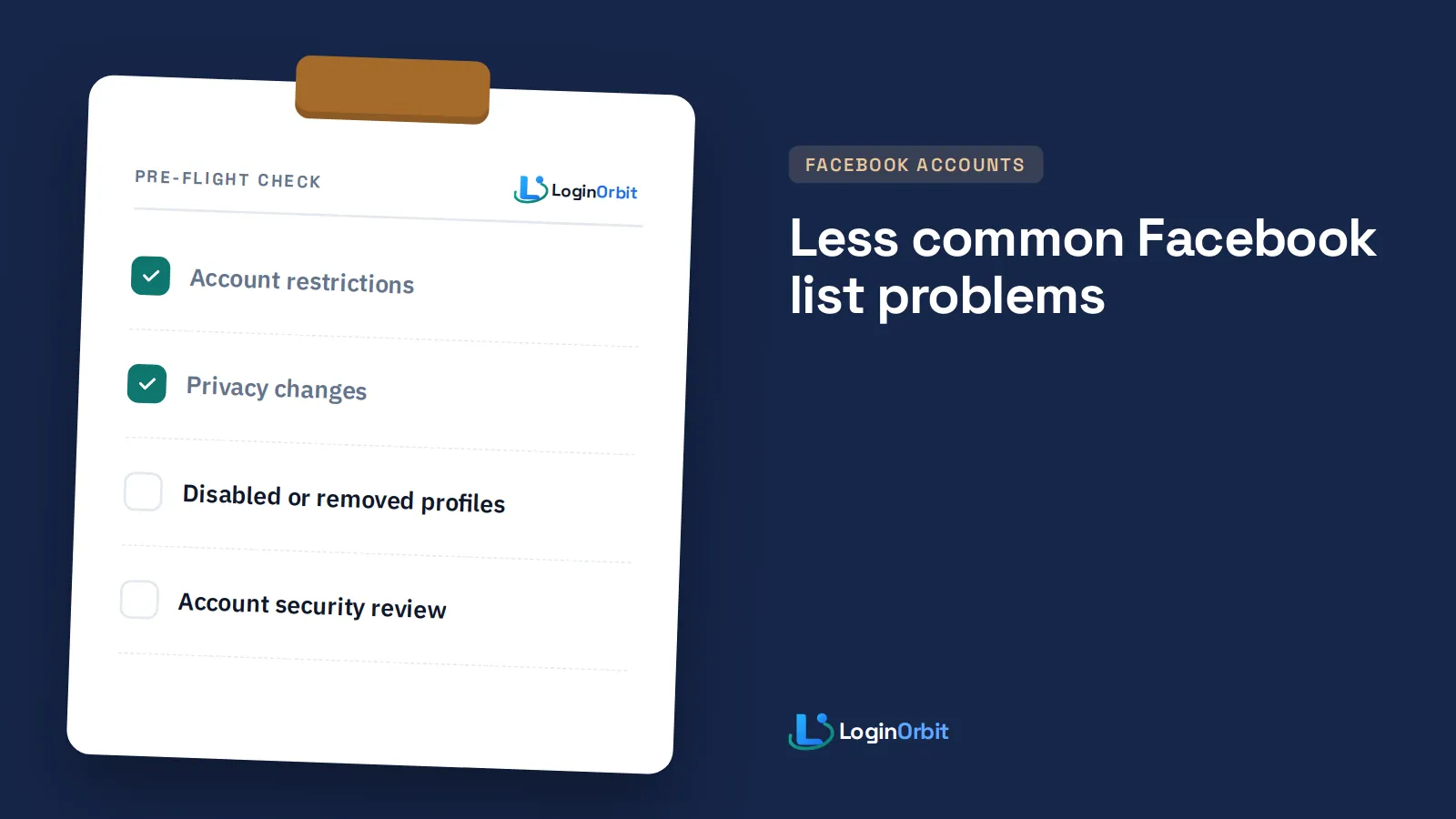
Account restrictions: A temporary feature restriction may affect friends or profile tools; the clue is a warning in Account Status or Support Inbox. Read the notice for its scope and duration, if Facebook provides one, rather than repeatedly refreshing the page.
-
Privacy changes: A changed audience setting can hide some information, but it usually won’t make the entire friends page spin forever. Check whether only certain profiles or details are missing before treating this as a loading failure.
-
Disabled or removed profiles: The list may look different when friends deactivate accounts or are no longer available. Search for a known friend to compare, and check whether the missing person appears in search before changing your own settings.
-
Account security review: Facebook may limit actions after unusual sign-in activity; the clue is a security check or unfamiliar-login notice. Review recent login activity, complete the requested check, and secure the account if the activity wasn’t yours.
-
Facebook service failure: If the list fails on several devices and networks, only Meta can repair the server-side issue. If it works elsewhere, troubleshoot the affected browser, app, or connection instead of assuming Facebook removed your friends.
Don’t change privacy, security, or account settings at random. If Facebook asks for identity confirmation, appeals, or security checks, follow the on-screen process; don’t try to bypass it with unofficial tools.
What fixing the friends list usually involves
A connection fix usually needs only a different network, a router restart, or a full app restart. It’s the lowest-effort option, but it won’t help if other websites load normally and Facebook alone is failing.
An app fix may involve checking the official app store, installing an update, clearing the cache, or reinstalling Facebook. Reinstallation takes more time and data than an update, and you’ll need your login method before you begin.
A browser fix needs a private-window test, a second browser, or removal of one conflicting extension. This is often quicker than reinstalling the app, especially when Facebook works normally on another browser.
An account or service problem needs less hands-on work but more waiting. Check Facebook’s messages and account status, then report the issue if it continues across devices. For a real repair estimate, Facebook’s own support response is the only reliable source; outside repair services can’t directly fix Meta’s servers or account records.
The trade-off is clear: local fixes are faster but can sign you out or remove settings, while server-side problems need patience but don’t require risky changes. If a fix asks for your password outside Facebook, stop.
Our team handles exactly this through Facebook Account Setup & Security Service.
Frequently asked questions
Why is my Facebook friends list not showing?
A temporary Facebook error, weak connection, outdated app, or browser conflict is usually responsible. Test the list in a private browser window and on a second connection first. If it fails in the app, browser, Wi-Fi, and cellular data, the issue is probably account-side or on Facebook’s service. A blank list doesn’t automatically mean your friends were deleted.
Can I fix Facebook friends not loading without reinstalling?
Yes, you can often fix it without reinstalling. Restart Facebook, switch between Wi-Fi and cellular data, update the app, and test the list in a private browser window. Android users can usually clear the app cache. Reinstall only when the current app still fails after those checks and you’ve confirmed your login and security-code access.
How long does it take for Facebook friends to load?
A normal friends list should load within seconds on a stable connection, but Facebook doesn’t publish one guaranteed loading time. If it still spins after closing and reopening the app once, compare the app with a browser. A delay that lasts across several devices and networks points to a service or account problem rather than a slow phone.
Is it safe to clear the Facebook cache?
Yes, clearing the temporary Facebook cache is generally safe because it removes stored temporary files, not your online friends or account. It may make the next launch slower while files are rebuilt. Clearing app data is different: it can sign you out and remove local settings, so confirm your password and security-code method first.
What happens if I reinstall Facebook?
Reinstalling removes the local app installation, then downloads a fresh copy from the official app store. Your Facebook account, friends, posts, and messages remain online, but you may be signed out. You’ll need your password or another approved login method, and two-factor authentication may ask for an additional code.
Does it matter if the list works in a browser?
Yes, it matters because a working browser list points toward an app problem, cache issue, or mobile setting. A list that fails in both the app and browser is less likely to be caused by one installation. Test the browser on the same device first, then use a second network if you need to separate phone problems from Facebook problems.
Why can I see posts but not my friends list?
Posts and the friends page may use different Facebook features, so one can work while another fails. The friends page may be affected by a temporary service error, account restriction, or broken app data. Check the list in a private browser window and look for account warnings. Don’t assume that working posts prove the whole Facebook service is healthy.
What should I do if Facebook friends are still missing?
Check a known friend’s profile and compare the visible friend count with the list. If one profile is missing, that person may have deactivated the account, changed the connection, or blocked you. If the entire list is missing everywhere, record the error and report it through Facebook. Stop trying unofficial recovery tools, especially those requesting your password.
What to do next
If the problem keeps returning, report it through Facebook’s Help Center and include when it happens, which device you use, and any error message you see. Keep checking for app updates while Facebook investigates, and use the browser version as a temporary option so you can stay connected without delay.



