
When Facebook does not load, the cause is usually your internet connection, a browser or app problem, or a temporary Facebook outage. Start by opening another website on the same device. If other sites also fail, restart your router or switch networks. If only Facebook fails, open it in a private browser window or update the app. These checks quickly show whether the problem is your connection, your device, or Facebook itself.
Why Facebook Isn’t Loading and Common Fixes
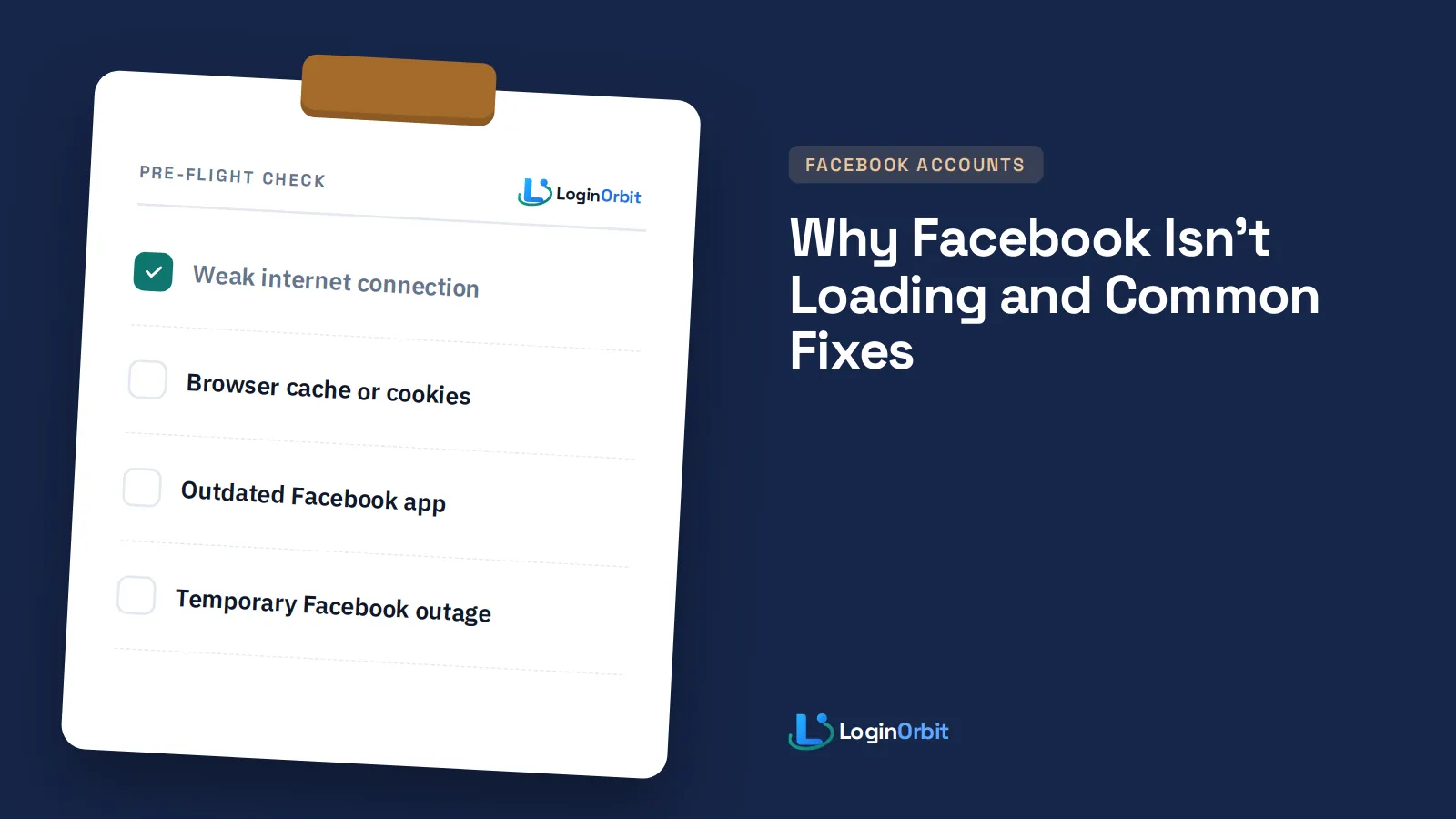
The table below ranks the common causes from most likely to less likely. Check the first three rows before changing account settings or contacting support. If Facebook fails on one device but works on another, focus on the app, browser, or device rather than your account.
| Cause | How common | How to confirm it | Fix it yourself? |
|---|---|---|---|
| Weak internet connection | Very common | Test another website, then switch between Wi-Fi and mobile data | Yes: restart the router or reconnect to the network |
| Browser cache or cookies | Common | Try private browsing; if Facebook works there, the normal session is likely the problem | Yes: clear Facebook’s cached data or cookies, then sign in again |
| Outdated Facebook app | Common | Check app store updates; compare the app with Facebook in a browser | Yes: update the app, then reopen it |
| Temporary Facebook outage | Sometimes | Check Meta service status and ask whether other people have the same problem | Yes: wait and try again later; avoid repeated password changes |
| Device software problem | Less common | Test another device on the same network | Yes with care: restart the device and install pending system updates |
| Account restriction or lock | Less common | Check account messages, email, or Facebook’s login prompts | Yes with care: follow the recovery or verification steps shown |
| Network or security blocking | Rare | Test another network, such as mobile data instead of work or school Wi-Fi | Yes with care: ask the network administrator before changing security settings |
A blank page, endless loading, or an error on every device points more strongly to an outage or account issue. A problem limited to one browser or device usually doesn’t require account recovery. Avoid clearing all browser data until private browsing confirms that cookies or cache are involved, because you may sign out of other sites.
A Weak Internet Connection
A weak or interrupted connection is the most likely reason Facebook won’t load. The page may stay blank, show a spinning circle, or load text without images. Videos and the News Feed usually fail first because they need more data than a simple text page.
Confirm the connection before changing Facebook settings. Open two or three unrelated websites, such as a news site and a search engine. Then try Facebook on both Wi-Fi and mobile data, if your phone plan allows it.
If every website is slow or unavailable, restart your modem and router. Unplug the router’s power cable, wait at least 30 seconds, then reconnect it. Wait until its normal connection lights return before testing Facebook again.
If Facebook works on mobile data but not Wi-Fi, the Wi-Fi network is the problem. Move closer to the router, disconnect other devices that are using heavy bandwidth, or ask the network owner whether Facebook is blocked. If Facebook fails on both networks, continue with the browser or app checks below.
A common mistake is repeatedly refreshing a page while the connection is failing. That can make the device send the same request again and again, but it won’t repair the connection. Test another website instead, because that gives you useful evidence in less time.
The fastest fix depends on the result: if other websites also fail, repair or replace the connection; if only Facebook fails, continue to the next cause. Your router may also show a connection warning, but its lights and symbols vary by model, so read the label or manual on the device rather than guessing.
This fix normally takes only a few minutes and doesn’t require payment. If the connection keeps dropping after a restart, contact your internet provider. Ask them to check the line and service in your area; don’t open the router or change advanced settings unless their support team tells you to.
Browser Cache or Cookies Are Causing Errors
Old browser data can stop Facebook from displaying correctly. A damaged cookie, a failed script, or a browser extension may leave you with a blank page, missing buttons, or a login loop.
The quickest way to separate this cause from a bad internet connection is private browsing. Open an Incognito window in Chrome, a Private window in Firefox or Safari, or the matching option in your browser. Visit Facebook there without copying unusual extensions or saved page data.
If Facebook loads privately, your connection is probably fine. The problem is likely stored browser data or an extension. Close the private window, then disable extensions one at a time, starting with ad blockers, script tools, privacy tools, and VPN extensions.
You can also clear Facebook’s stored site data. In your browser settings, search for site data or cookies, find the entry for Facebook, and remove only that entry if the browser allows it. You’ll probably need to sign in again afterward.
If clearing the data fixes the page, the trade-off is convenience: saved preferences or a remembered login may disappear. If you don’t want to remove everything, delete Facebook’s data only instead of clearing the whole browser history.
Update the browser if private browsing and site-data removal don’t help. The exact menu name depends on the browser and operating system, so use its built-in Help page for the current steps. Don’t install a random “Facebook repair” extension, because it can access browsing information or login details.
If Facebook still fails in a private window while other websites work, the browser probably isn’t the only cause. Try the official Facebook app or a different browser. If one works and the other doesn’t, use the working option while you update or reset the failing browser.
An Outdated or Faulty Facebook App
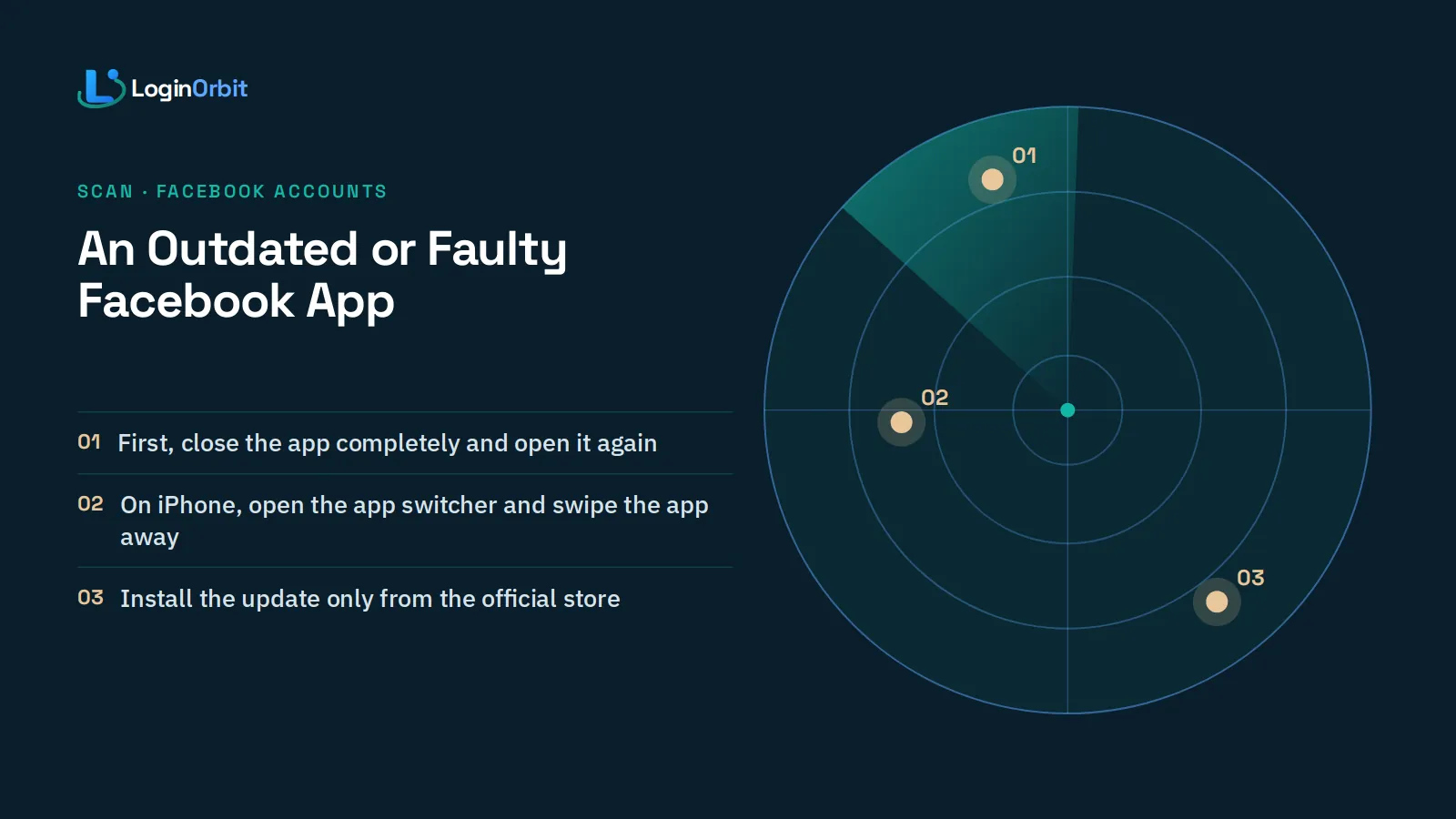
The Facebook app can fail after an update, an interrupted installation, or a conflict with the phone’s operating system. Typical signs include a crash, a blank feed, endless loading, or an app that opens and closes immediately.
First, close the app completely and open it again. On Android, open the recent-apps view and swipe Facebook away. On iPhone, open the app switcher and swipe the app away. Then restart the phone before trying Facebook again.
Next, check the Apple App Store or Google Play Store for an update. Install the update only from the official store. If the store shows no update, check whether the phone itself has a pending system update.
Android users can usually clear an app’s cache from Settings, Apps, Facebook, Storage, and Clear cache. Menu names differ by phone maker and Android version. Clear cache first; clearing app storage is a stronger step that may remove local login information.
On iPhone, there isn’t a universal clear-cache button for every app. Offloading or deleting and reinstalling Facebook can remove local app data. Make sure you know your Facebook login details before doing that.
If Facebook works in a browser but not in the app, the app installation is the stronger suspect. If it fails in both places, check your network, account notices, and Facebook’s service status. The app and browser use different local files, so one working doesn’t prove every part of the service is healthy.
The repair can take a few minutes, plus download time for a large update. It may use mobile data, so use Wi-Fi if your plan has a data limit. If the phone shows storage warnings, free space before reinstalling; a nearly full device may not finish the update.
Less Common Facebook Loading Problems
These causes are less common, but their clues can save you from repeating the same basic checks:
- A Facebook outage affects many users at once; the app and website may both fail while other services work. Check whether the problem appears on both Wi-Fi and cellular data, and ask someone on a different network to test Facebook. If both of you see the same failure, local fixes are unlikely to help.
- A locked or restricted account usually comes with a notice, login warning, or request for identity confirmation. Read the message carefully before trying again, since repeated failed login attempts can add another security check.
- A VPN, workplace filter, school network, or parental-control tool may block Facebook on one network but not another. Turn off the VPN temporarily or switch to cellular data; if Facebook works then, the network policy or filter is the likely cause.
- Incorrect phone date and time can interfere with secure connections; the clue is that other secure websites also show certificate warnings. Set the device to automatic date and time, then reopen Facebook.
- A damaged phone profile or system problem is more likely when several unrelated apps fail, not just Facebook. Restart the device, install pending system updates, and test the affected apps before removing Facebook data.
You can check Meta’s status page when a broad service problem seems possible. Don’t keep changing passwords or deleting account data during a suspected outage, because those actions won’t restore a service that’s unavailable. Wait for the service to recover, then retry once rather than repeatedly submitting login forms.
Stop DIY troubleshooting if Facebook asks for identity documents, your account is disabled, or you suspect someone else accessed it. Use Facebook’s own account-recovery and support screens; don’t give passwords or identity documents to a person claiming to offer private recovery help. If you can still sign in, review recent sessions and sign out devices you don’t recognize.
What Facebook Fixes Usually Require
Connection problems usually need a router restart, a different network, or help from your internet provider. The time cost is small, but the final fix depends on the provider’s line, local service, and your home equipment. If Facebook fails on every device using the same Wi-Fi, test another website before changing Facebook settings. If it works on cellular data but not Wi-Fi, focus on the router or provider rather than the app.
Browser problems need private browsing, extension checks, or removal of Facebook’s stored site data. This is usually easier than reinstalling the operating system, but it can sign you out and remove saved preferences. If Facebook works in a private window, an extension or stored browser data is more likely than a service outage. Disable extensions one at a time so you can identify the cause.
App problems may need an update, a cache clear, or a reinstall. An update uses less effort than a reinstall, while a reinstall can remove more local data. Check that you know your login information first. On a phone, clear the cache before clearing app data when those options are separate; clearing data can reset the app more completely.
Account restrictions need Facebook’s recovery or review process. That route can take longer than a local device fix, and the result depends on the message shown in your account. Read the warning carefully and follow only the instructions inside Facebook’s official screens. Don’t pay someone who promises to bypass a restriction or asks for your password.
If you need paid help, compare the quote with the cost of the device or internet service involved. A simple browser reset shouldn’t require the same level of help as account recovery or a damaged phone. Ask the provider or repair shop to explain what they’ll change before you approve the work. Also ask whether the service includes restoring your settings, files, or access if the first attempt fails.
For hands-on help with this, our team offers Facebook Account Setup & Security Service.
Frequently asked questions
Why is Facebook not loading but other websites are?
Facebook may be having a service problem, or your browser or app may have bad stored data. First, try Facebook in a private browser window and then test the official app. If neither works while other websites load, check Meta’s service status and try another network. If Facebook works on another network, your current Wi-Fi, VPN, filter, or security tool is the likely cause.
Can Facebook be down for everyone?
Yes, Facebook can have a service outage that affects many users at the same time. You’ll often see the website and app fail together, while unrelated websites continue to work. Ask someone on a different network to test Facebook, or check Meta’s status page. If the service is down, waiting is safer than repeatedly changing passwords, reinstalling the app, or changing account settings.
How long does it take for Facebook to start working again?
There’s no reliable fixed time for an outage or account review. A local browser or app problem may take only a few minutes to fix, while an internet-provider fault can last longer. The deciding clue is where Facebook fails: one browser points to local data, every device points to the service or network, and an account notice points to Facebook’s review process.
Is it safe to clear Facebook cache?
Yes, clearing an app cache is generally a low-risk troubleshooting step, but it can remove temporary files and may sign you out on some devices. Clear the cache, not the app’s full storage, unless you’re ready to enter your login details again. On a browser, remove Facebook’s site data rather than wiping every saved password or browsing record.
What happens if I reinstall the Facebook app?
Reinstalling removes the app and its local files, but it doesn’t delete your Facebook account. You’ll need your login details and may need to set permissions again. Download the app only from the Apple App Store or Google Play Store. If the problem also appears in a browser, reinstalling probably won’t fix the main cause.
Does it matter which network I use?
Yes, it matters because a workplace, school, public Wi-Fi, VPN, or home filter may block Facebook. Test the same device on a different trusted network, such as mobile data. If Facebook loads there, change or remove the blocking setting only if you’re authorized to do so. If it fails everywhere, focus on the app, browser, account, or Facebook’s service.
What to do next
If the problem continues, check Facebook’s official status page and report the issue through the Help Center. Include your device type, app or browser version, and when the problem began. This information can help identify a wider outage or give support enough detail to suggest a lasting solution.



