
Setting up Facebook Business Manager for an agency means creating one central Meta business portfolio, verifying your company, connecting client assets, assigning staff access, and establishing billing and security rules before launching campaigns. The right structure keeps ownership with each client while giving your agency the access it needs to manage Pages, Instagram accounts, ad accounts, pixels, catalogs, and datasets.
Key Takeaways
- Create the agency’s business portfolio with a permanent company email, not an employee’s personal account.
- Keep client ownership separate from agency access whenever possible.
- Use partner access for client assets instead of transferring Pages or ad accounts into your agency.
- Require two-factor authentication, assign role-based permissions, and remove former staff promptly.
- Verify the business before requesting higher spending limits, advanced features, or certain advertising permissions.
- Record every asset ID, access level, billing method, and client approval in one shared asset register.
Understand Business Manager
Meta has changed some labels over time. You may see “Business Manager,” “Business Account,” or “business portfolio” in Meta’s interface.
A business portfolio differs from a Facebook Page, personal profile, or ad account:
- A personal profile identifies an individual who logs in.
- A Facebook Page represents a business, organization, public figure, or brand.
- An Instagram professional account publishes content and connects to business tools.
- An ad account stores campaigns, billing settings, payment methods, and reporting data.
- A business portfolio controls access to several assets from one administrative layer.
- A Meta Pixel or Conversions API dataset sends website or server events for measurement and optimization.
- A catalog stores products, services, inventory, or other items used in ads.
An agency normally needs its own portfolio even when clients already have portfolios.
Important distinction: Business Manager doesn’t make your agency the legal owner of connected assets. It manages access and administration. Ownership depends on how the asset was created or assigned.
Choose the right structure
There are three common setups:
- Client-owned assets with agency partner access: Best for most agencies. The client owns the assets, and the agency receives permission to work on them.
- Agency-owned assets: Suitable for agency-owned lead-generation brands, internal campaigns, or a clearly documented managed-service model.
- Mixed ownership: Common when a client owns its Page and Instagram account but the agency owns a temporary ad account or reporting dataset. This requires written terms and an exit plan.
Don’t create every client asset inside the agency portfolio just because it’s faster.
Prepare Before Creating It
Gather the information and decisions below before opening the setup screen. Preparation prevents the most common problem: building a portfolio around an email address, credit card, or personal account that the agency later loses access to.
Required information
Prepare:
- Legal business name exactly as it appears on registration documents
- Public business address and business phone number
- Agency website using the company’s own domain
- A company email address, such as [email protected]
- Primary administrator’s personal Facebook profile
- Names and work emails of initial employees or contractors
- Client legal names and authorized contacts
- Existing Page URLs, Instagram usernames, ad account IDs, pixel IDs, catalog IDs, and domain names
- Preferred currency, time zone, invoicing details, and payment owner
Meta may request verification documents. Examples include formation certificate, business license, tax registration, utility bill, or bank statement.
Decide who owns billing
Don’t treat billing as a minor setup detail.
| Billing model | Who pays Meta | Best use | Main risk |
|---|---|---|---|
| Client ad account | Client | Long-term client relationships | Agency may lack payment visibility |
| Agency ad account | Agency | Resold media or tightly controlled service | Client may dispute ownership |
| Client card on client account | Client | Transparent managed campaigns | Client payment failure pauses ads |
| Monthly agency invoice | Agency | Bundled media management | Agency carries collection risk |
For durable relationships, a client-owned ad account with a client-controlled payment method is usually the clearest arrangement.
Warning: Never store a client’s card details in a shared document or send them through ordinary email. Use the ad account’s billing interface and limit financial permissions to people who genuinely need them.
Create the Agency Portfolio
You need a personal Facebook profile to create or administer a business portfolio, but that profile shouldn’t be used as the agency’s public brand identity.
Step-by-Step Facebook Business Manager Setup for an Agency
- Sign in to the Facebook account that will become the initial agency administrator.
- Open Meta Business Suite or Business Settings.
- Choose the option to create a business portfolio or business account.
- Enter the agency’s legal or trading name, your name, and a permanent company email.
- Confirm the email address through the verification message.
- Add the agency website, business address, phone number, and other requested details.
- Select the agency’s primary business category.
- Review the portfolio name and information for spelling and legal accuracy.
- Add a second trusted administrator after confirming the portfolio works.
- Record the business portfolio ID in your internal asset register.
Buttons may move as Meta updates its interface. Look for Business Settings, Users, Accounts, Data Sources, Billing, Security Center, and Business Info.
Configure business details
Complete the agency profile before inviting staff or clients. Add:
- Legal business name
- Street address
- Website
- Contact phone number
- Business category
- Time zone
- Currency
- Tax information where applicable
Currency and time zone settings can affect reporting and billing workflows.
Meta’s business verification can require evidence that the agency is real and that the submitter is authorized to represent it. Use consistent details across your website, registration records, and portfolio profile. The legal business name and address in the portfolio must match your official documents exactly.
Secure Access From Day One
Security is part of account setup, not a later improvement. A compromised administrator can expose Pages, export audiences, change payment methods, publish fraudulent ads, or remove staff.
Add people with roles
Invite employees using their work email addresses. Select only the access needed:
- Employee access: Appropriate for most staff and contractors.
- Full control: Reserve for owners or senior administrators.
- Finance editor: For people who need to manage invoices or payment settings.
- Finance analyst: For people who need to view financial information without changing it.
- Partial asset access: Best for a specialist who needs one Page, ad account, or dataset.
Use named accounts, not shared logins.
| Role | Typical responsibilities | Avoid granting when |
|---|---|---|
| Agency owner | Portfolio settings, security, recovery | Person is a short-term contractor |
| Account strategist | Campaigns, reporting, planning | They don’t work on paid media |
| Media buyer | Ads, budgets, audiences | They shouldn’t alter billing |
| Creative specialist | Posts, media, ad creative | They don’t need ad account control |
| Analyst | Reports, insights, dashboards | They don’t need publishing rights |
| Contractor | Limited assigned assets | Work isn’t documented or supervised |
Meta’s labels may vary by asset.
Enforce security controls
Turn on two-factor authentication for everyone, preferably with an authenticator app or security key.
- Administrators use company-managed devices where possible.
- Employees never share passwords or authentication codes.
- Contractors receive expiration dates and limited assets.
- Former employees lose access on their last working day.
- Access is reviewed at least monthly.
- Suspicious notifications are reported immediately.
- Recovery codes are stored in an approved password manager.
Pro Tip: Keep two active senior administrators, but don’t give full control to every manager. Redundancy prevents lockout; excessive privilege increases risk.
Connect Agency Assets
Add assets that the agency genuinely owns or operates internally. These might include the agency’s own Facebook Page, Instagram account, ad account, domain, pixel, dataset, catalog, or WhatsApp business account.
Add a Facebook Page
In Business Settings, open Accounts, choose Pages, and select Add.
- Add a Page the agency already owns
- Request access to a Page owned by another business
- Create a new Page
Use “Request access” for a client-owned Page. A Page may already belong to another business portfolio, which can prevent a second business from claiming ownership.
Connect Instagram
Add the Instagram professional account through Accounts and Instagram Accounts. The person connecting it needs access to the Instagram account and sometimes its connected Facebook Page.
Check these items:
- The account is professional, not personal-only.
- The login uses a current email and phone number.
- Two-factor authentication is enabled.
- The correct Facebook Page is connected.
- The agency has the intended publishing and advertising permissions.
Add ad accounts
Ad accounts can be added, requested from another business, or created. Before creating one, confirm:
- Who legally owns the account
- Who pays the bills
- Which currency and time zone it needs
- Whether it will serve one client or several brands
- Who receives billing notifications
- Whether the client needs historical ownership and reporting
A client should usually create or own its ad account and then add the agency as a partner. If your agency creates it, document ownership, payment, retention, and transfer terms before spending.
Connect data sources
Pixels, datasets, catalogs, offline event sets, domains, and custom conversions may appear under Data Sources. Assign only the people and ad accounts that require each source.
For website tracking, coordinate with the client’s technical team. Confirm the domain, event priorities, consent, and technical owner. Don’t install tracking code without written authorization.
Add Clients as Partners
Partner access lets two businesses collaborate without merging their portfolios. The client retains ownership; the agency gets selected permissions.
Request access from a client
Ask for the client’s portfolio ID or send your agency’s ID.
| Client asset | Agency access commonly needed | Client should retain |
|---|---|---|
| Facebook Page | Content, messages, ads, insights | Full control and ownership |
| Instagram account | Content, ads, insights | Login recovery and ownership |
| Ad account | Manage campaigns and view performance | Billing and ownership |
| Pixel or dataset | View and manage events | Data governance control |
| Catalog | Manage products and ads | Product feed ownership |
| Domain | View or manage verification | Domain registration control |
Request only needed access.
Send a partner request
From your agency portfolio:
- Open Business Settings.
- Go to Partners.
- Select Add.
- Choose the option to give a partner access to assets.
- Enter the client’s business portfolio ID.
- Select each relevant asset.
- Choose permissions for each asset.
- Send the request.
- Ask the client’s authorized administrator to approve it.
- Confirm the connection by checking People, Partners, and asset assignments.
The client can instead initiate the relationship from its own portfolio. Either method works as long as both sides verify the business ID and asset list.
Warning: Confirm the recipient’s business ID through a trusted channel. A single incorrect digit can send access to the wrong organization.
Verify the Business
Business verification is separate from verifying an individual profile, Page, or Instagram account. It’s a review of the business entity and its contact information.
Meta may ask for verification when the agency requests certain products, increases operational limits, runs regulated advertising, or needs to establish business identity. The availability and requirements can differ by country and account history.
Verification checklist
Before submitting:
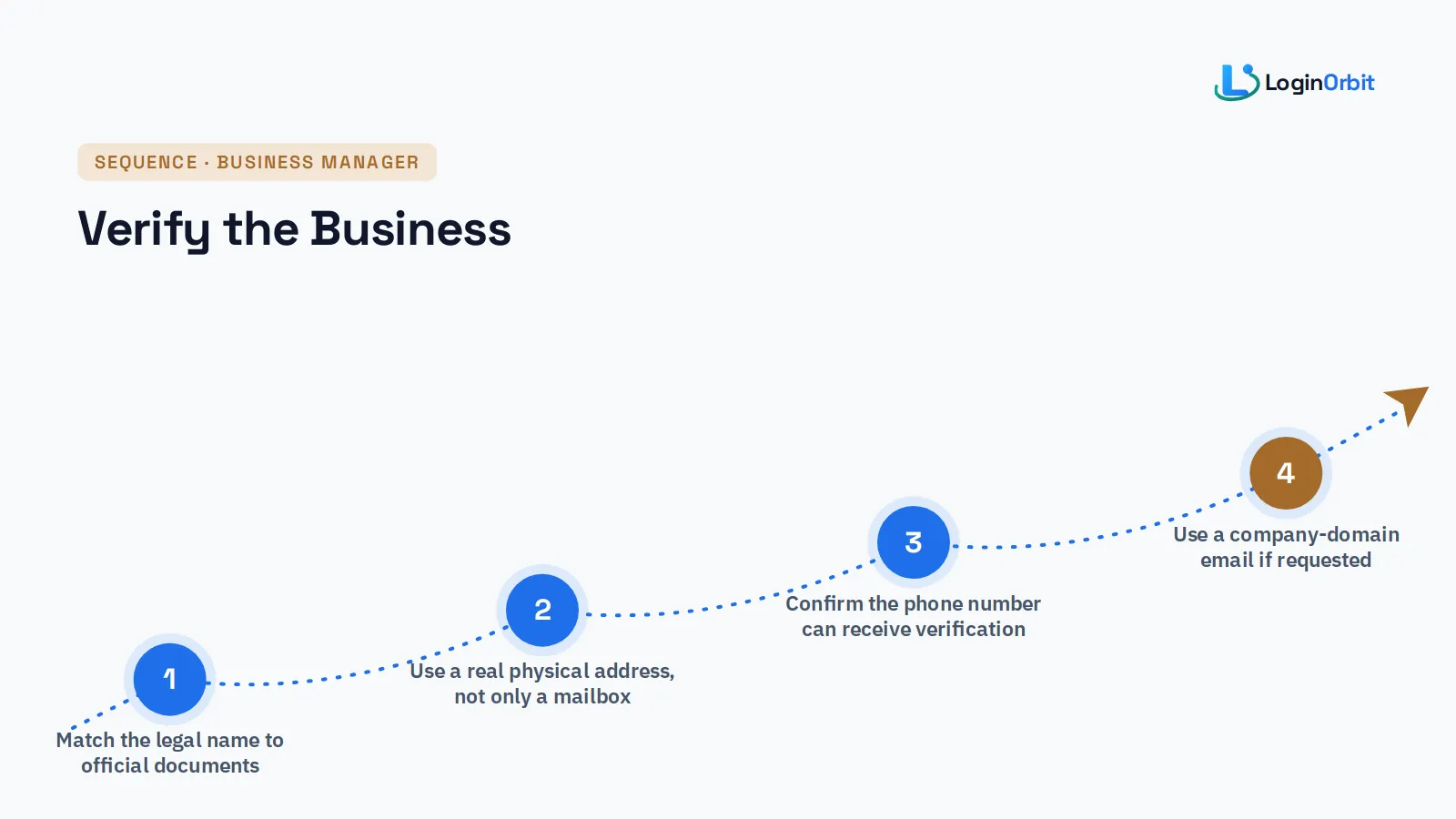
- Match the legal name to official documents.
- Use a real physical address, not only a mailbox.
- Confirm the phone number can receive verification.
- Use a company-domain email if requested.
- Make sure the website clearly identifies the agency.
- Ensure the person submitting is authorized.
- Upload clear, unedited documents.
- Check that documents are current and readable.
- Avoid submitting multiple conflicting versions.
If verification fails, read the precise reason rather than repeatedly resubmitting the same files.
A verified business isn’t automatically approved for every advertising category or policy exception. Advertising policies, identity checks, payment reviews, and restricted-category requirements remain separate.
Set Up Billing Correctly
Billing settings belong to the ad account, not simply to the agency portfolio. An agency can administer several client ad accounts while each account uses a different payment method and billing arrangement.
Create a billing workflow
For every client, document:
- Ad account ID
- Account owner
- Payment method owner
- Spending limit or approval threshold
- Invoice recipient
- Tax information
- Billing currency
- Who may add or remove payment methods
- What happens when payment fails
- Who receives payment and policy alerts
Start with a low test budget and confirm the correct ad account, Page, Instagram identity, pixel, and payment method.
Don’t promise an agency can override Meta’s payment holds, spending limits, disabled accounts, or identity checks.
Separate service fees
Separate agency management fees, creative fees, and media spend in proposals and invoices. A client should be able to tell whether a charge came from Meta, the agency, a contractor, or a production vendor.
Keep approvals for:
- Monthly budgets
- Campaign launches
- Large budget increases
- New payment methods
- Lead-download access
- Custom audience uploads
- Regulated or sensitive advertising categories
Test and Document Everything
A portfolio isn’t finished when invitations are accepted. Test each workflow with a controlled action before the first live campaign.
Run a launch checklist
| Test | Expected result | Owner |
|---|---|---|
| Staff invitation | Correct person accepts | Agency admin |
| Page assignment | Staff can perform agreed task | Account lead |
| Instagram connection | Correct identity appears in ads | Social lead |
| Ad account access | Buyer can build a draft | Media lead |
| Pixel or dataset | Events appear correctly | Developer |
| Billing | Correct payer and alerts are visible | Finance owner |
| Lead access | Authorized staff can retrieve leads | CRM owner |
| Two-factor authentication | All required users comply | Security owner |
Create a client asset register with columns for portfolio ID, Page ID, Instagram username, ad account ID, pixel or dataset ID, catalog ID, domain, owner, agency permissions, billing owner, verification status, and last review date.
Store the register in a controlled workspace. Keep passwords, authentication codes, and payment card numbers out of it.
Establish an offboarding process
When a client leaves:
- Confirm the termination date and final reporting period.
- Stop campaigns according to the contract.
- Return or transfer client-owned assets if needed.
- Remove agency partner access.
- Remove staff access to the client’s assets.
- Export approved reports and deliverables.
- Confirm outstanding billing.
- Record the completion date in the asset register.
When an employee leaves, remove the person from the portfolio, business Page, ad accounts, datasets, catalogs, and connected tools. Check active sessions and connected third-party applications as well.
Troubleshoot Common Problems
The client can’t find the request
Ask the client’s administrator to check Business Settings, Partners, notifications, and email. Confirm that you sent the request to the correct business portfolio ID.
The Page is already owned
A Page can be owned by another portfolio, often a former agency or employee-created business. The owner may need to remove ownership or grant partner access.
The Instagram account won’t connect
Check that the Instagram account is professional, the login is current, the Page is correct, and no former employee controls it. Re-authentication and removing an obsolete connection may be necessary.
The ad account is unavailable
The account may belong to another portfolio, be disabled, hit an account limit, or face payment or policy restrictions. Identify the actual owner first.
Staff can see an asset but can’t use it
Portfolio access and asset permission are separate. Reopen the specific asset and check its task permissions. Also confirm that the person is using the correct Facebook profile.
Billing is rejected
Check the payment method, billing address, currency, balance, spending limit, and security alerts. If the account is under review, gather the requested documentation and follow the review path.
Related guides
- How to Create a Facebook Business Manager (Business Portfolio)
- How to Set Up a Facebook Account the Right Way
- Why Every Business Manager Needs a Backup Admin
If you would rather have this handled for you, our Facebook Business Manager Setup Service | LoginOrbit service covers it end to end.
Frequently Asked Questions
Does an agency need its own Business Manager?
Yes, an agency should usually maintain its own business portfolio for staff, internal assets, security policies, and partner relationships. Clients should generally retain ownership of their own Pages, ad accounts, Instagram accounts, pixels, catalogs, and domains.
Should the agency or client own the ad account?
The client should usually own the ad account for a long-term engagement. This preserves billing history, audiences, reporting continuity, and control after the agency relationship ends. An agency-owned account can work, but ownership, payment, data, and transfer terms should be written clearly.
Can one Business Manager manage multiple clients?
Yes. An agency portfolio can receive partner access to assets from multiple client portfolios. Keep each client’s assets clearly labeled, assign only necessary permissions, and review access regularly so one client’s staff or contractor can’t reach another client’s data.
How many administrators should Business Manager have?
Maintain at least two trusted senior administrators to reduce lockout risk, but give full control only to people responsible for portfolio governance. Most buyers, analysts, creatives, and contractors should use limited access to specific assets.
What is the difference between a Page and an ad account?
A Page represents the public business identity used for posts, messages, and social presence. An ad account stores campaigns, ads, budgets, billing, audiences, and performance data. A campaign can use a Page identity without the Page and ad account being the same asset.
What should happen when an agency loses a client?
Stop work according to the contract, deliver approved reports, remove staff access, remove partner access, and return or transfer assets the client owns. Keep only records your contract and applicable law require, and document the exact date access ended.
What to do next
Set up the agency portfolio with client ownership, least-privilege access, verified business information, and documented billing before launching ads. Your next step is to create the asset register, gather each client’s business portfolio ID, and schedule a short access test with one authorized client administrator.



