
The usual reasons facebook keeps logging you out are a bad saved session, an old app, or a security check. Start by signing out of Facebook on every device, updating the app, and signing in again. If the problem returns only in one browser, clear Facebook’s site data there. If it returns on every device, check your account security and password before trying more advanced fixes.
Why Facebook Keeps Logging You Out
These causes are ordered from the ones that happen most often to the ones that need more careful checking. Start with the row that matches where the logout occurs: one app, one browser, or every device. That detail prevents you from changing account settings when the problem is only local.
| Cause | How common | How to confirm it | Fix it yourself? |
|---|---|---|---|
| Damaged login session | Very common | Happens in one app | Yes |
| Outdated Facebook app | Common | Update is available | Yes |
| Browser cookies blocked | Common | Browser only | Yes |
| Account security review | Less common | Security alerts appear | Yes with care |
| Wrong phone date and time | Less common | Other apps also fail | Yes |
| Password changed elsewhere | Uncommon | Unknown login notices | Yes with care |
| Account or device issue | Rare | Every fix fails | No |
Before reinstalling Facebook, check whether Facebook works in a browser or on another device. If it does, focus on the affected app, its update, or its stored session. If every device logs you out, review security alerts and recent login activity first.
Don’t repeatedly enter a password after an unknown-login warning. Confirm that the account is yours, change the password through Facebook’s official settings, and remove sessions you don’t recognize. When no fix works and the account fails everywhere, use Facebook’s recovery process rather than creating a second account.
A Damaged Facebook Login Session
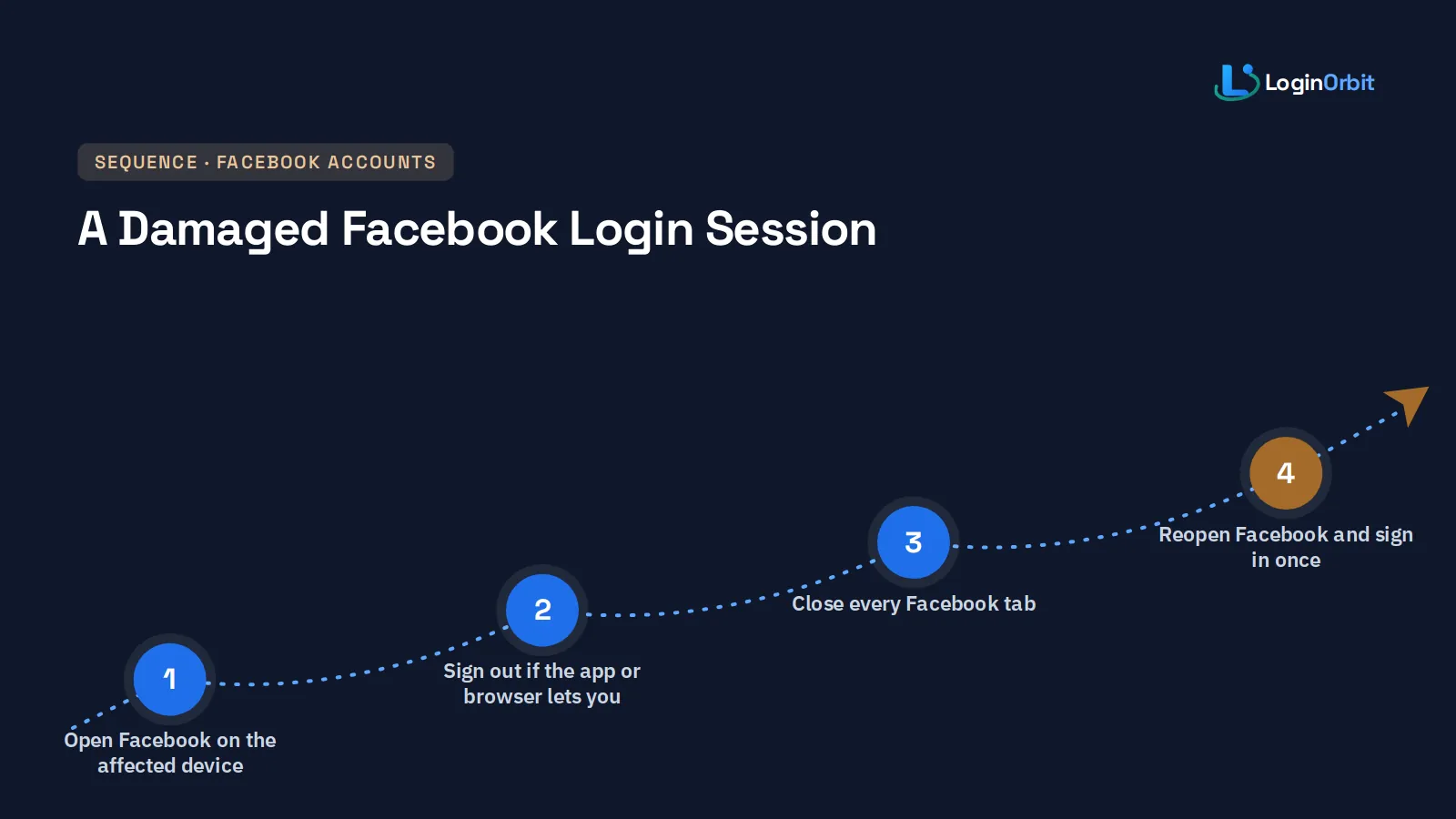
A damaged login session is the most likely cause when Facebook logs you out without showing a clear warning. The app or browser still has old sign-in data, but Facebook no longer accepts that data. The result is a repeated return to the login screen.
This often affects one device, not every device. If Facebook works normally on your phone but logs you out on your computer, the browser session is the better suspect. If it happens only in the app, repair the app session first.
Check the cause in this order:
- Open Facebook on the affected device.
- Sign out if the app or browser lets you.
- Close every Facebook tab.
- Reopen Facebook and sign in once.
- Use Facebook for several minutes.
- Close and reopen it to test the session.
If the logout returns, remove Facebook’s saved site data or app data. On a browser, open the privacy or site-settings area and delete data for Facebook only. Don’t delete all browsing data unless you’re comfortable signing out of other websites.
On Android, the path is usually Settings > Apps > Facebook > Storage, then choose the option to clear cache. If that doesn’t help, clearing app storage removes the local session and may require a complete sign-in. Menu names can differ by phone maker, so check your phone’s settings help if you can’t find them.
On an iPhone or iPad, iOS doesn’t offer the same clear-storage button for every app. Delete Facebook, restart the device, and reinstall it from the App Store. Your Facebook account won’t be deleted, but you’ll need your password or another approved login method.
The fix normally takes only a few minutes, but reinstalling uses more time and mobile data. It’s the better trade-off when the app keeps restoring the same broken session.
A common mistake is repeatedly entering the password without resetting the session. That can trigger extra security checks and wastes time without removing the damaged local data. If signing out and clearing the affected device changes nothing, move to the security checks below.
An Outdated App or Browser
An old Facebook app or browser can lose compatibility with current sign-in features. This cause is different from a damaged session: an update is available, or the problem appears after an app or browser update failed.
Check the app store for Facebook updates. On a computer, update the browser from its own settings menu, then restart it. Don’t download a browser update from a pop-up or an unknown website.
Test Facebook in a private or incognito window. This starts a temporary browser session with most saved extensions and cookies separated. If Facebook stays signed in there but not in the normal window, the problem is probably stored browser data or an extension.
Disable browser extensions one at a time, starting with ad blockers, privacy tools, and password managers. Test Facebook after each change. If the logouts stop, turn the extensions back on one by one to identify the conflict.
Browsers also have cookie controls. Facebook needs its sign-in cookies to remain available between visits. If your browser deletes cookies when it closes, you’ll be signed out each time; change that setting only for Facebook if possible.
Use the official Facebook help guidance for Facebook login alerts when the logout comes with a security warning or an unfamiliar-device message. The wording and menu choices can change, so follow the options shown on your own account.
Don’t keep using a browser that no longer receives security updates. If the update option is missing, check the browser maker’s official documentation. A supported browser is safer than trying to force an old version to keep working.
Blocked Cookies or App Permissions
Blocked cookies can make Facebook forget your login after you close the browser. The clue is simple: the logout happens mainly after closing the browser, restarting the device, or using private browsing. If Facebook logs you out while you’re still using the site, cookies are less likely to be the cause.
Open the browser’s privacy settings and search for “cookies” or “site data.” Allow cookies for Facebook, and check whether the browser is set to delete site data when it closes. If it blocks all cookies, change that setting only if necessary, or create an exception for Facebook.
Make sure the exception applies to the Facebook address you actually use, rather than adding an unrelated site. Some browsers separate settings for regular and private windows, so test in a normal window first. Sign in, close the browser completely, reopen it, and check whether the session remains.
If third-party cookie settings affect a login flow, change one privacy setting, reopen Facebook, and test the result so you know what helped; restore it if it makes no difference.
A browser extension may delete cookies even when the browser allows them. Pause extensions that clear browsing data, then test a normal window. If the problem stops, review that extension’s rules before deciding whether to keep it. Extensions that automatically erase data at shutdown are especially important to check.
On a phone, browser cookies affect Facebook in the browser, not necessarily the Facebook app. Check whether a battery saver or security app is restricting Facebook in the background. These tools can close apps or remove temporary data, but their names and controls differ by device. Use the phone maker’s instructions rather than guessing at hidden settings.
If Facebook stays signed in on another browser, use that result to narrow the issue. If it logs out everywhere, cookies probably aren’t the main cause. If the logout happens after every browser close, check cookies first; if it happens while you’re actively using Facebook, check account security and the app session.
Less Common Facebook Logout Causes
-
A password change on another device can end older sessions. An email or notification about a password change points to this cause, especially if the logout began immediately afterward. If you made the change, sign in through the Facebook app or by typing Facebook’s address yourself, then review active sessions and remove devices you don’t recognize.
-
An unfamiliar login can trigger a security review. Check Facebook’s account alerts before approving any device; locations may be approximate, so compare the device type and time with your own activity. If you don’t recognize the login, deny it, change your password, and complete Facebook’s security prompts rather than repeatedly trying to sign in.
-
An incorrect phone date or time can interfere with secure connections. The clue is login trouble in other apps too, not just Facebook. Turn on automatic date and time, confirm the time zone, and restart the device before testing Facebook again. If only Facebook fails, look for an app-specific problem instead of changing the phone clock repeatedly.
-
A damaged operating-system profile can affect sign-in. The clue is that a separate device user account works normally with the same Facebook account. Use the working profile temporarily, then repair or replace the affected profile only after backing up its data.
Don’t reset network settings, edit system files, or install unofficial Facebook versions just to stop a logout. Those steps can remove saved connections or expose your account. If Facebook rejects the password, shows identity checks, or reports suspicious activity, stop and use Facebook’s account recovery process.
What Fixing Facebook Logouts Usually Takes
The easiest fix is usually a clean sign-in. Sign out, close Facebook completely, reopen it, and sign in again. This takes little time and needs no tool. It’s most useful when the issue affects only one device or started after the app was left open for a long time.
If Facebook logs you out again immediately, check whether the same thing happens in a different browser or on another device. A problem on one device points to local app or browser data. A problem everywhere points more toward a password change, security check, account restriction, or service issue.
Clearing browser data takes a little longer because you may need to sign in again. The main cost is losing saved sessions, not your Facebook account or posts. Clear Facebook’s cookies and site data only when possible, so you don’t disrupt every website you use. Before clearing anything, make sure you know the email address or phone number and password used for sign-in.
Updating or reinstalling the app takes more time and uses storage and download data. Reinstallation is useful when local files are damaged or the app behaves differently from the browser. It won’t solve a locked account, a changed password, or a security challenge. Check for an update first if your connection or storage is limited.
Security problems need more care than app problems. You may need access to your email, phone number, an authenticator app, or another trusted device. Don’t keep guessing passwords, because repeated failed attempts can trigger additional checks. Don’t pay anyone who promises instant account recovery; use Facebook’s own recovery screens.
The real cost depends on your device, internet connection, and account access. For a repair quote or technical help, contact the device maker, your organization’s IT team, or a reputable local technician. Tell them the exact device, app version, browser version, and time the logout occurs.
This troubleshooting path isn’t for someone whose account shows unauthorized access, identity verification, or a disabled-account message. In that case, account recovery is safer than repeated password attempts. Facebook’s security checks and menus change over time, so follow the alert text shown on your account.
When you want it set up without the guesswork, Facebook Account Setup & Security Service is the place to start.
Frequently asked questions
Can Facebook log me out because someone hacked my account?
Yes, but a logout alone doesn’t prove hacking. A password-change email, an unfamiliar login location, messages you didn’t send, or changed account details are stronger clues. Check Facebook’s recent login activity and secure the account if anything looks wrong. Change the password from a trusted device, remove unknown sessions, and turn on two-factor authentication if Facebook offers it for your account.
Why does Facebook keep logging me out on my phone?
The usual causes are damaged app data, an outdated app, or a phone setting that clears temporary data. Update Facebook first, then sign out and reopen it. On Android, clear the app cache; if that fails, clear its storage. On iPhone, delete and reinstall the app. If another phone stays signed in, the issue is local to your device.
How long does Facebook stay logged in?
Facebook can stay logged in until you sign out, clear its data, change the password, or Facebook ends the session for security. There’s no single fixed time that applies to every account and device. A logout after every app close points to local data or device settings. A sudden logout on all devices points more toward account security.
Is it safe to clear Facebook app data?
Yes, clearing Facebook app data is generally safe for the account, but it removes the local login and settings. You’ll need to sign in again afterward. Make sure you know the password and can access any required security code first. Don’t clear data if you can’t complete account recovery, because you may lose the only active session that still works.
What happens if Facebook logs me out everywhere?
You’ll need to sign in again on each device, and Facebook may ask for extra security confirmation. If you caused the logout by changing the password, this can be expected. If it happened without your action, review account alerts before continuing. Unknown devices, changed contact details, or messages you didn’t write mean you should secure the account first.
Does it matter which browser I use for Facebook?
Yes, the browser matters when cookies, extensions, or outdated software cause the logout. Test Facebook in a supported, updated browser without extensions. If it works there, repair the original browser’s cookie settings or remove the conflicting extension. If every browser and device logs you out, changing browsers won’t fix the main problem; check the account instead.
What to do next
If Facebook still signs you out after these checks, contact Meta Support and include your device, browser, and the time the problem happens. Review recent login alerts while you wait, and don’t share your password with anyone claiming they can fix the account. Facebook will never ask for your password or a login code by email, message or comment.



